
How to set up avatars for commenters
Updated about 1 month ago
Browse All
Avatars are the small pictures that sit beside each comment. You get to decide whether they show at all, how tame they need to be, and what appears for commenters who haven't set one up.
Before you start
- An administrator account — only administrators can change discussion settings.
- Commenters who want their own photo need a Gravatar account, which is free and tied to their email address.
Steps
Open the Discussion settings
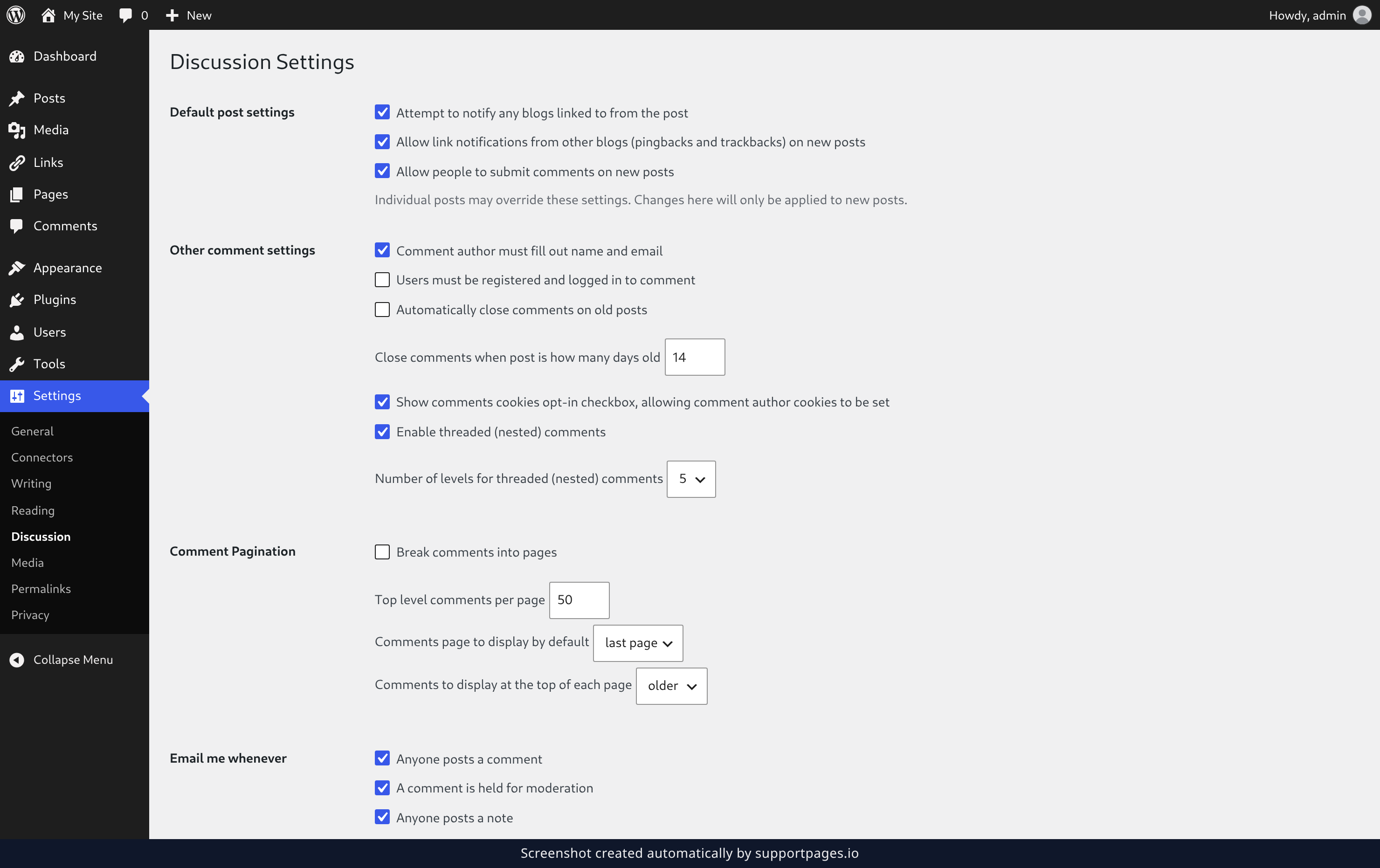
In your dashboard, open Settings and choose Discussion. The avatar options live at the bottom of that page under the Avatars heading, so scroll down to find them.
Turn avatars on and set a rating
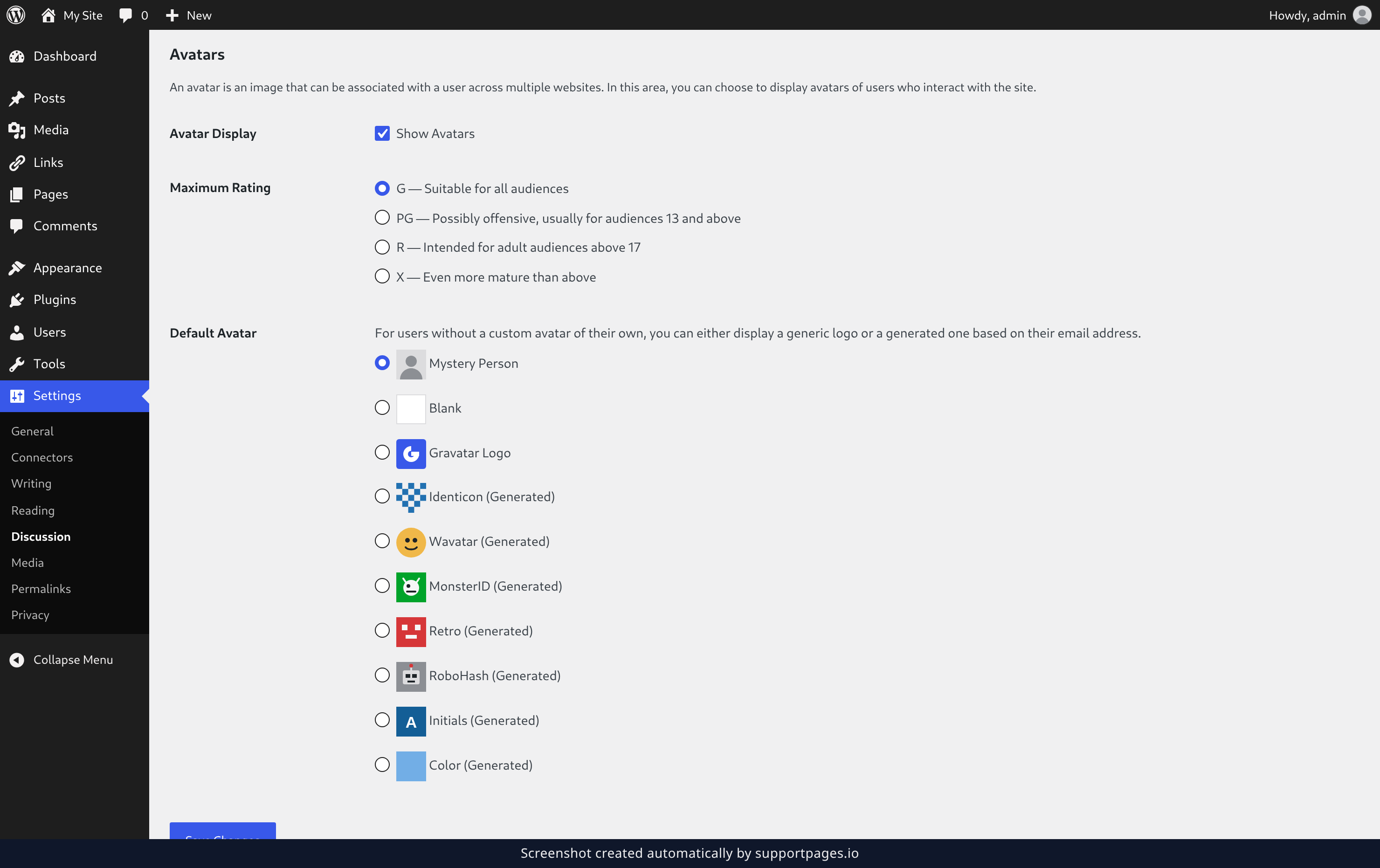
Under Avatar Display, tick Show Avatars — while that box is empty, no pictures appear beside comments anywhere on your site. Then pick the highest rating you're comfortable showing under Maximum Rating: the four choices run from G, which suits all audiences, up to X, and most sites stay with G or PG.
Pick a default avatar and save
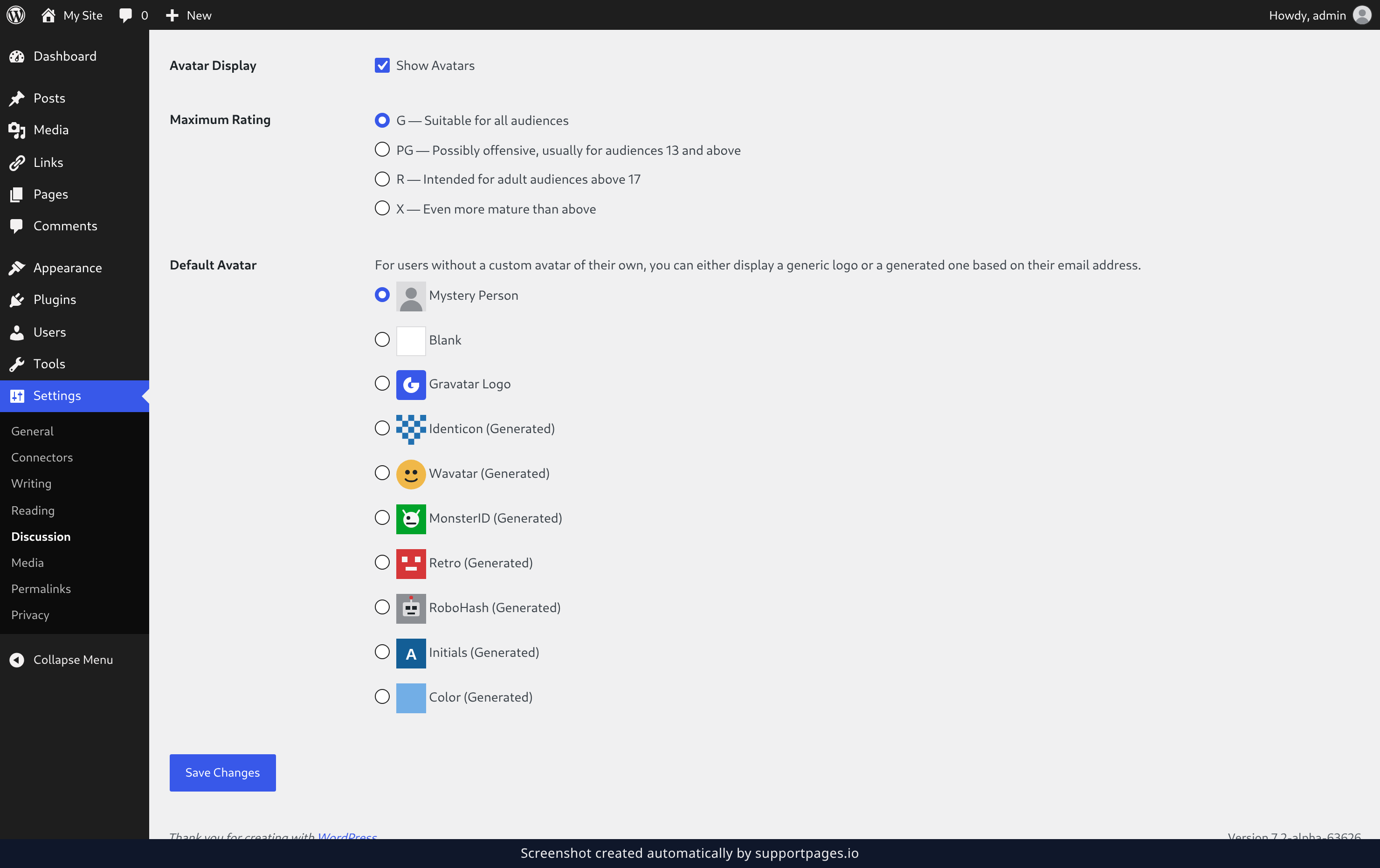
Under Default Avatar, choose the picture that stands in for commenters who don't have one of their own — Mystery Person is the WordPress default, Blank leaves the space empty, and Gravatar Logo shows the WordPress mark, while the remaining styles are generated from each commenter's email address. Then click Save Changes; WordPress confirms the save at the top of the screen and your comment section picks up the new settings straight away.
Tips
- Want a text-only comment section? Untick Show Avatars and save — the rating and default choices stop mattering.
- The Default Avatar only affects people without a picture of their own. Commenters with a Gravatar account always show their own photo.
- Nothing here is permanent. Come back to this screen any time and set it the way you want.
Summary
You've turned avatars on, picked a rating you're happy with, and chosen a default image for everyone else. Your comments will show them from now on.
Was this article helpful?
Generated by supportpages.io, automating product documentation from your codebase.
Have a question?
Search our articles, or ask and get an answer straight away.