
How to add a user to your site with an existing account
Updated about 1 month ago
Browse All
Someone you work with already has an account on your network, and now they need access to this site too. You can hand that account a place here in a few clicks — no second account, no password to pass around.
Before you start
- The person already has an account on your network.
- Your own account is allowed to add users to this site.
- You know the email address or username they sign in with.
Steps
Open the Add User screen
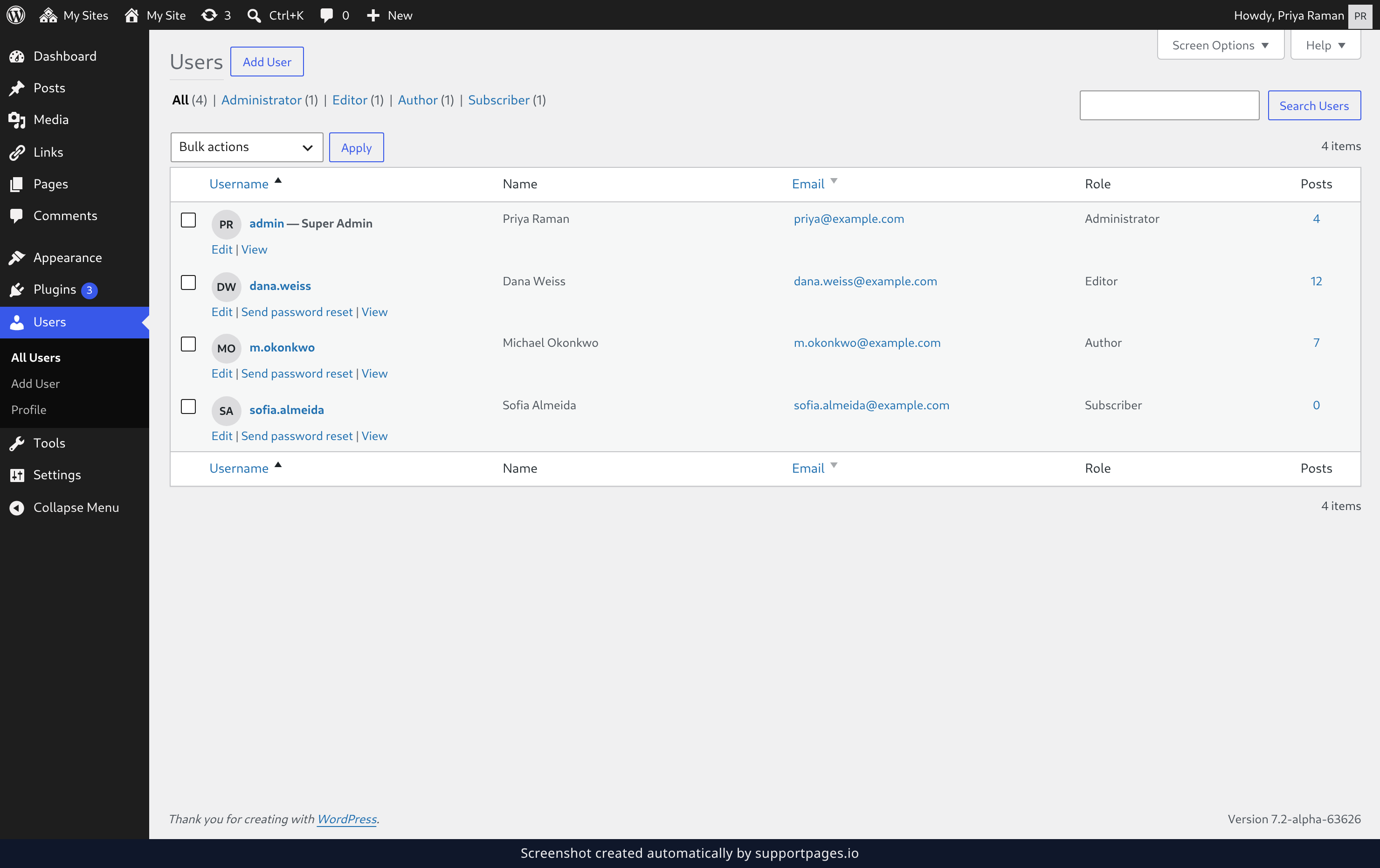
In your dashboard, open Users and choose Add User. You can also click Add User at the top of the All Users list.
Enter the account you want to add
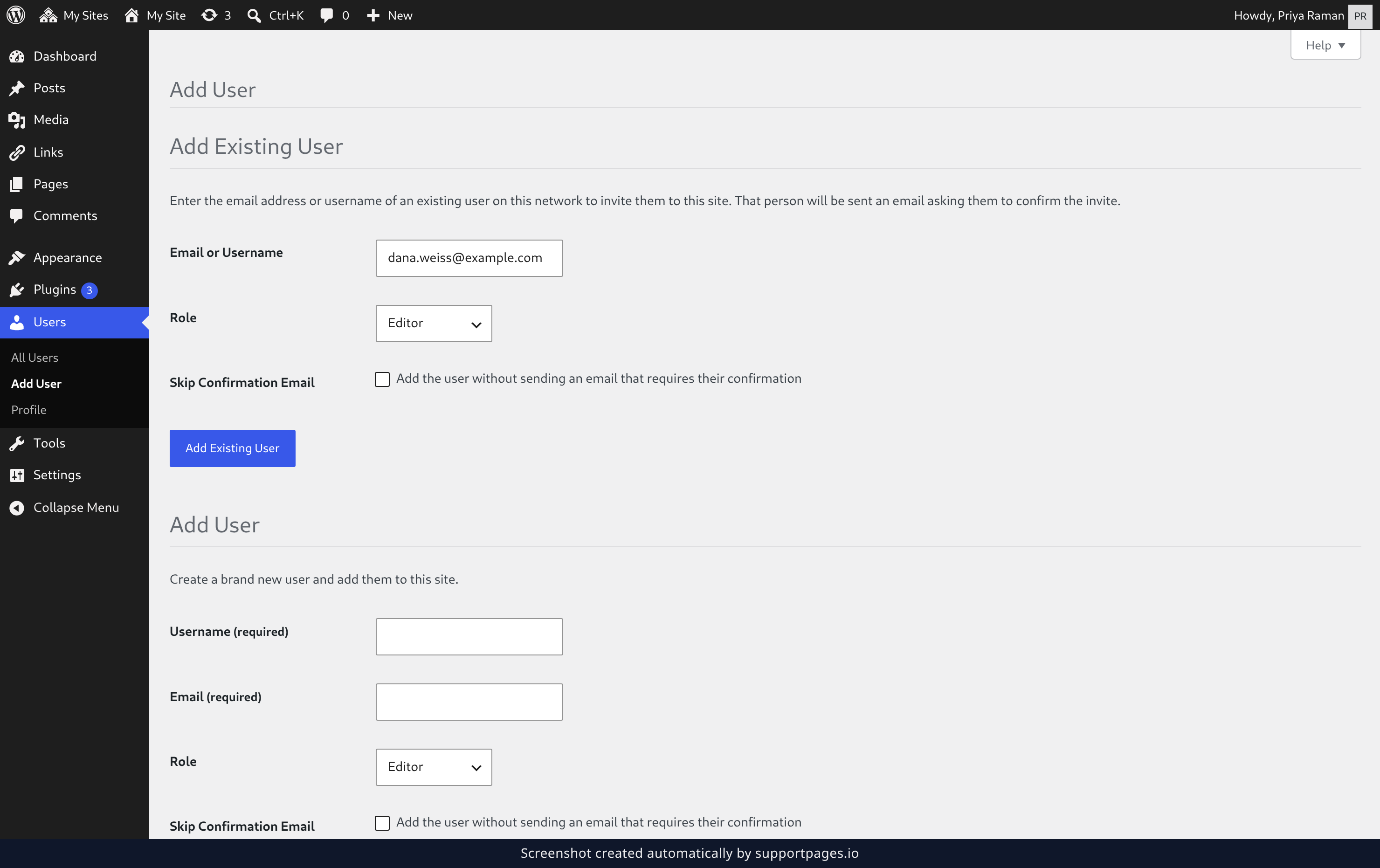
In the Add Existing User section, type their Email or Username in the first field. Use whatever they already sign in with on your network.
Choose a role
Pick a Role from the dropdown to decide what they can do here. Subscriber is enough for someone who only needs to read, while Editor or Administrator lets them manage your site's content.
Decide about the confirmation email
By default they get an email asking them to confirm before they're added, and nothing happens until they click the link. If you'd rather add them straight away, tick Skip Confirmation Email.
Add the user
Click Add Existing User at the bottom of the section. A note appears at the top of the screen telling you the invitation is on its way — or that the account has been added, if you skipped the email.
Tips
- Already added by mistake? WordPress tells you the person is already a member of this site instead of adding them twice.
- Not sure which role fits? Start with Subscriber or Contributor — you can give them more later on the All Users screen.
- They keep the email address and password they already use on your network.
Summary
The account they already have now works on this site, with the role you picked and a confirmation email on its way to them.
Was this article helpful?
Powered by supportpages.io — help centre software for SaaS.
Have a question?
Search our articles, or ask and get an answer straight away.