
How to find a post in the Posts list
Updated about 1 month ago
Browse All
Once your site has a good number of posts, scrolling through the Posts list stops being practical. The search box, the filters, and the status links at the top of that list will bring the one you want into view in a couple of clicks.
Before you start
- An account on your site that is allowed to edit posts.
- At least one post saved as a draft or published.
Steps
Open the Posts list
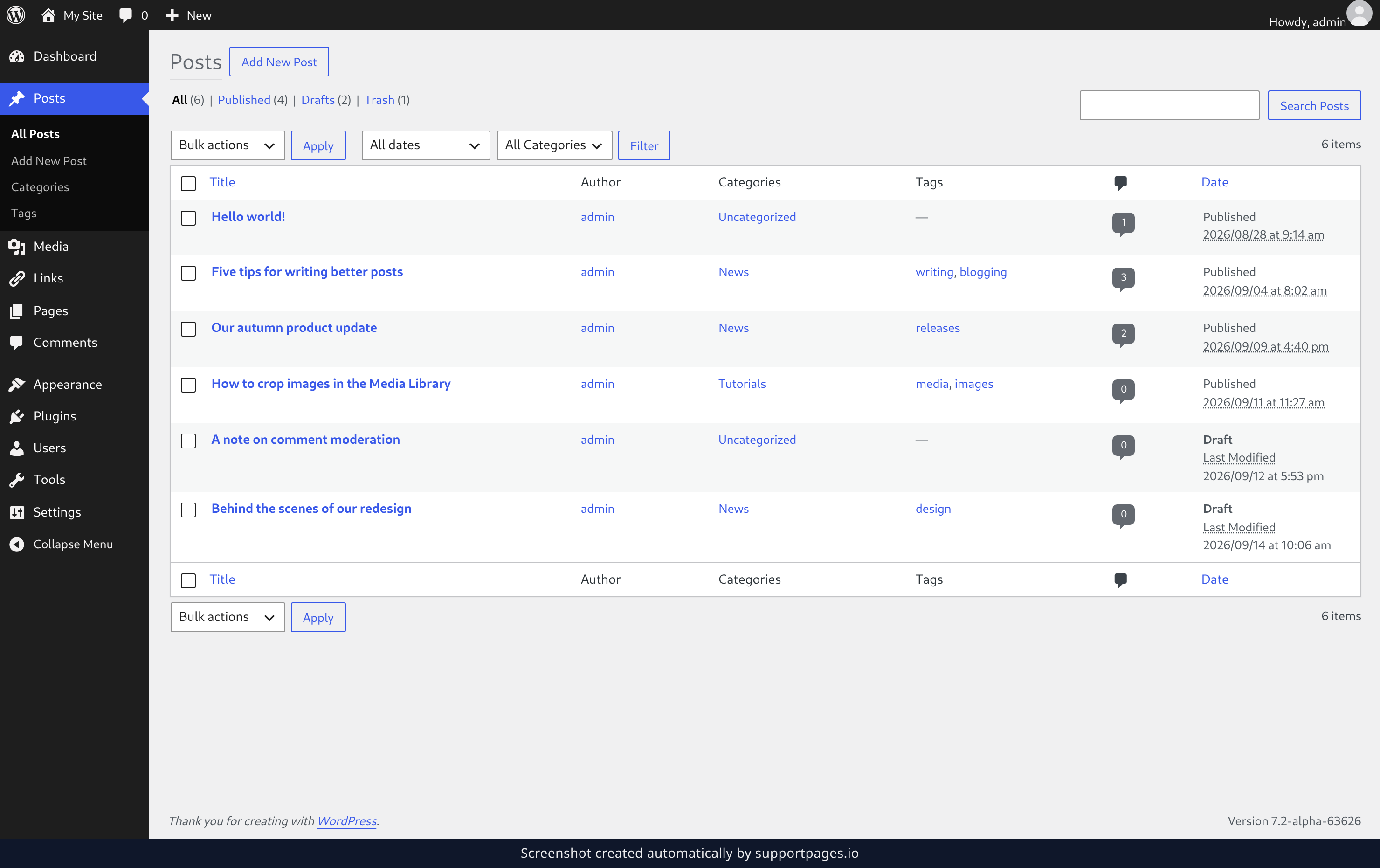
In the left-hand menu, click Posts. Every post on your site is listed here, newest first, and the links above the table tell you at a glance how many are published and how many are still drafts.
Search for a post
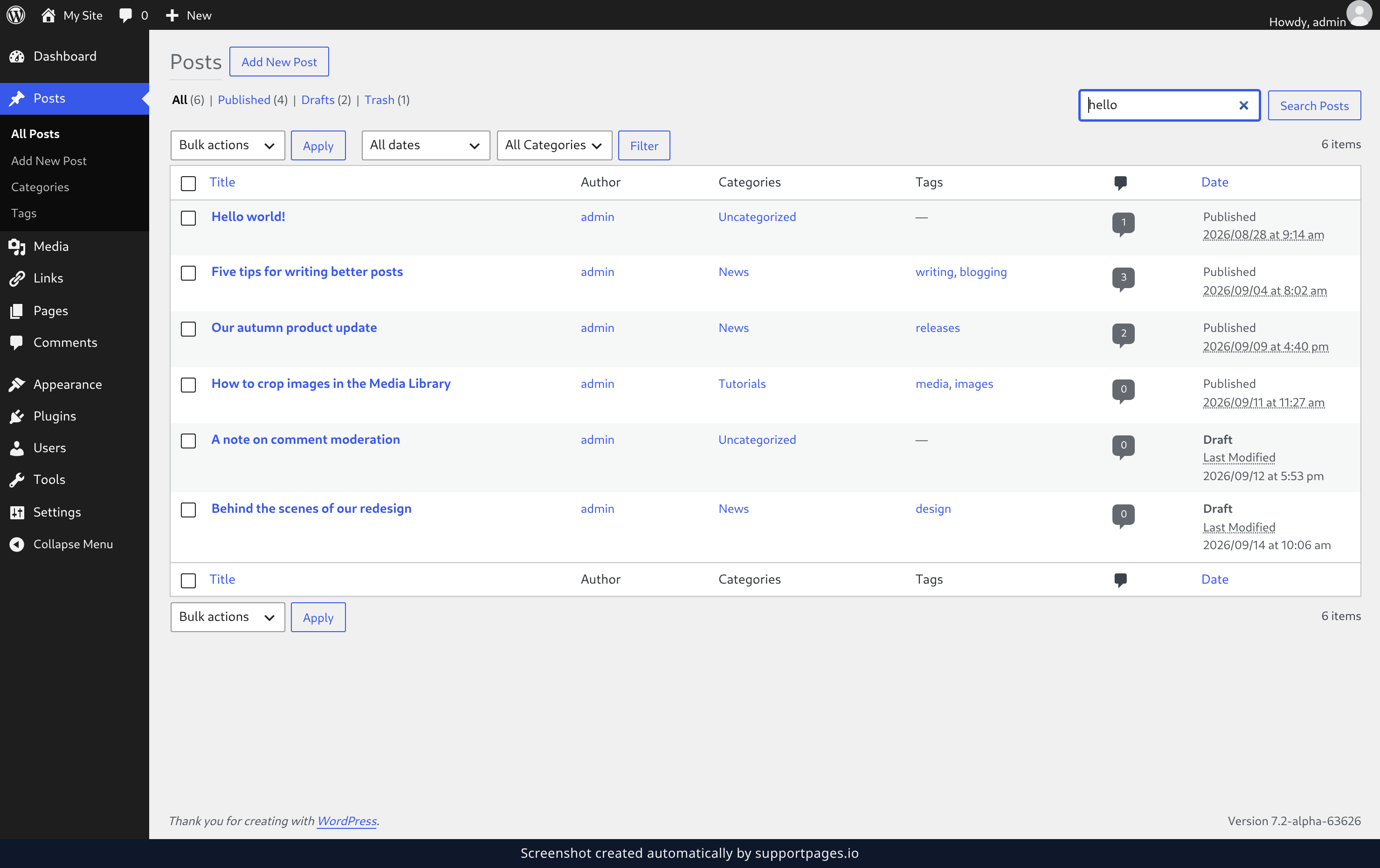
Type a word or two from the post you're after into the search box, then click Search Posts. WordPress looks through titles and content, so a phrase you remember from the body of the post works too.
Narrow the list with filters
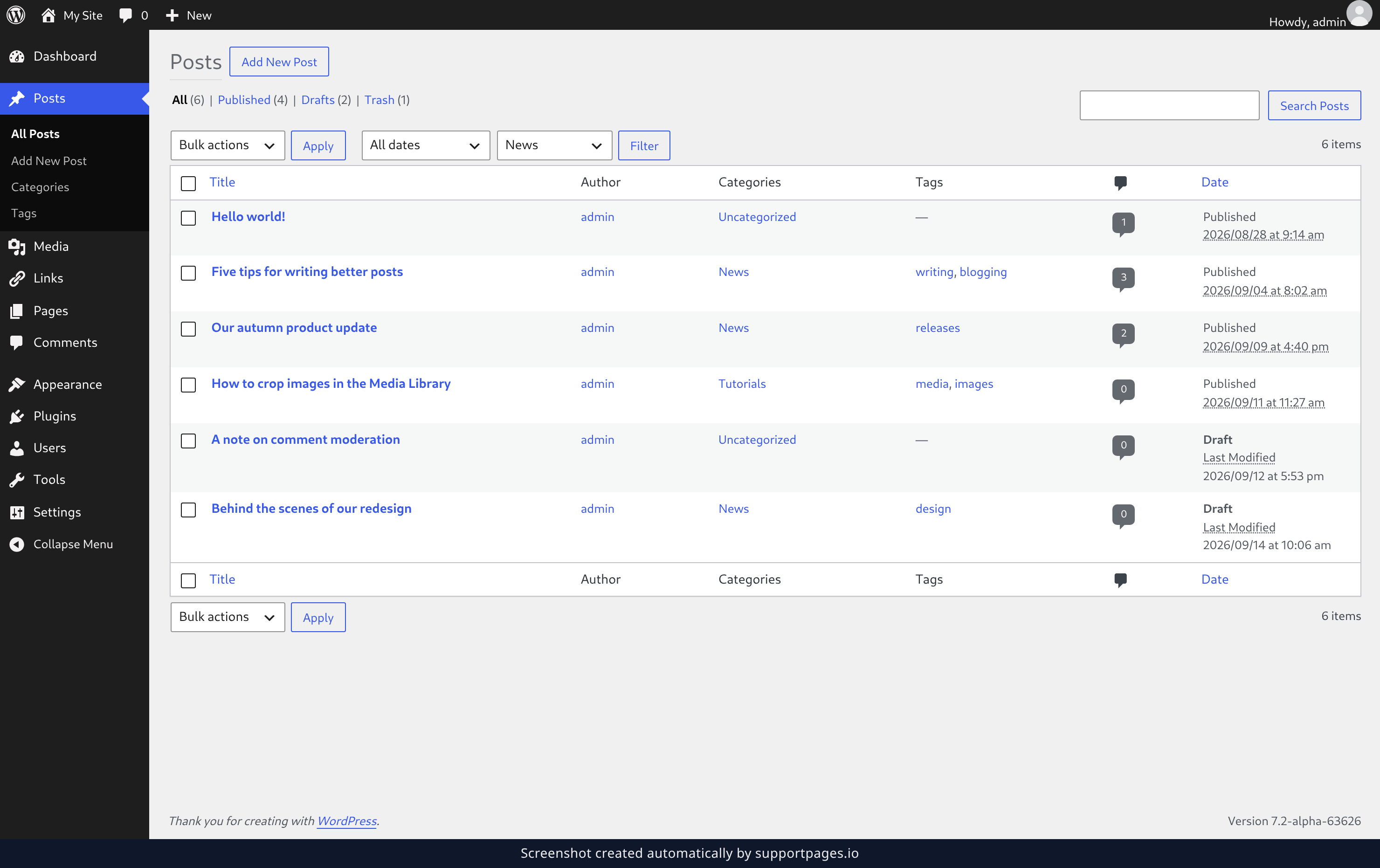
Choose a category from the All Categories dropdown, or a month from the All dates dropdown, then click Filter to apply them. To see only the posts in one state, click one of the status links above the table — Published or Drafts, for example.
Tips
- Pair a category with a month to dig older posts out of a long archive quickly.
- The counts beside the status links tell you at a glance how many posts are drafts and how many are live.
- Search is the fastest route when you remember a phrase from the post but not its title.
You're all set
Search, filters, and status links all live at the top of the Posts list, so a long archive is never more than a couple of clicks away from the post you had in mind. When you spot it, clicking its title opens it in the editor.
Was this article helpful?
Built with supportpages.io — an AI documentation generator.
Have a question?
Search our articles, or ask and get an answer straight away.