
How to delete media files you no longer need
Updated about 1 month ago
Browse All
Old uploads have a way of piling up — the photo you replaced, the PDF you never linked, the version of a logo you stopped using last year. Clearing them out frees up space and makes your library easier to search, so here's how to find the files that aren't doing anything and remove them for good.
Before you start
- An account that's allowed to upload files to the site.
- A moment to check you really don't need the file — deleting is permanent, and it also removes the file from any posts or pages using it.
- A backup or a fresh download of anything you're unsure about. Once it's deleted, you can't undo it.
Steps
Open your Media Library
In the left-hand menu, click Media and then Library. Your newest uploads appear first, so you're looking at the same list your site uses everywhere.
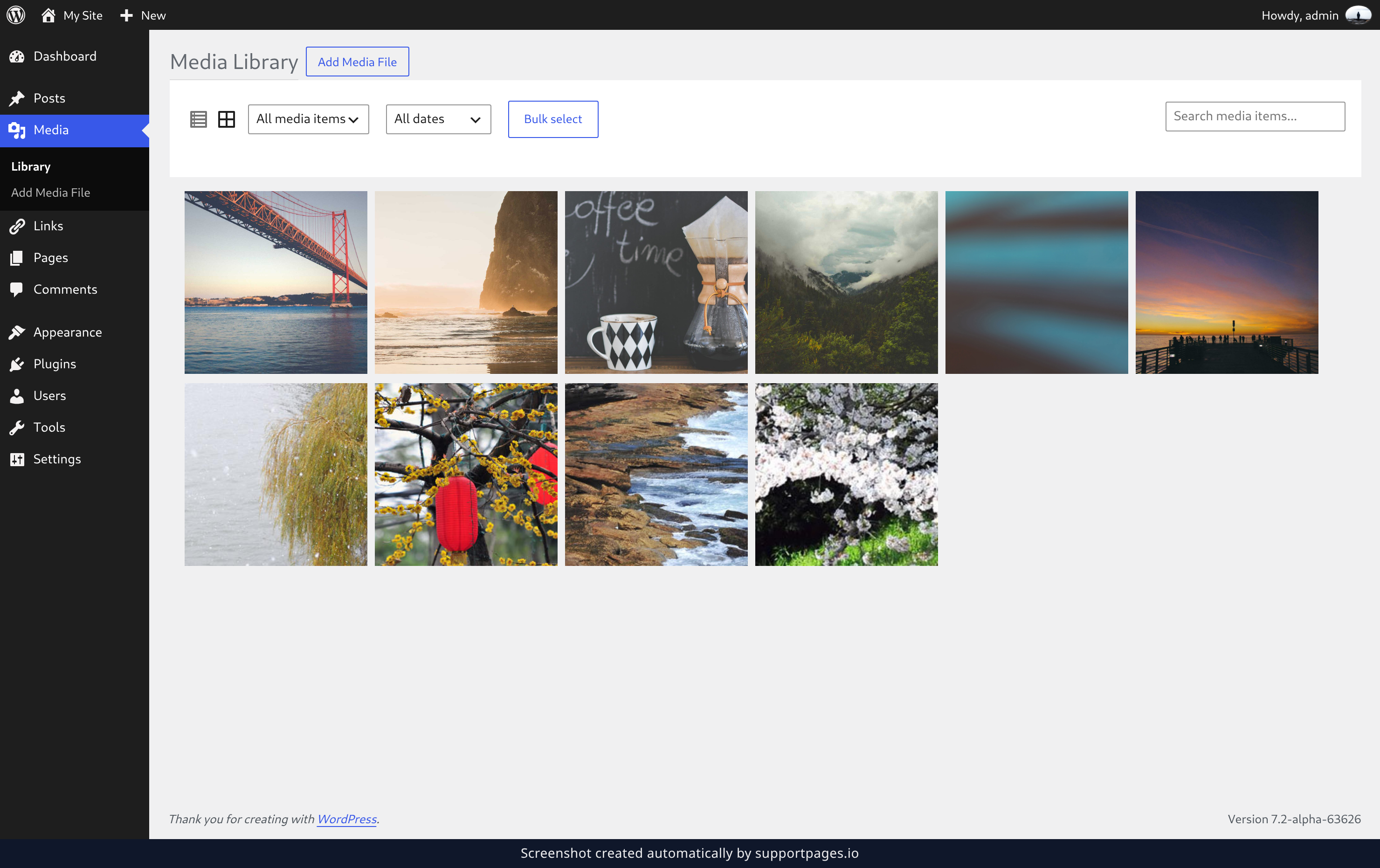
Show only the files nothing is using
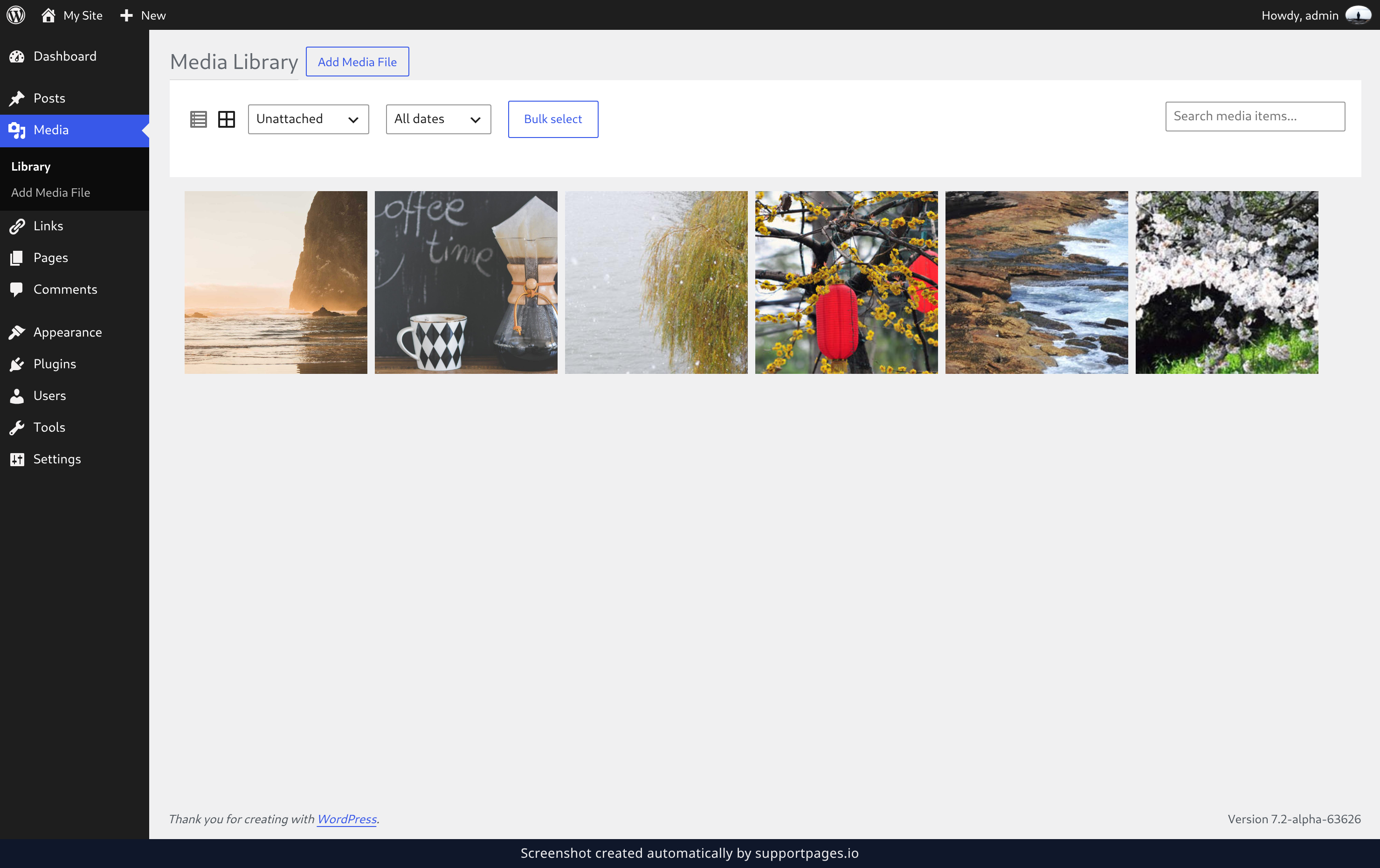
Above the grid, open the Filter by type dropdown and choose Unattached. These are uploads that aren't linked to any post or page, which usually makes them the safest ones to clear out.
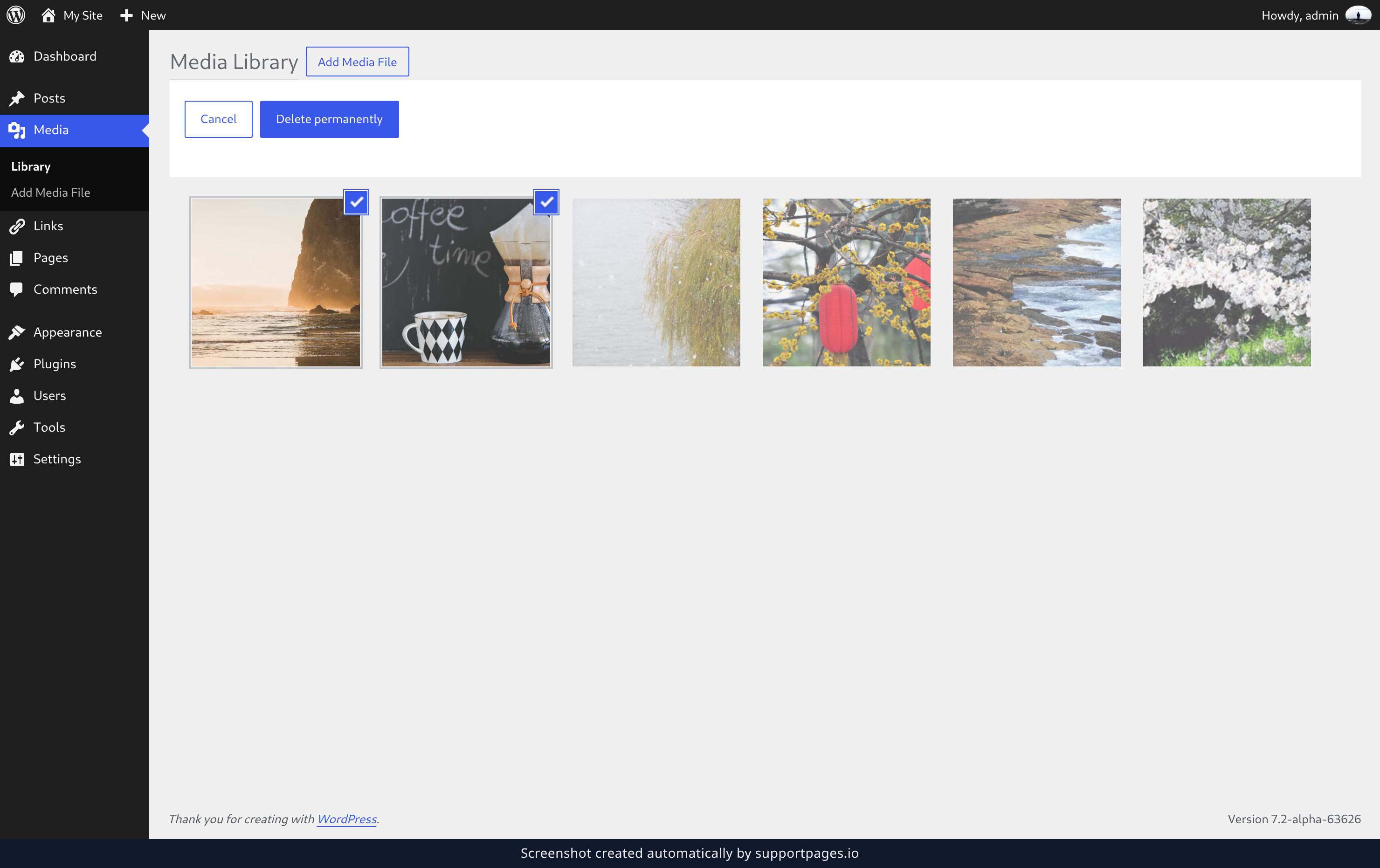
Select the files you want to remove
Click Bulk select at the top of the screen, then click each file you want to remove. Every item you pick gets a blue check mark, and the toolbar switches to Delete permanently and Cancel. When your list looks right, click Delete permanently — and if you change your mind, Cancel takes you back to normal browsing.
Confirm the deletion
WordPress double-checks with you first, because this can't be undone — worth a read before you agree. When it's done, the notice at the top of the screen tells you how many files were removed.
Tips
- Not sure about a file? Click it to open the details dialog and see where it's used before you decide.
- To remove just one file, open that item and use Delete permanently in the dialog — no need to turn on Bulk select for a single upload.
- Working in the list view instead? The same Unattached option is in the filter dropdown, along with Attach if a file simply needs a new home rather than deleting.
Summary
Filter your library to Unattached, tick the files you no longer need, and delete them permanently. A couple of minutes now saves you a cluttered library later.
Was this article helpful?
Created with supportpages.io — AI help centre software.
Have a question?
Search our articles, or ask and get an answer straight away.