
How to add details to your media files
Updated about 1 month ago
Browse All
Every file in your Media Library can carry a few words about what it is. Fill those in and your images start working for you — search engines can read them, screen readers can describe them, and visitors see a caption under the picture instead of a bare file name.
Before you start
- A file already uploaded to your Media Library
- Permission to upload files on the site (Administrators, Editors, Authors, and Contributors all have it)
Steps
Open the file you want to describe
In the left-hand menu, select Media, then Library. Your uploads appear as a grid, newest first — click the file you want to update and its Attachment details panel opens on top of the grid.
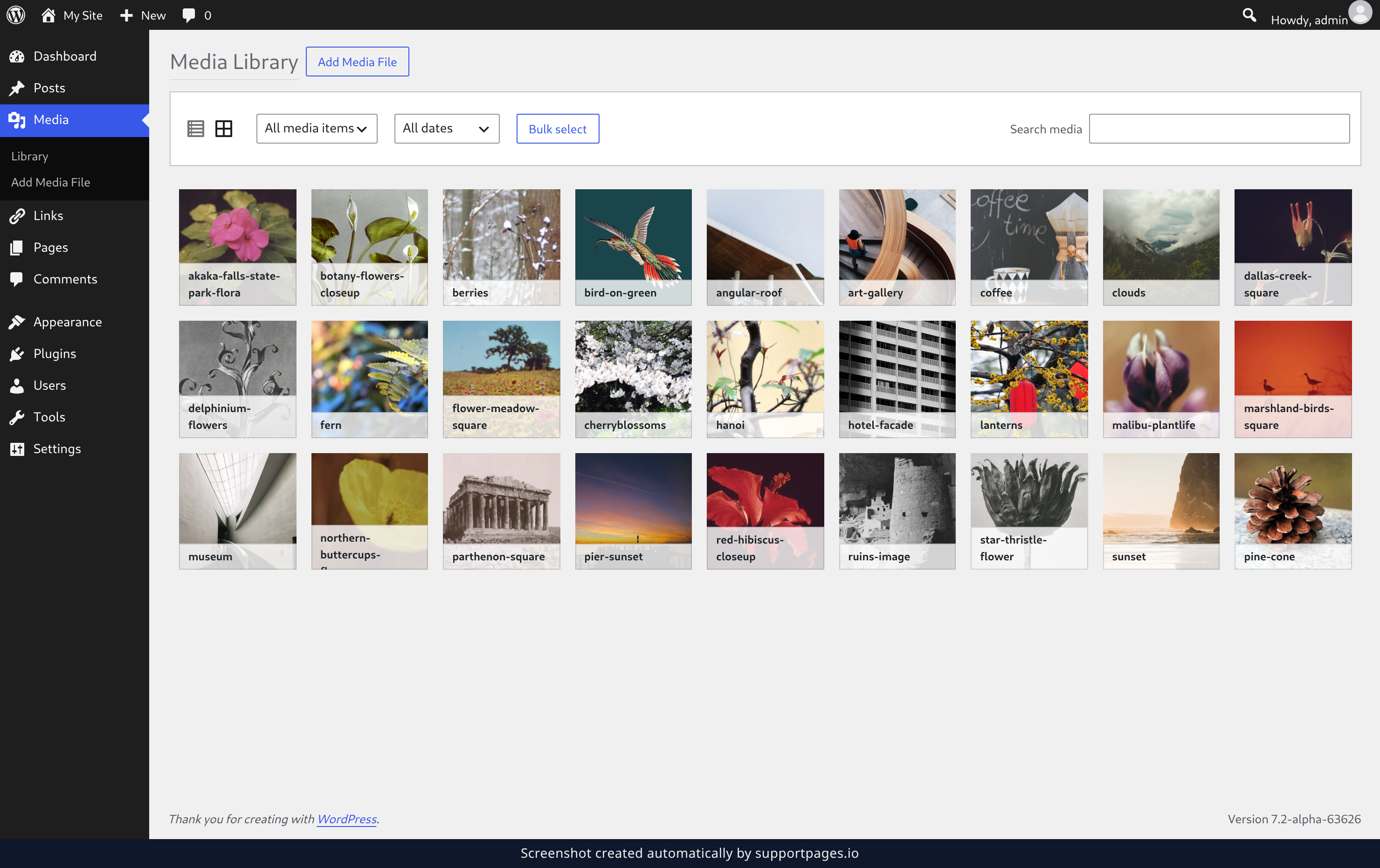
Write the alternative text
In the Alternative Text box, describe what the picture shows for people who can't see it. Keep it to a short phrase — "A golden retriever catching a ball on a beach" tells a screen reader everything it needs. Leave it empty when the image is decorative and adds nothing to the words around it.
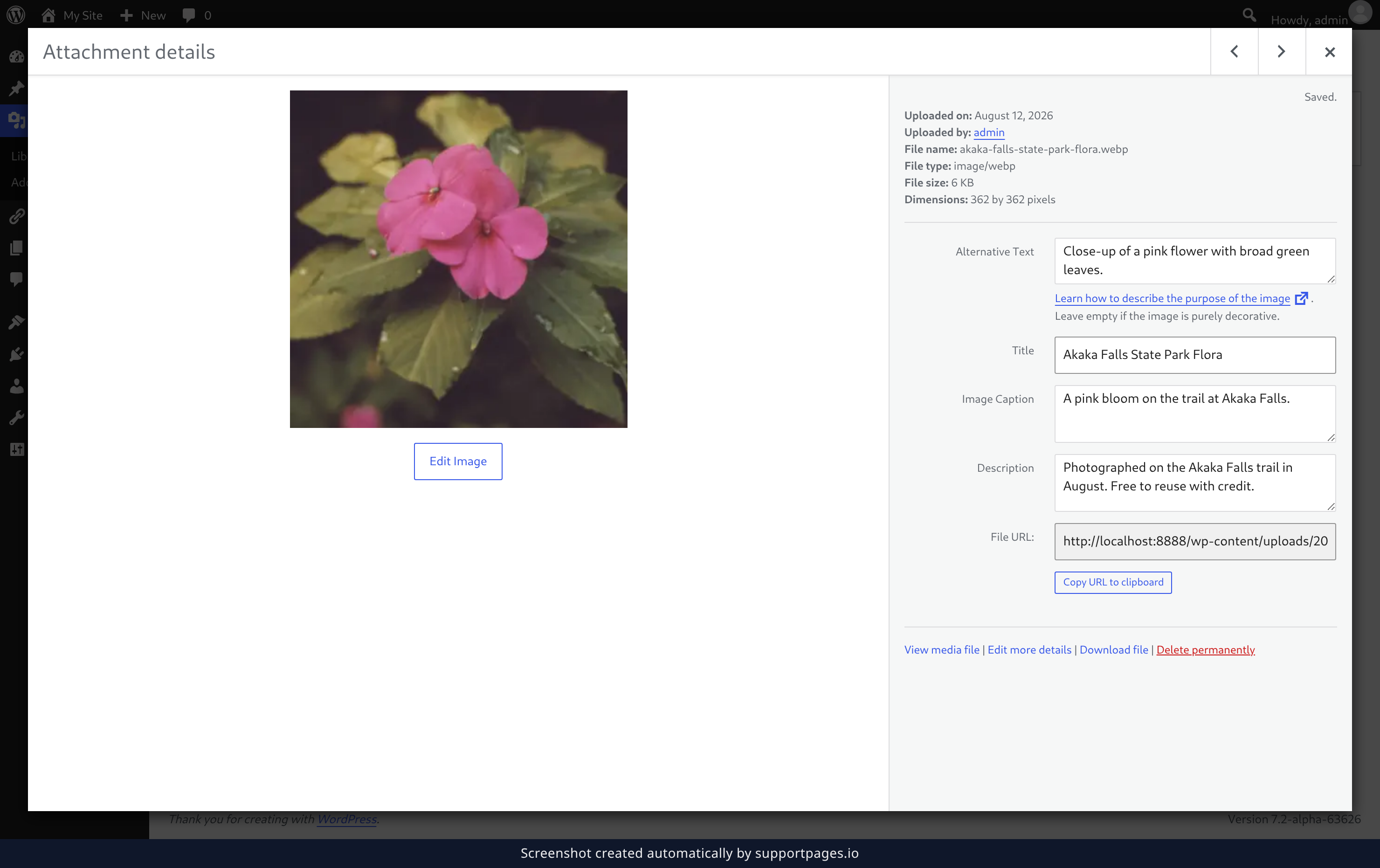
Fill in the title, caption, and description
Use Title for the name you'll recognise the file by in your library, Image Caption for the line shown underneath the picture on your site, and Description for longer notes about the file. There's nothing to save — your changes are stored as soon as you click outside the panel. A small Saved. message near the top of the panel confirms it.
Tips for good details
- Write alternative text the way you'd describe the picture to someone on the phone: what's in it, and what matters about it.
- Captions are for your visitors; descriptions are mostly for you and your team. Nothing is lost by filling in both.
- For audio, video, and document files the caption box is labelled Short Description instead — it does the same job.
- You can change any of this later by opening the file from Media > Library again.
Summary
Your media files now say what they are: a title you can find them by, alternative text that describes them out loud, and a caption your visitors will read. Open any file from the Media Library whenever you want to refine it.
Was this article helpful?
Written with supportpages.io. More on documentation automation on our blog.
Have a question?
Search our articles, or ask and get an answer straight away.