
How to add widgets to your site from the Widgets screen
Updated about 1 month ago
Browse All
Widgets are the little extras that live in your site's sidebars and footer — a search box, your latest posts, a tag cloud. The Widgets screen lets you drop them in and arrange them without touching any code.
Before you start
- An account that's allowed to edit your site's appearance.
- A theme with at least one widget area — most themes have a sidebar, and many have a footer too.
Steps
Open the Widgets screen
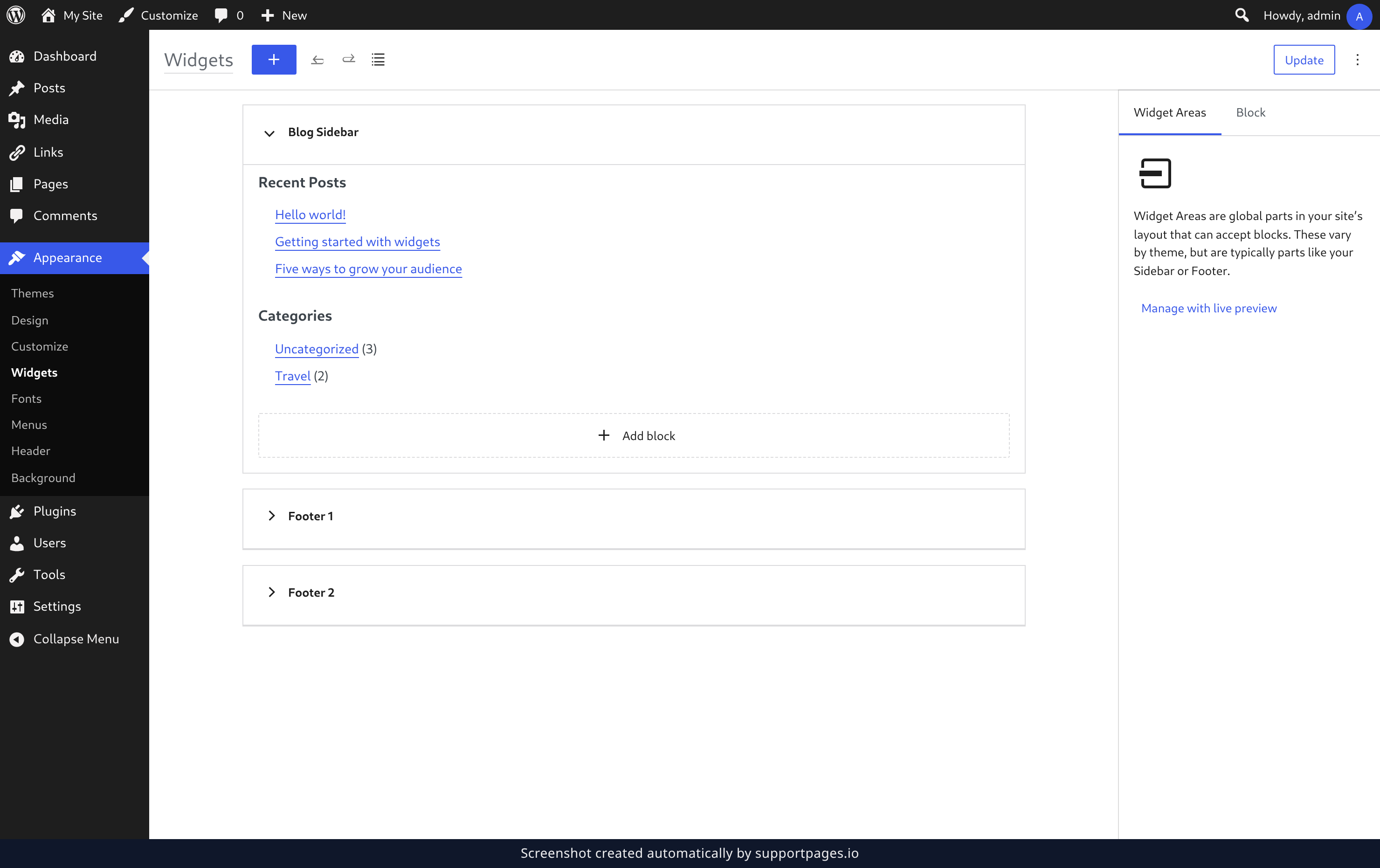
In your dashboard, open Appearance and choose Widgets. You'll see every widget area your theme gives you, listed as its own panel.
Add a widget
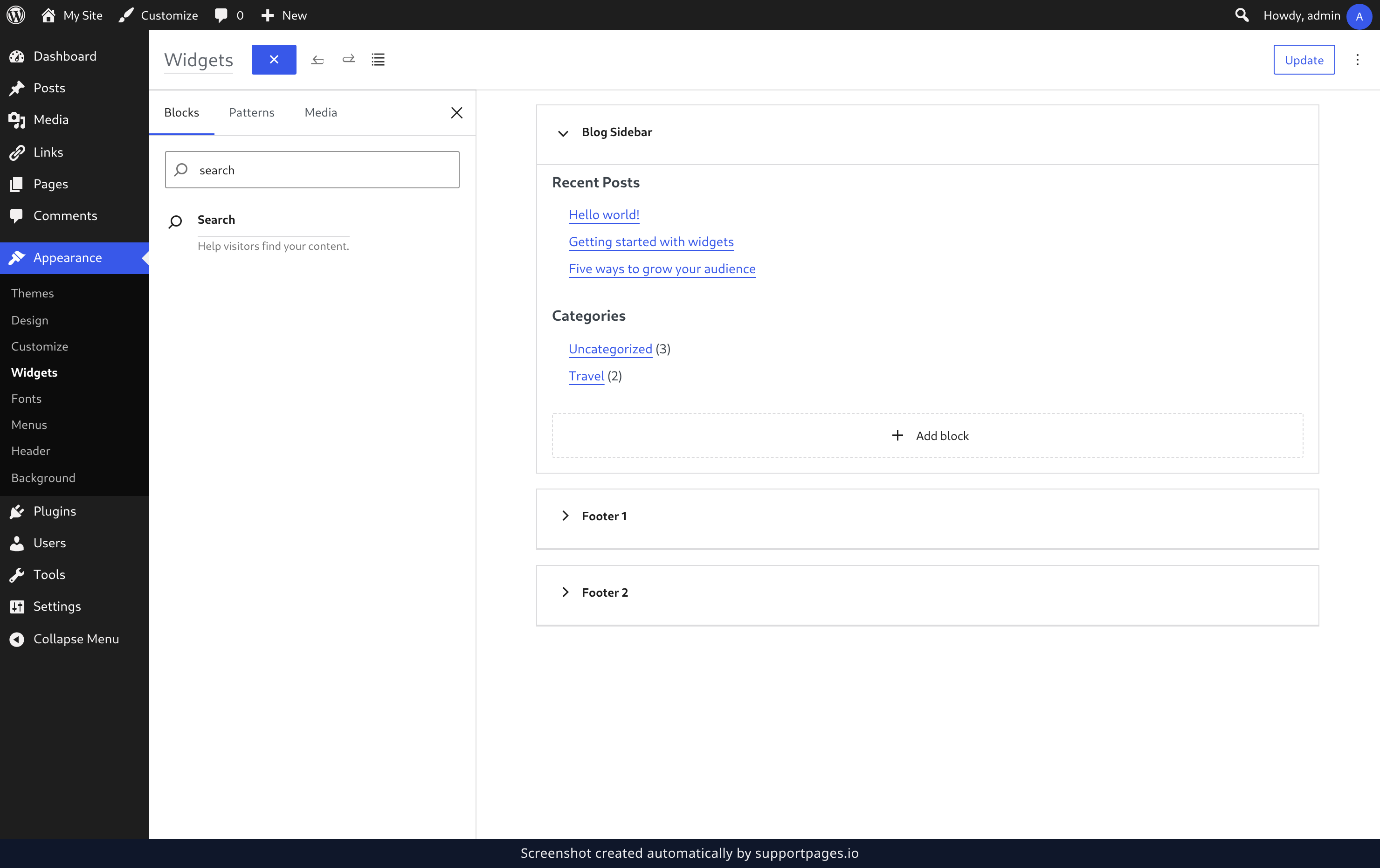
Click the Block Inserter button in the top toolbar. Type what you're after — search, for instance — then click the widget you want from the results to drop it into the area you're working in.
Set up your widget
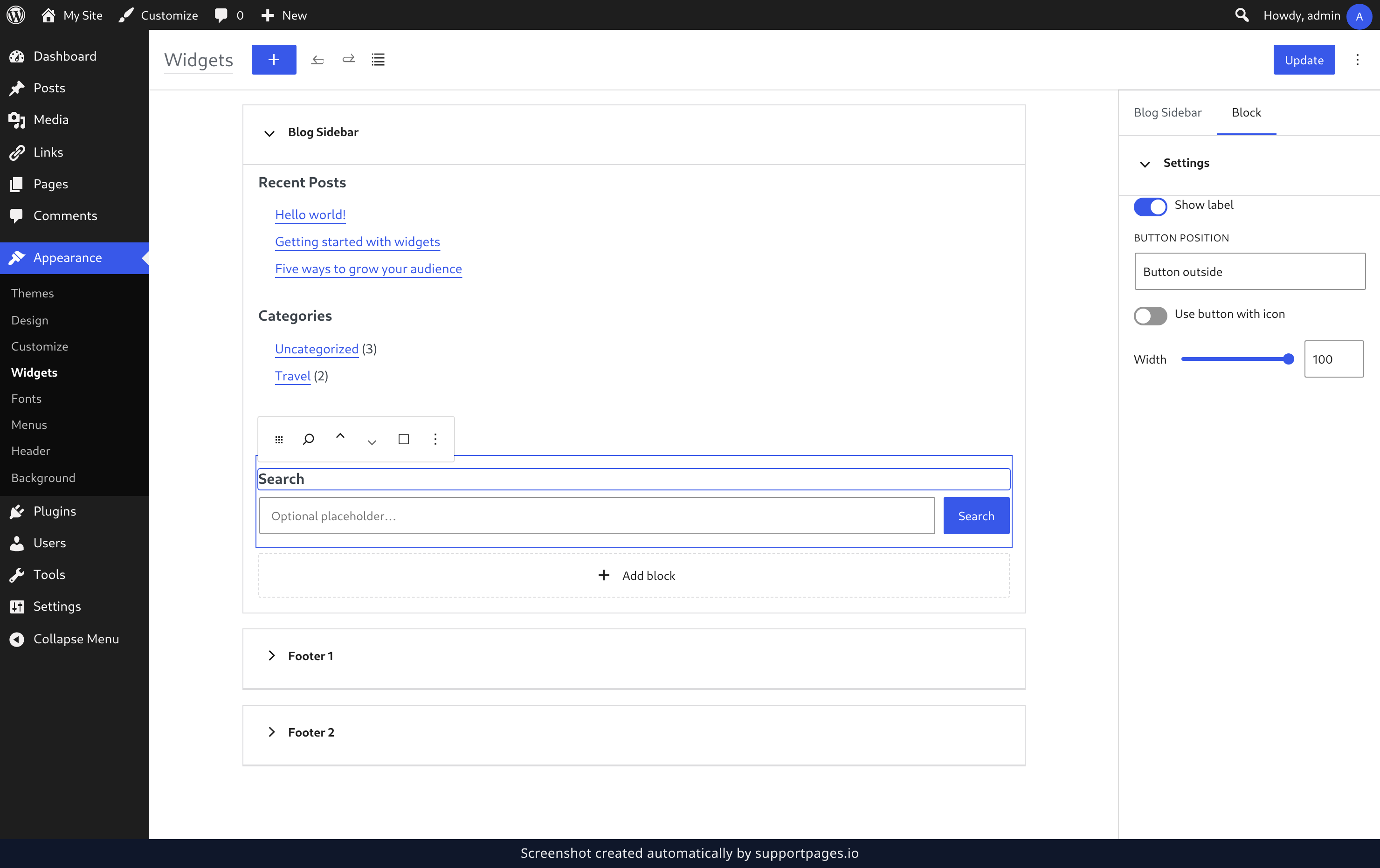
Click the widget in the area to select it and type your own label, button text, and placeholder straight into it. Open the Block tab in the Settings sidebar for the rest — where the button sits, how wide the box is, or whether the label shows at all. Click Update when it looks right.
Tips
- Each widget area is a panel you can open and close — everything inside it shows in your site in the order it appears there.
- Your changes stay on your screen until you click Update, so nothing goes live by accident.
- Want to see your widgets next to your actual content? Choose Manage with live preview to work on them in the Customizer instead.
Summary
Your new widget is saved to the area you chose and shows up on your site right away. Add as many as you like — the Widgets screen keeps every area in one place.
Was this article helpful?
Maintained by supportpages.io, a self-updating help centre for SaaS teams.
Have a question?
Search our articles, or ask and get an answer straight away.