
How to connect your site to external services
Updated about 1 month ago
Browse All
Some jobs are better handled by a service outside your site — an AI tool that writes image descriptions, for example. You connect that service once, and every plugin on your site can use it from then on.
Before you start
- An account with the service you want to connect.
- The API key for that account — the service's own website gives you this.
- An administrator role on your site, since connectors live under settings.
Steps
Open Connectors and install the service
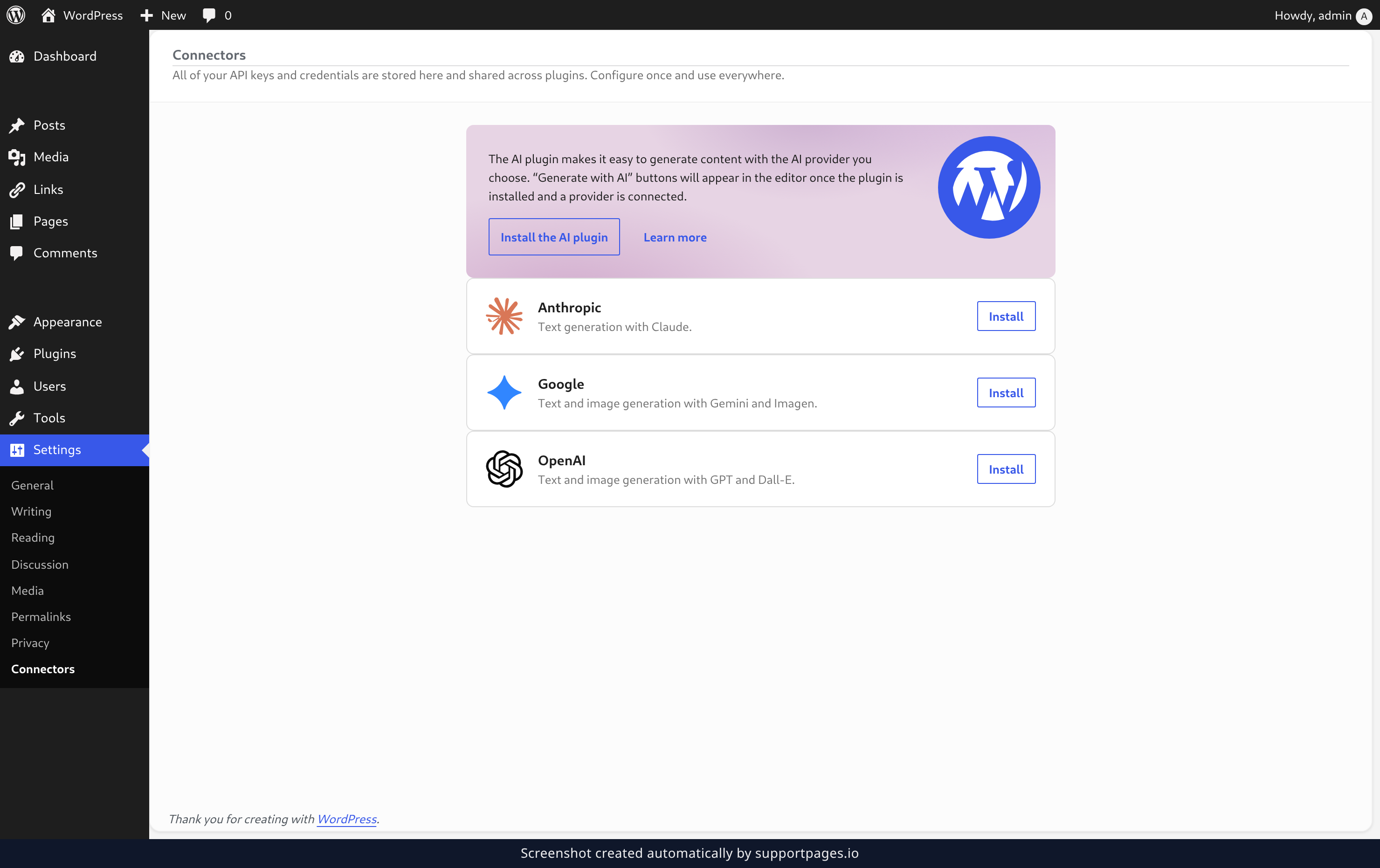
In your dashboard, open Settings in the left-hand menu, then choose Connectors. Find the service you want in the list and click Install — WordPress fetches and turns on the small plugin that handles the connection for you.
Click Set up
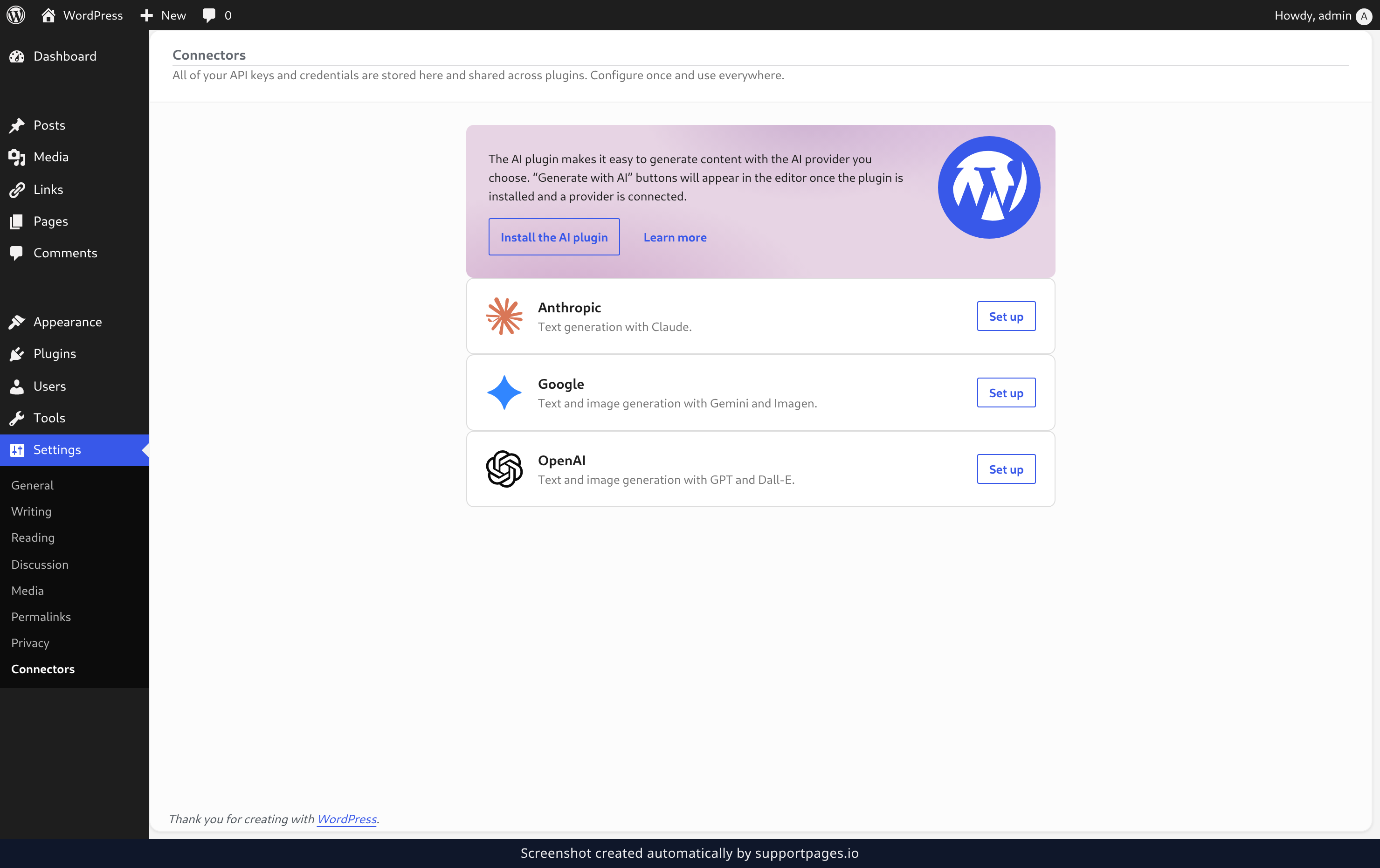
The button on that service's card now reads Set up. Click it to open a small box where you can paste your key.
Add your API key and save
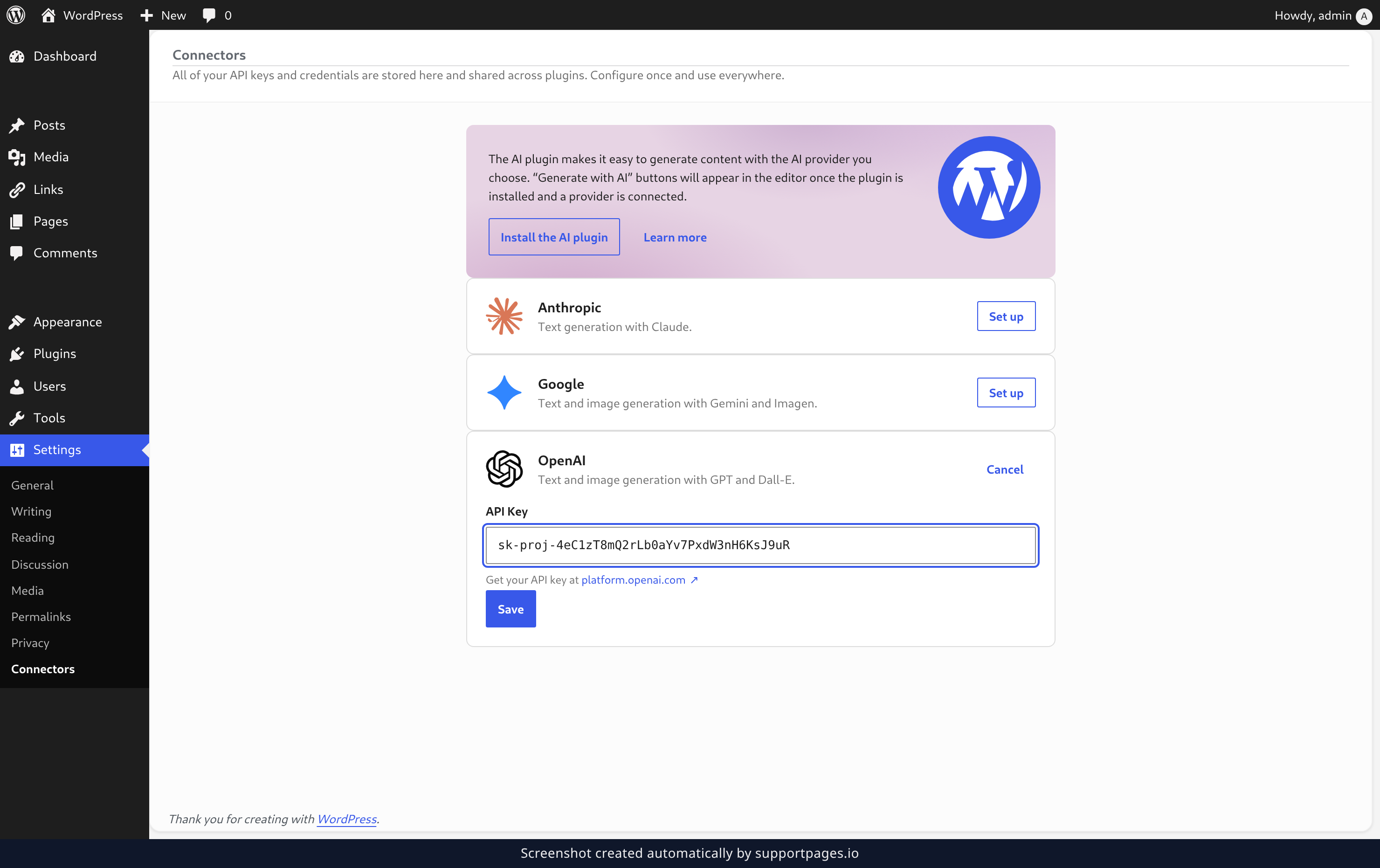
Paste the key you copied from the service's website into the API Key field, then click Save. A Connected label appears on the card as soon as the key is accepted.
Good to know
- Your keys are stored in one place and shared, so another plugin that needs the same service can use them straight away.
- You can connect as many services as you like — each one keeps its own key.
- Once a service shows Connected, it's ready to use — plugins can start using it with no further setup.
You're connected
Add each service once, and your whole site can use it. Everything you connect stays in Settings → Connectors, ready whenever a plugin needs it.
Was this article helpful?
Created with supportpages.io — AI help centre software.
Have a question?
Search our articles, or ask and get an answer straight away.