
How to edit your profile
Updated about 1 month ago
Browse All
Your profile is what WordPress knows about you — and what your visitors see on your posts. Here's how to update your name, contact details, website, and bio so they read the way you want.
Before you start
- You're signed in to your site's dashboard.
- You know the name, email address, or bio text you'd like to use.
Steps
Open your profile
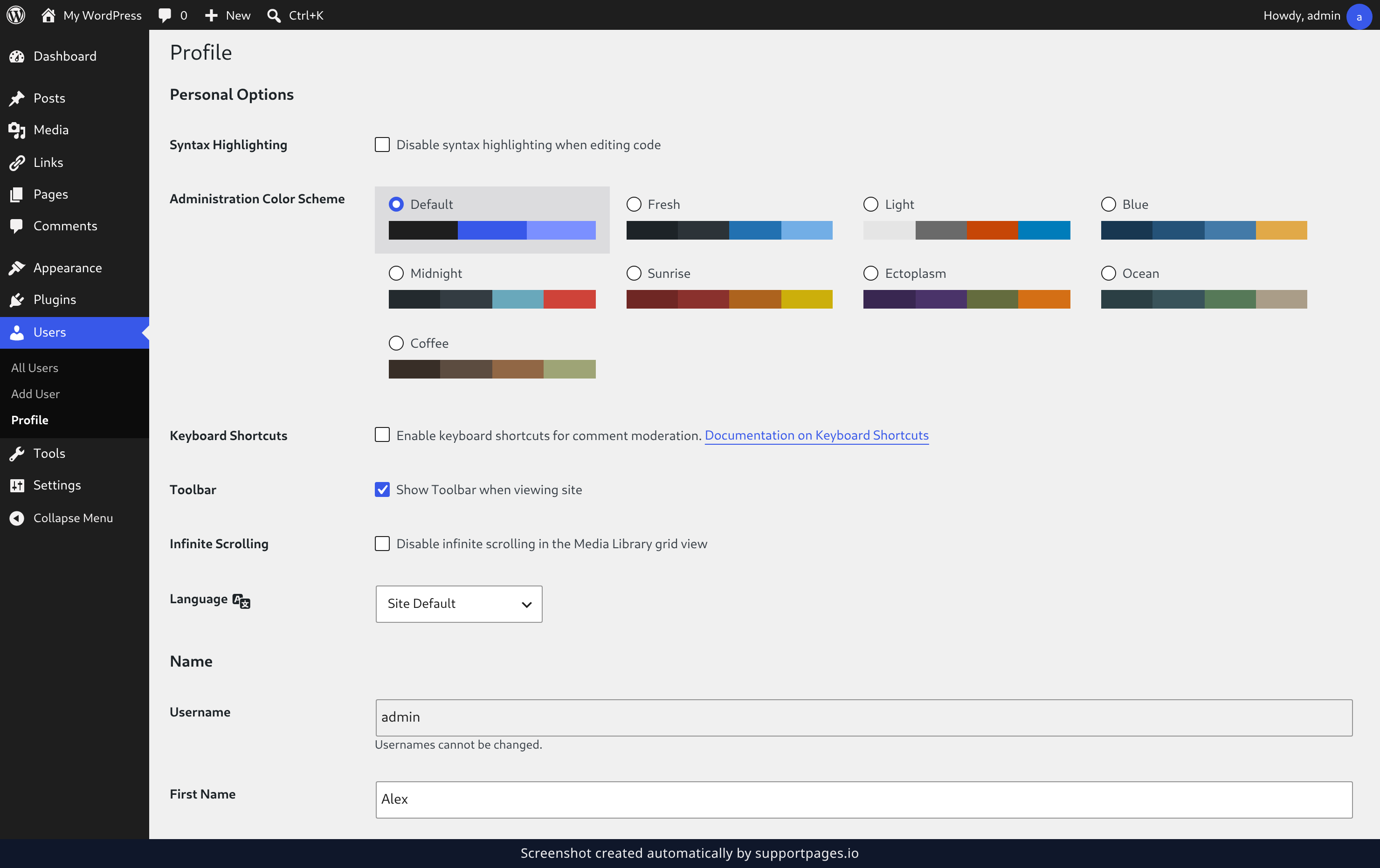
In the left-hand menu, click Users, then click Profile. Your profile opens with your current details already filled in.
Fill in your details
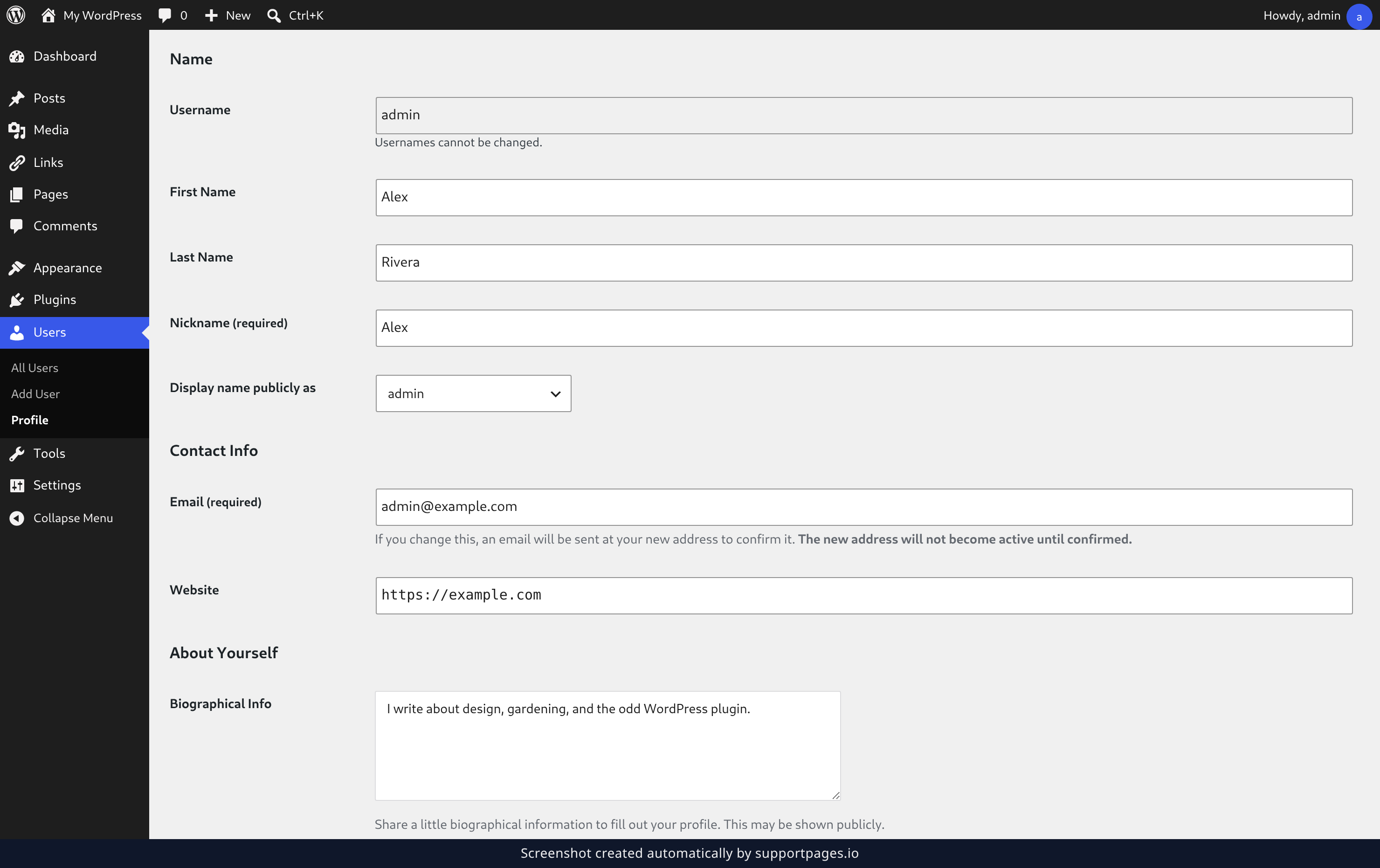
Type your name into First Name and Last Name, then choose what visitors see on your posts from Display name publicly as — the Nickname field is required. Below that, set your Email and Website, and write a sentence or two about yourself in Biographical Info. If you change your email, WordPress sends a confirmation to the new address before the change takes effect.
Save your changes
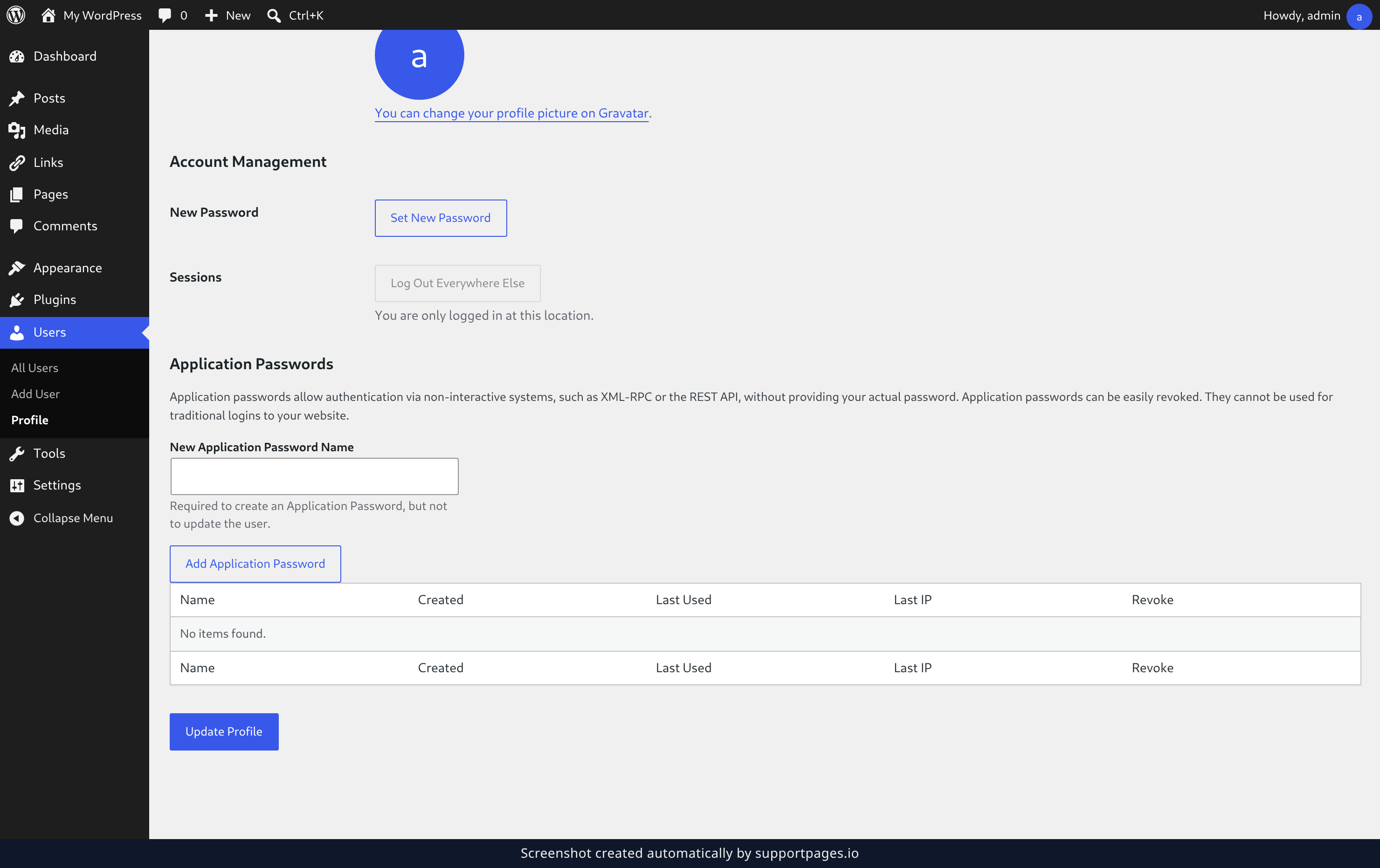
Scroll to the bottom of the page and click Update Profile. When your changes are saved, Profile updated. appears at the top of the screen.
Tips
- Usernames cannot be changed. If you'd like a different one, it has to be a new account.
- Your Display name publicly as choice is only what visitors see — your login details stay the same.
- Profile Picture comes from Gravatar. The link under it takes you there to change the image.
Summary
You've updated your name, contact details, and bio. Your byline and author page now say what you want them to say — and you can come back to Profile any time to tweak them.
Was this article helpful?
Written with supportpages.io. More on documentation automation on our blog.
Have a question?
Search our articles, or ask and get an answer straight away.