
How to add widgets to your site in the Customizer
Updated about 1 month ago
Browse All
Widgets are the handy extras that sit around your content — a search box, your latest posts, a short line of text. The Customizer lets you add one and watch it land on your site as you go, so there's no guessing where it will end up.
Before you start
- An account that's allowed to customise your site — on most sites that means an administrator.
- A theme with at least one widget area set up. Not sure? The Customizer's Widgets panel lists every area your theme offers.
Steps
Open the Customizer
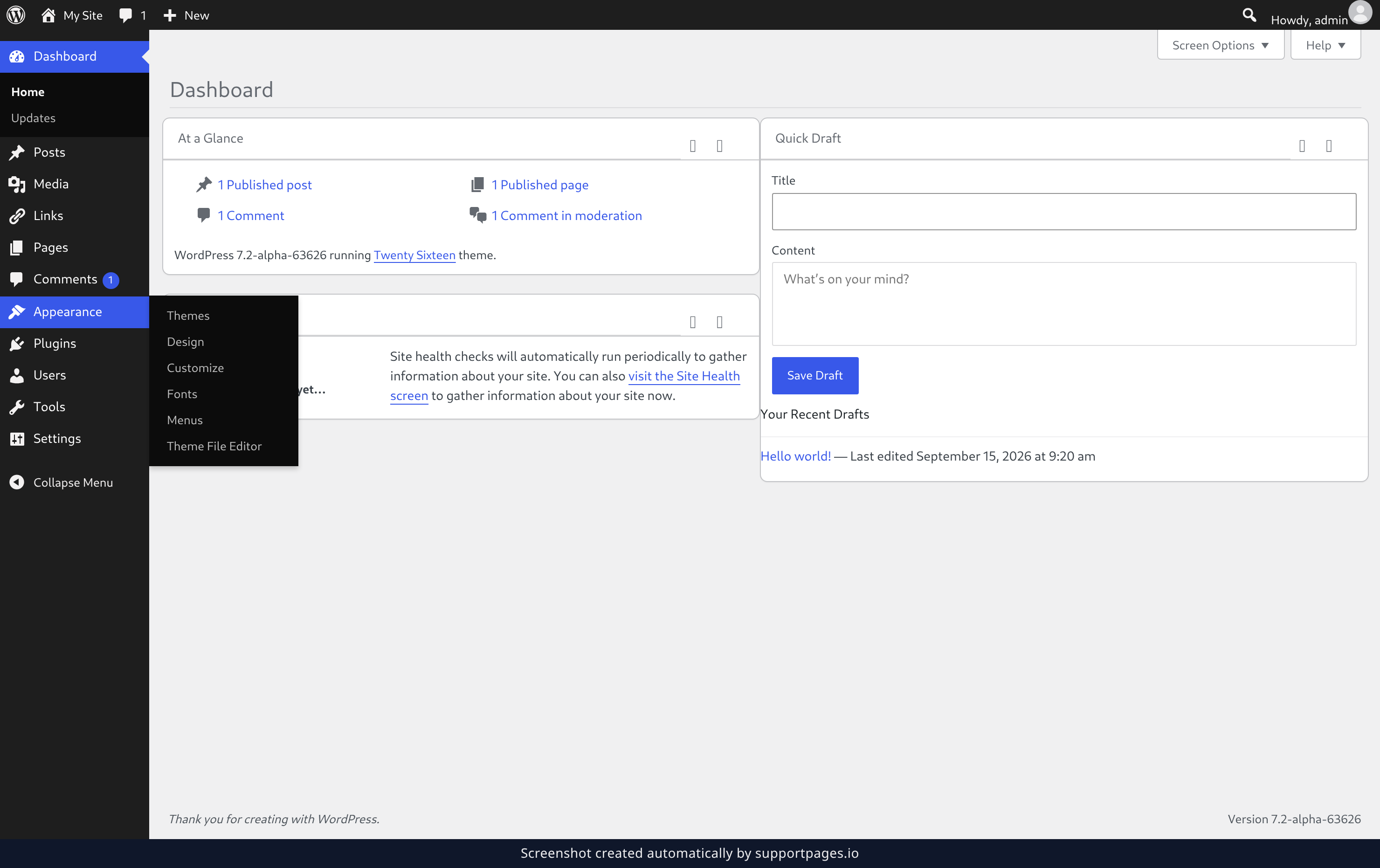
In your site's dashboard, go to Appearance and then Customize. The Customizer opens with your site on the right and its controls on the left, so you can see every change before anyone else does.
Open the Widgets panel
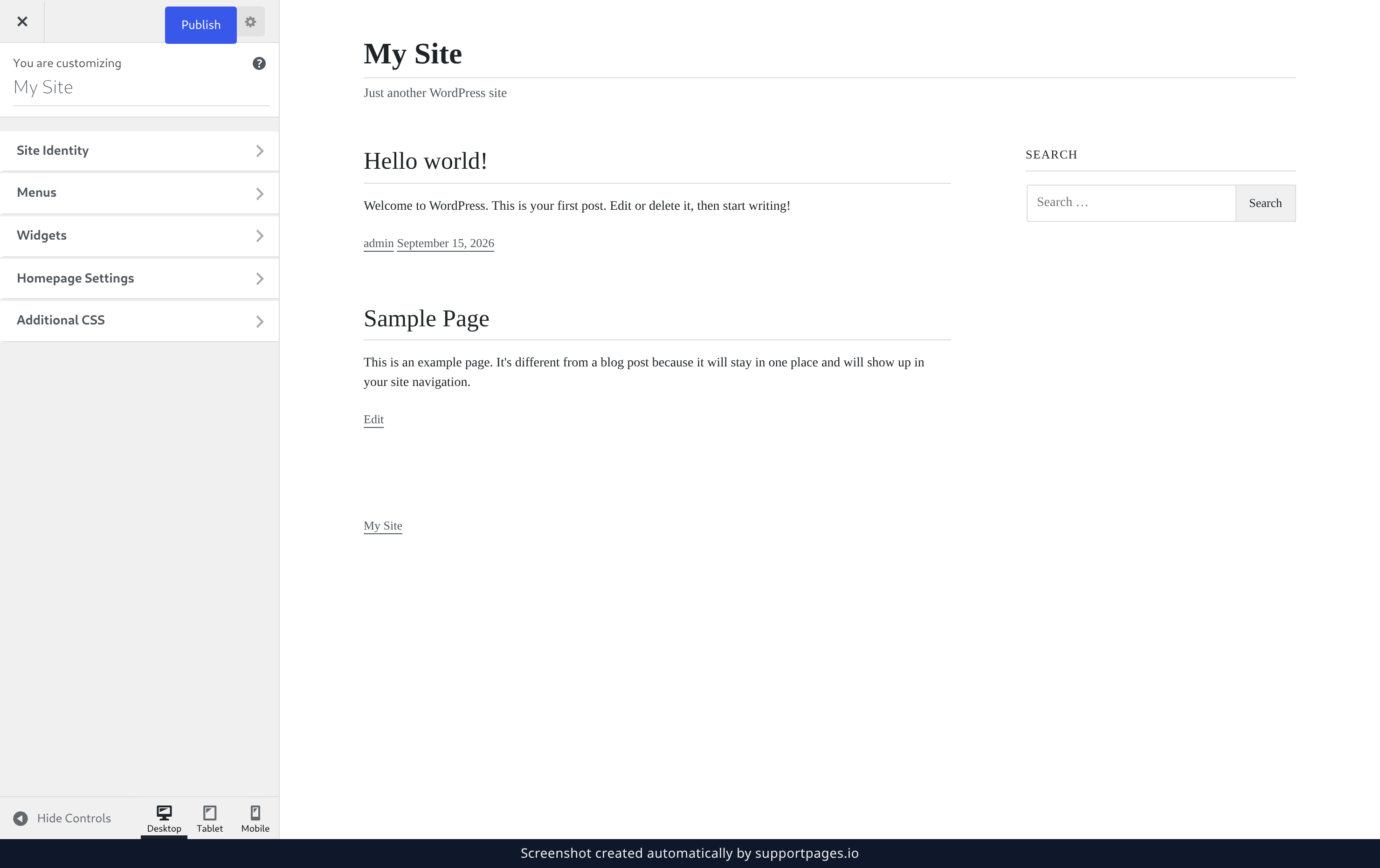
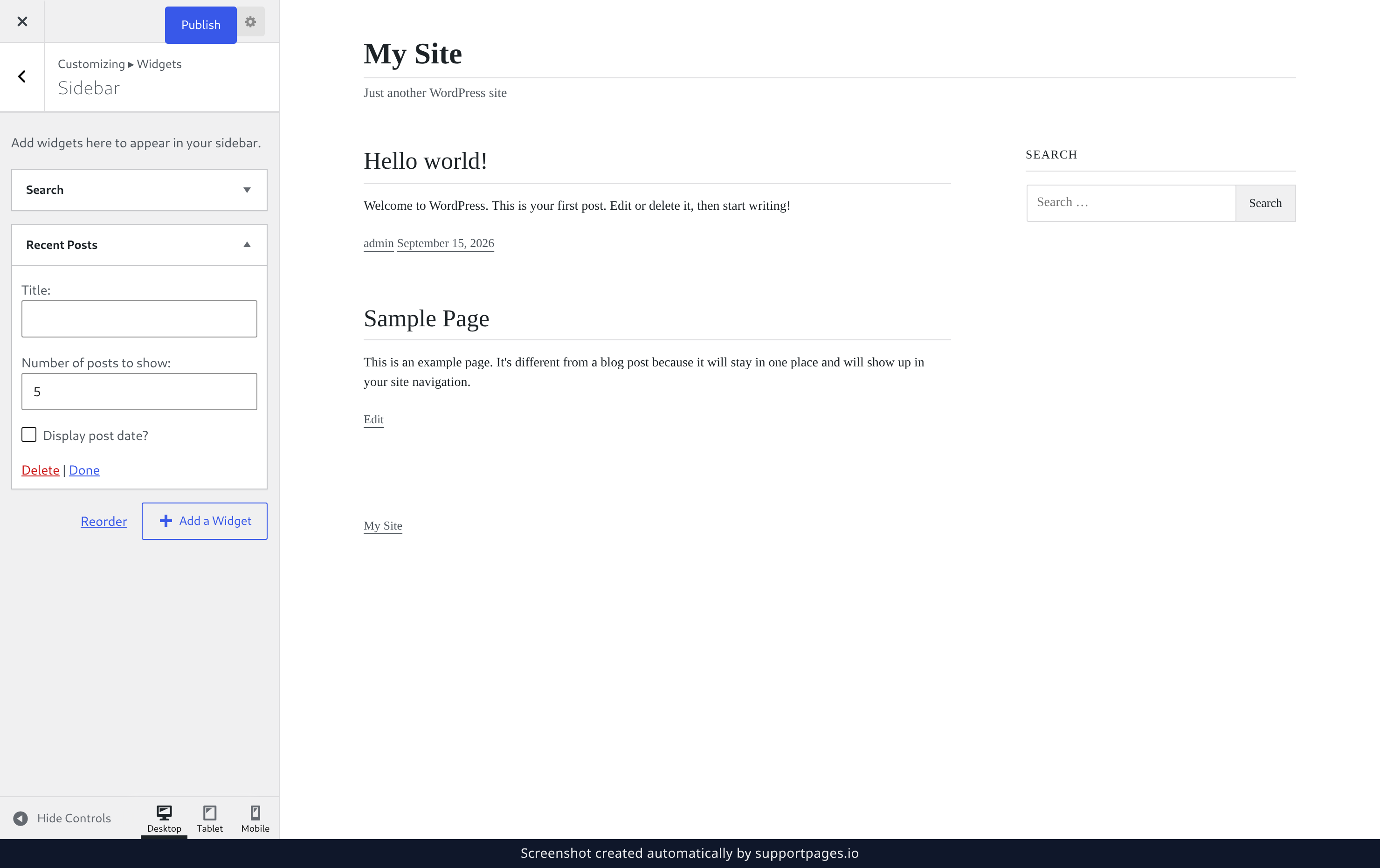
In the Customizer sidebar, select Widgets. The panel opens and lists the widget areas your theme makes available for the page you're previewing.
Open your widget area
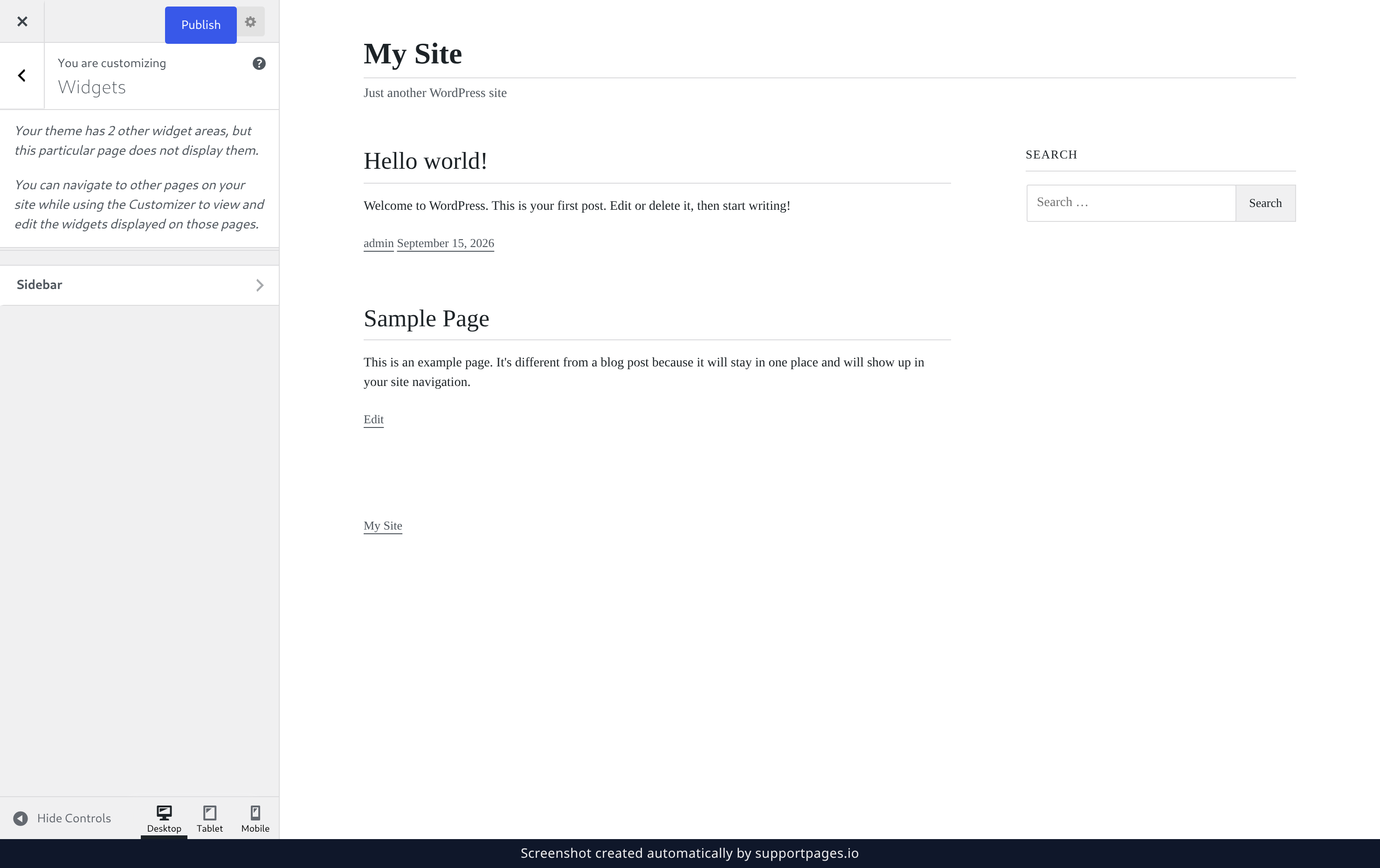
Select the area you want your widget to live in — the Sidebar, for example. Areas your theme registers but this page doesn't display are listed too; open those from a page that shows them.
Add and choose the widget
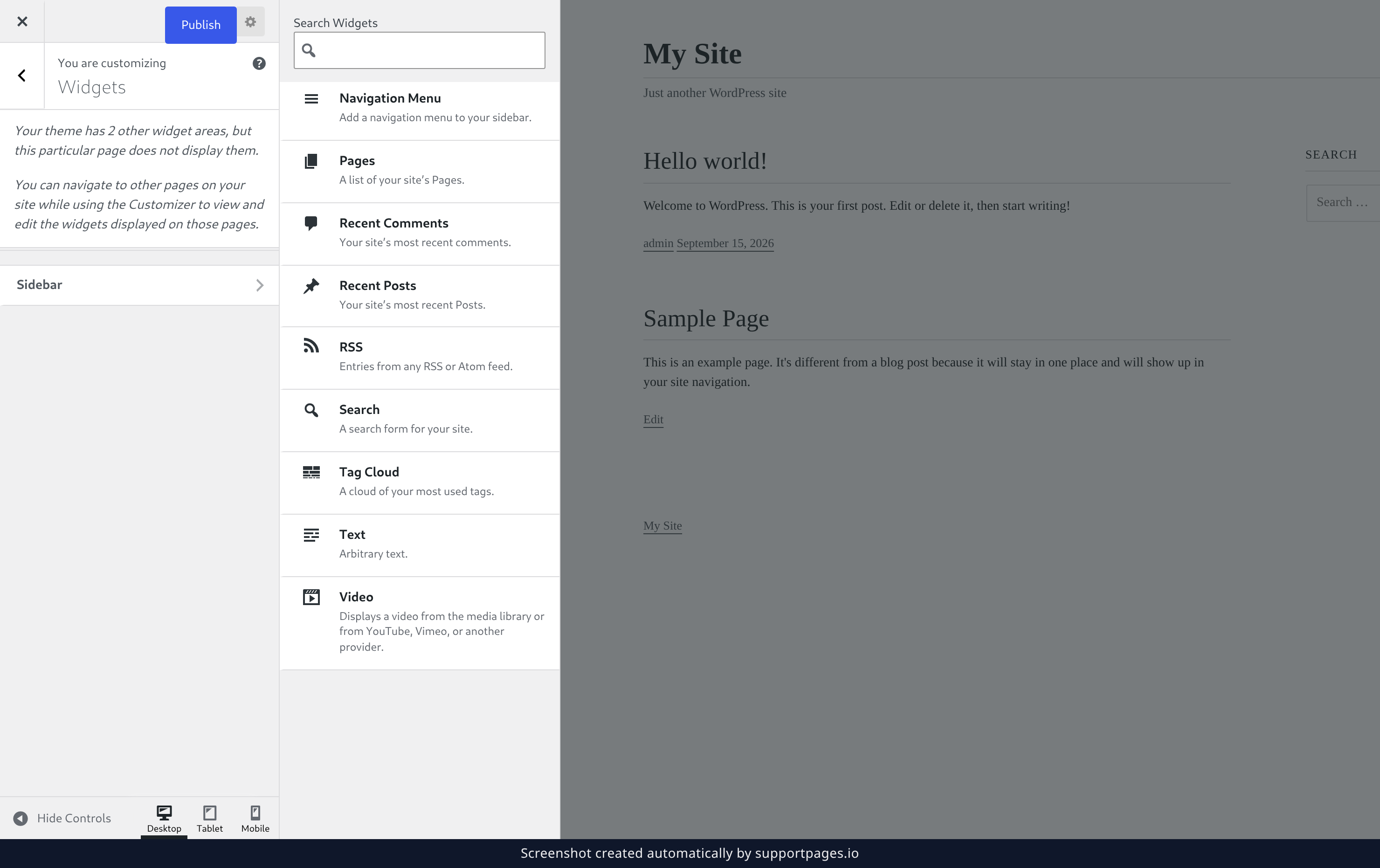
Select Add a Widget underneath the area's widget list. The chooser lists everything you can add, grouped by name — type a few letters into Search Widgets if the list is long. Select Recent Posts, and it appears in your widget area with its settings open.
Set up and publish the widget
The widget opens with its own settings. Give it a Title, then fill in whatever else it asks for — Recent Posts, for example, wants Number of posts to show and Display post date?. When you're happy, select Publish at the top of the Customizer.
Tips
- The preview is your real site — click around in it to check how the widget sits next to your posts and pages.
- Reorder in a widget area lets you drag your widgets into a different order without starting over.
- A widget you take back off your site keeps its settings, so you can add it again whenever you like.
You're all set
That's it — your widget is on the site, and you saw exactly where it landed before anyone else did. Add as many as you like; nothing goes live until you publish.
Was this article helpful?
Powered by supportpages.io, AI release notes software.
Have a question?
Search our articles, or ask and get an answer straight away.