
How to install WordPress
Updated about 1 month ago
Browse All
Installing WordPress takes about five minutes, and you only do it once. You'll name your site, create your own account, and choose a password — then you're ready to sign in and start building.
Prerequisites
-
Your site's web address, like
https://example.com. - A database for WordPress to use — most hosting companies create one for you when you add WordPress to your account.
- An email address you can check right now.
- A username and password you'll remember, or somewhere safe to keep them.
Steps
Open the installer
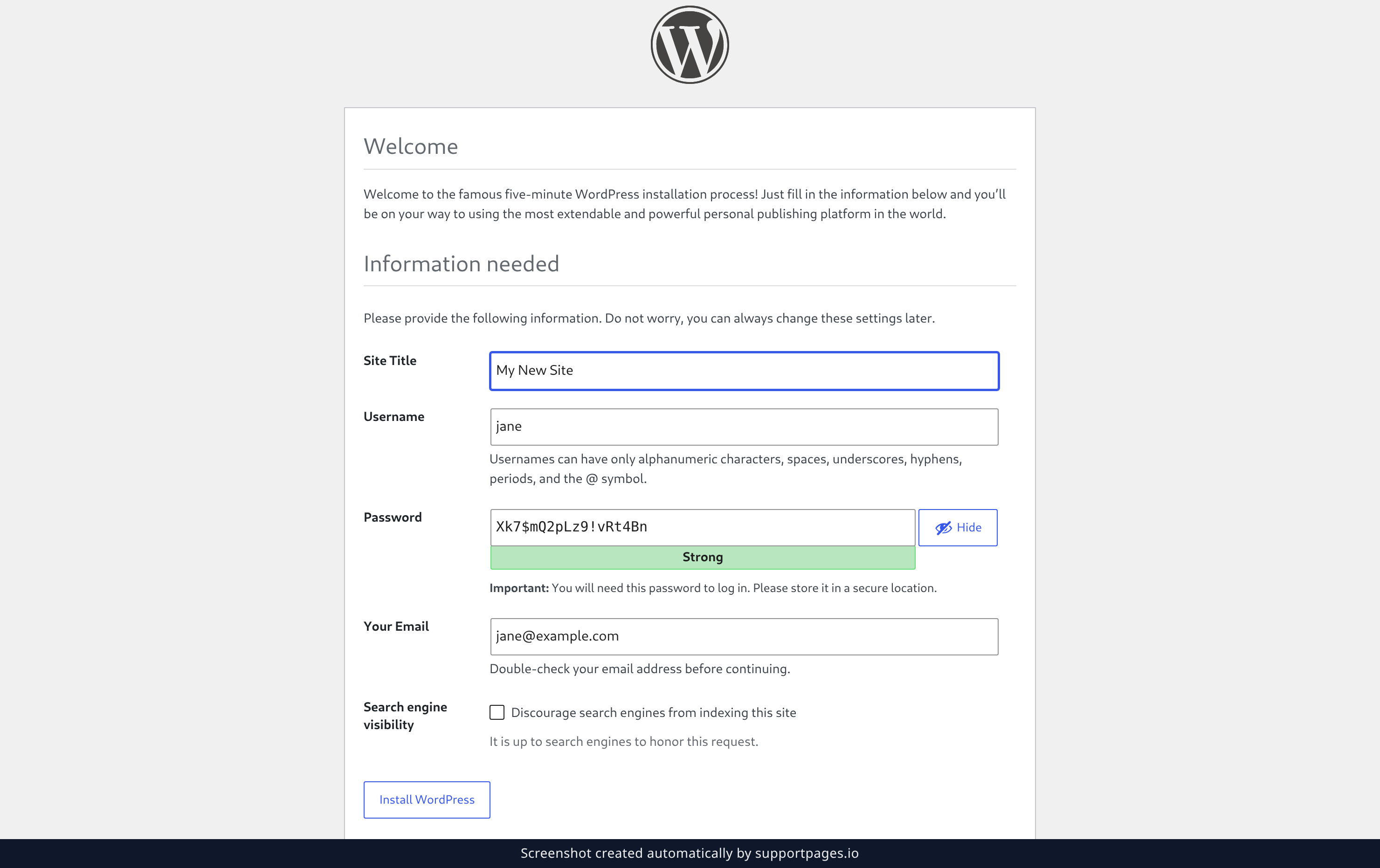
Go to https://your-site.com/wp-admin/install.php in your browser, replacing your-site.com with your own address.
Type your site's name into Site Title, then choose a Username and add a Your Email address you can check. WordPress fills in a strong Password for you — keep it, or click into the field and type one of your own.
If you're not ready for visitors yet, tick Discourage search engines from indexing this site, then click Install WordPress.
Save your login details
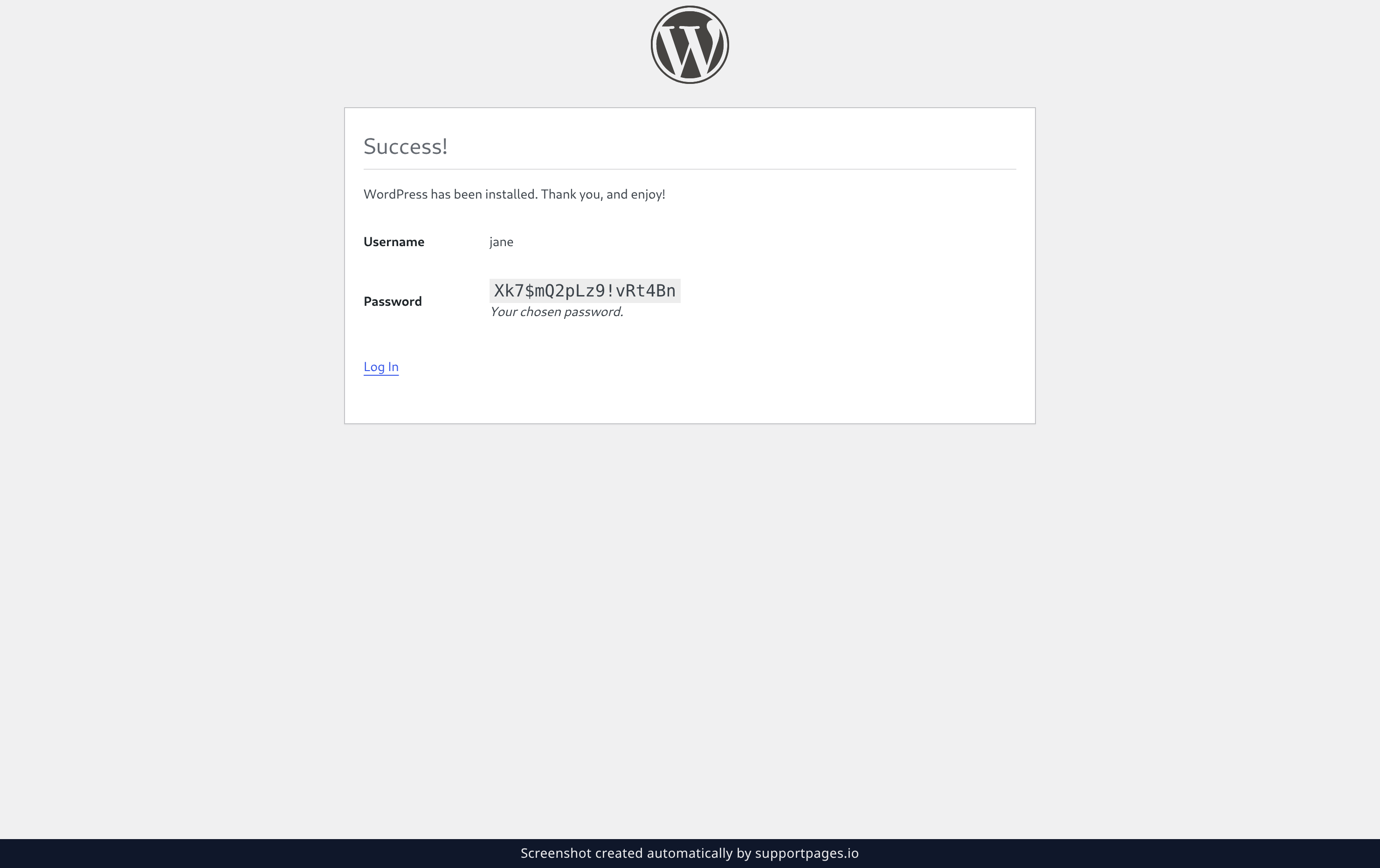
The Success! screen shows the Username and Password for your new account. Write them down or save them in your password manager — this is what you'll use to get back in.
Then click Log In.
Sign in to your dashboard
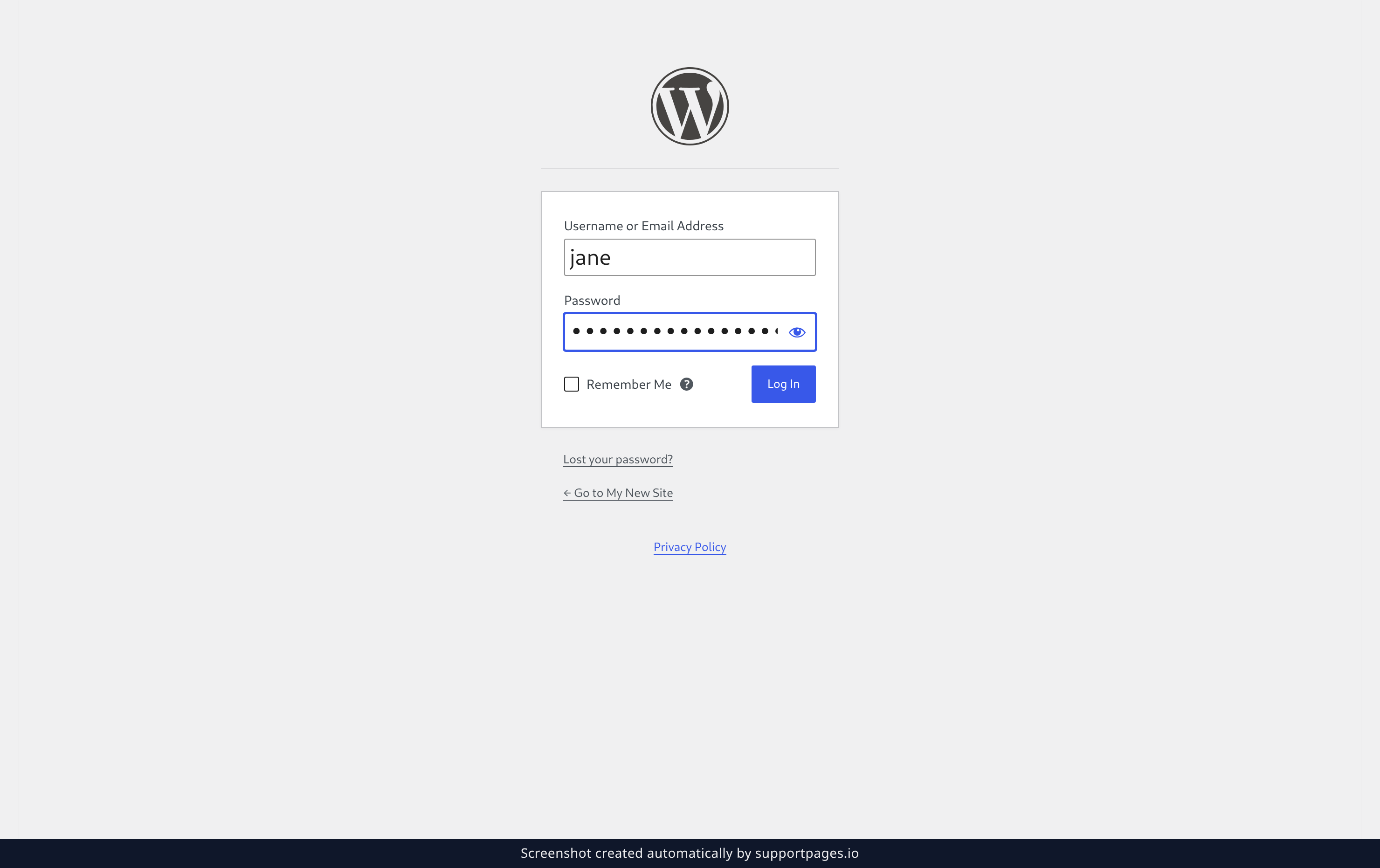
Enter your Username or Email Address and Password, then click Log In.
That's it — you land in the WordPress dashboard, ready to write your first post.
Tips
- Nothing you type here is permanent. You can change your site's name, tagline, and address later.
-
Seeing Already Installed instead of the form means WordPress is already set up on this site, so
https://your-site.com/wp-login.phpis where you want to be.
Summary
You named your site, created your account, and saved your password — that's WordPress installed. Sign in whenever you're ready to start building.
Was this article helpful?
Generated by supportpages.io, automating product documentation from your codebase.
Have a question?
Search our articles, or ask and get an answer straight away.