
How to find a user in the Users list
Updated about 1 month ago
Browse All
Once your site has more than a few people on it, scrolling the Users list stops being practical. A quick search or a role filter finds the right account in seconds, and then you can tick several people at once to change or remove them together.
Before you start
- You're signed in to your site's dashboard.
- Your account is allowed to see the list of users — Administrators can, most other roles can't.
Steps
Find the person you're looking for
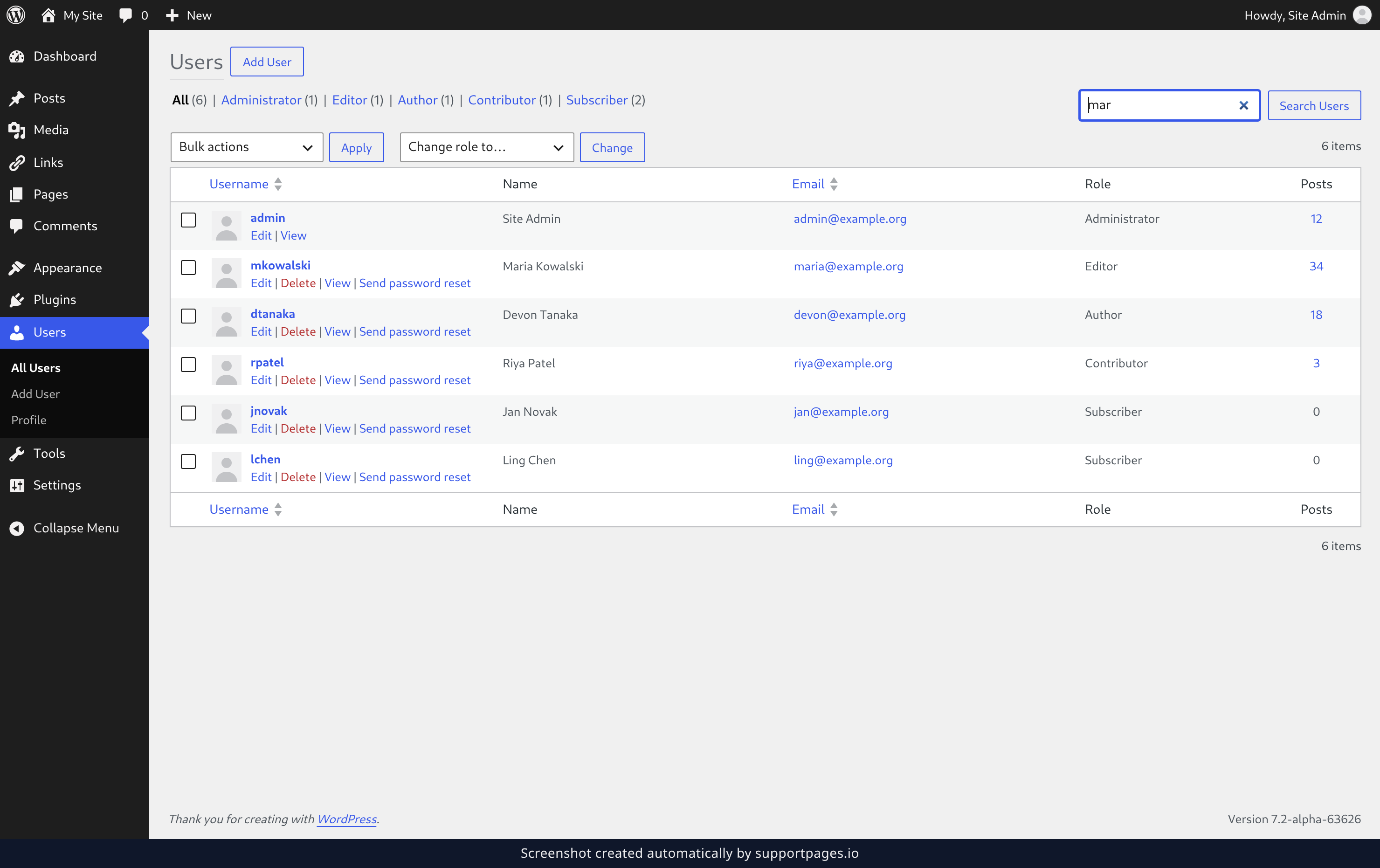
In the left-hand menu, click Users. Then type part of the person's name, username, or email address into the Search Users box and click the Search Users button — the first few letters are usually enough. To narrow the list instead of searching, click a role such as Administrator above the search box.
Change or remove them together
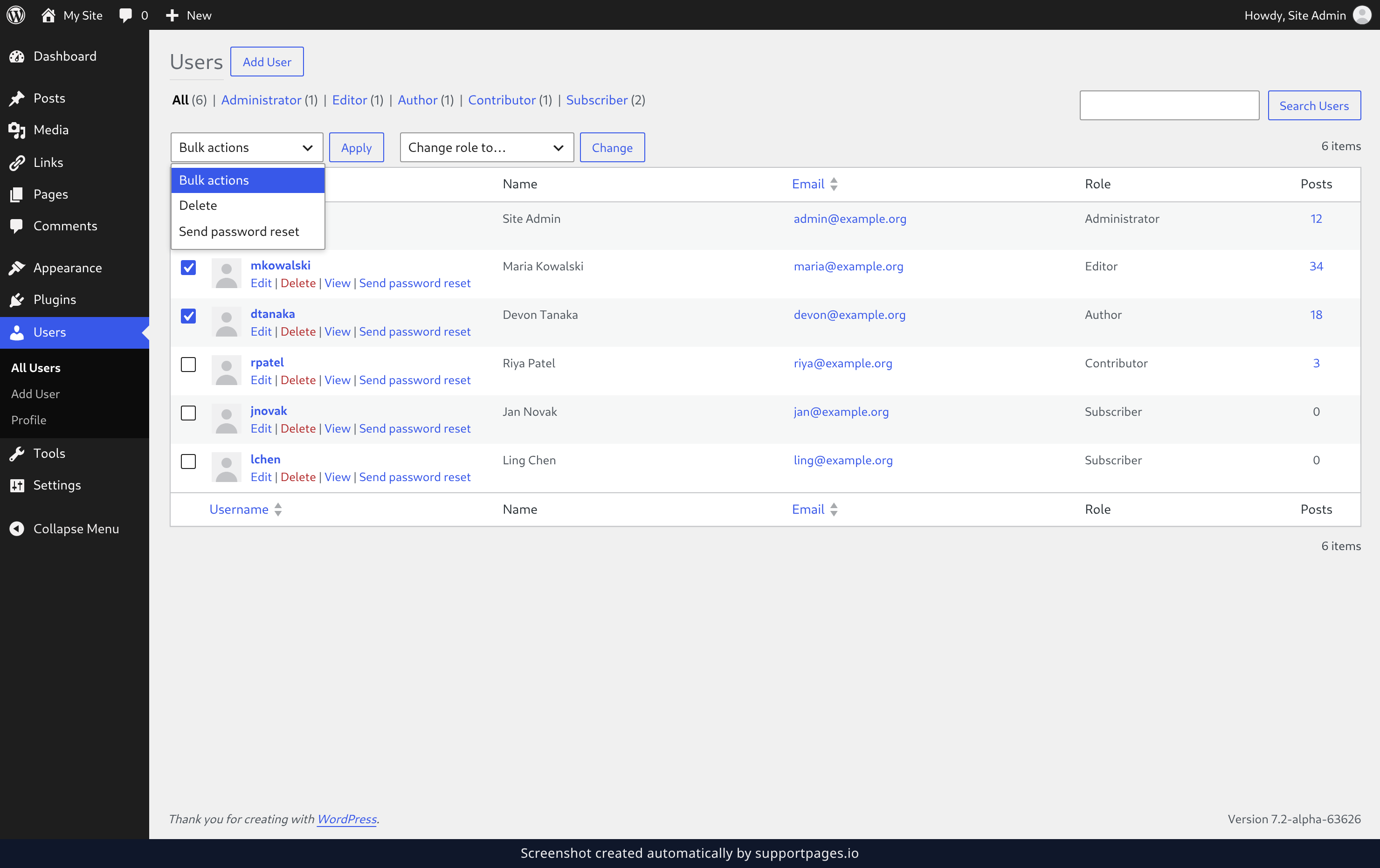
Tick the checkbox at the start of each row you want to work with, or the checkbox in the header row to take everyone currently shown. Open the Bulk actions dropdown and choose Send password reset or Delete, then click Apply.
Move them to another role
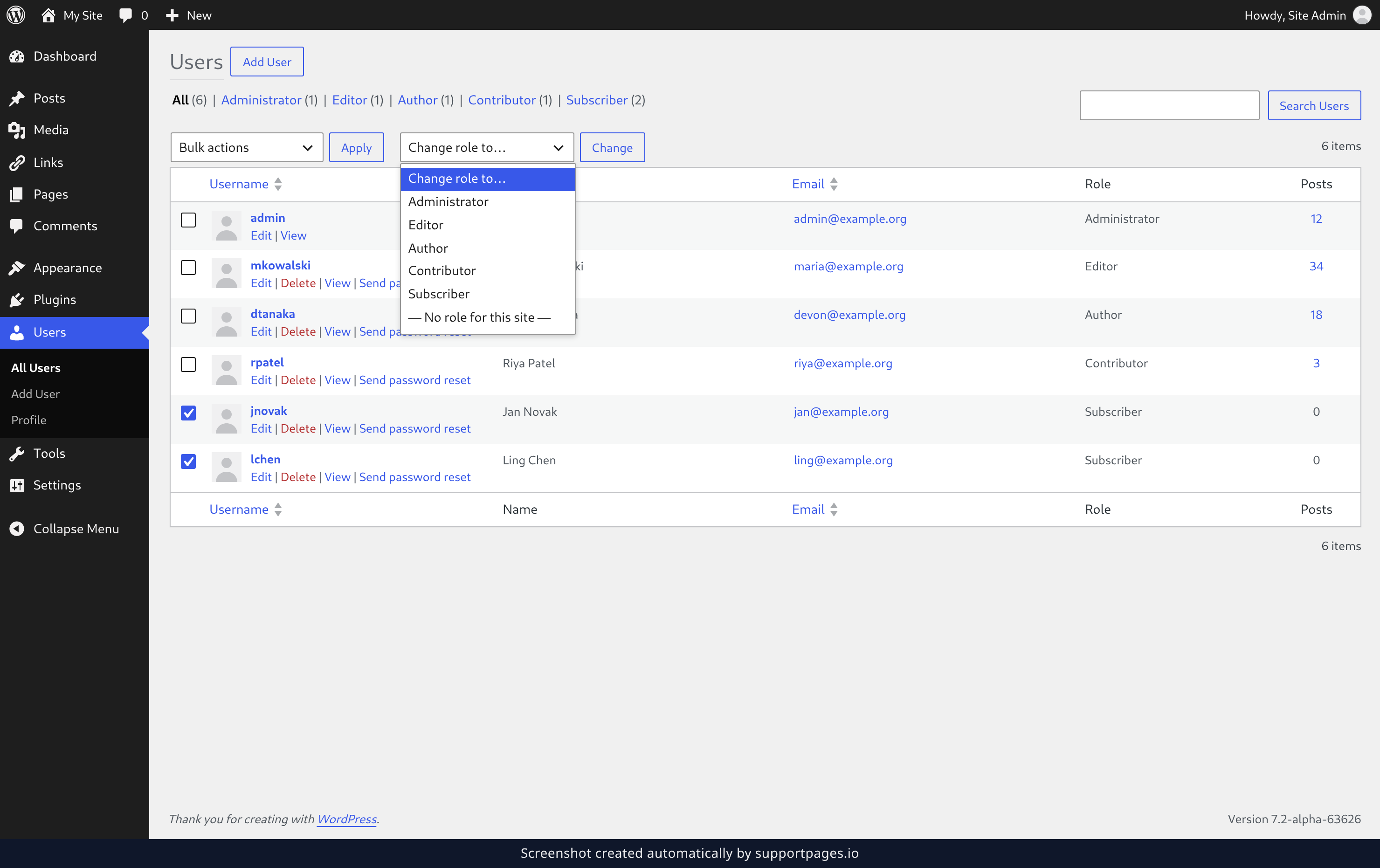
To change what those same people can do instead, choose the new role from the Change role to… dropdown and click Change. Their posts and pages stay with them either way.
Tips
- While a search is running, the heading above the list reads Search results for: followed by what you typed.
- Click All above the list to clear a role filter without losing your search.
- Your ticks survive a fresh search or role filter, so you can build up a selection in a couple of steps.
- Each row carries its own Edit, View, and Delete links for when you only need to change a single account.
- Deleting a user brings you to a confirmation screen where you decide what happens to their content, so nothing is removed until you confirm.
Summary
Search by name or email, filter by role, then tick the accounts you want and use Bulk actions to change or remove them in one go.
Was this article helpful?
Powered by supportpages.io, AI release notes software.
Have a question?
Search our articles, or ask and get an answer straight away.