
How to choose your admin color scheme and personal options
Updated about 1 month ago
Browse All
Your dashboard doesn't have to look like everyone else's. You can give it a color scheme you enjoy and switch a few settings on or off so it works the way you do.
Before you start
- You're logged in to your site's dashboard.
- You're opening your own profile page — these settings only change what you see.
Steps
Open your profile
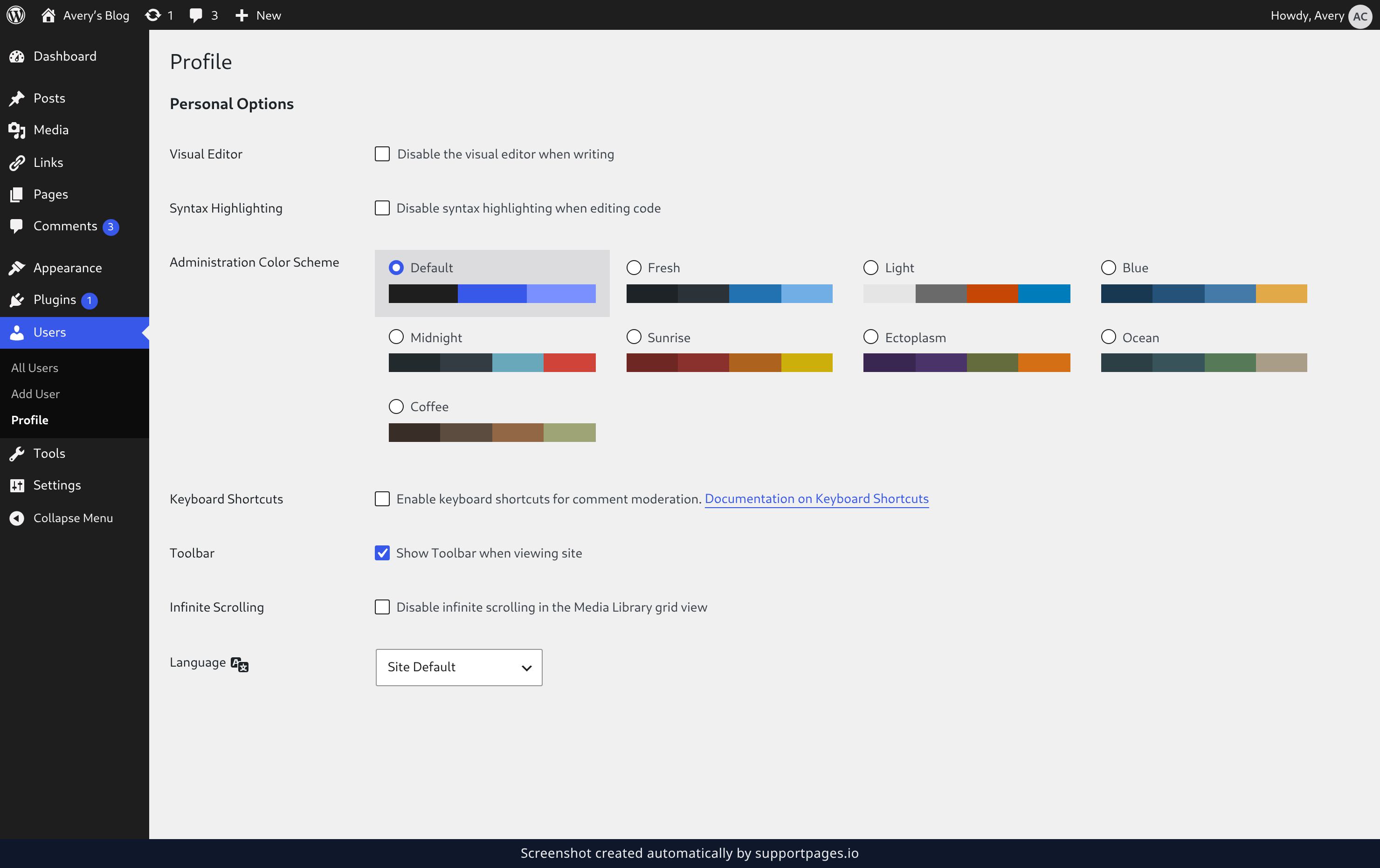
In the left sidebar, click Users, then Profile. Everything you change here is in the Personal Options section near the top of the page.
What you can change
- Administration Color Scheme repaints the sidebar and the top bar — Default is the one you have now.
- Disable the visual editor when writing swaps the block editor for plain HTML.
- Disable syntax highlighting when editing code turns off the code editor's colors.
- Enable keyboard shortcuts for comment moderation adds quick keys for working through comments.
- Show Toolbar when viewing site keeps the top bar in view while you browse your own site.
- Disable infinite scrolling in the Media Library grid view loads your media in pages instead of one endless scroll.
Save your changes
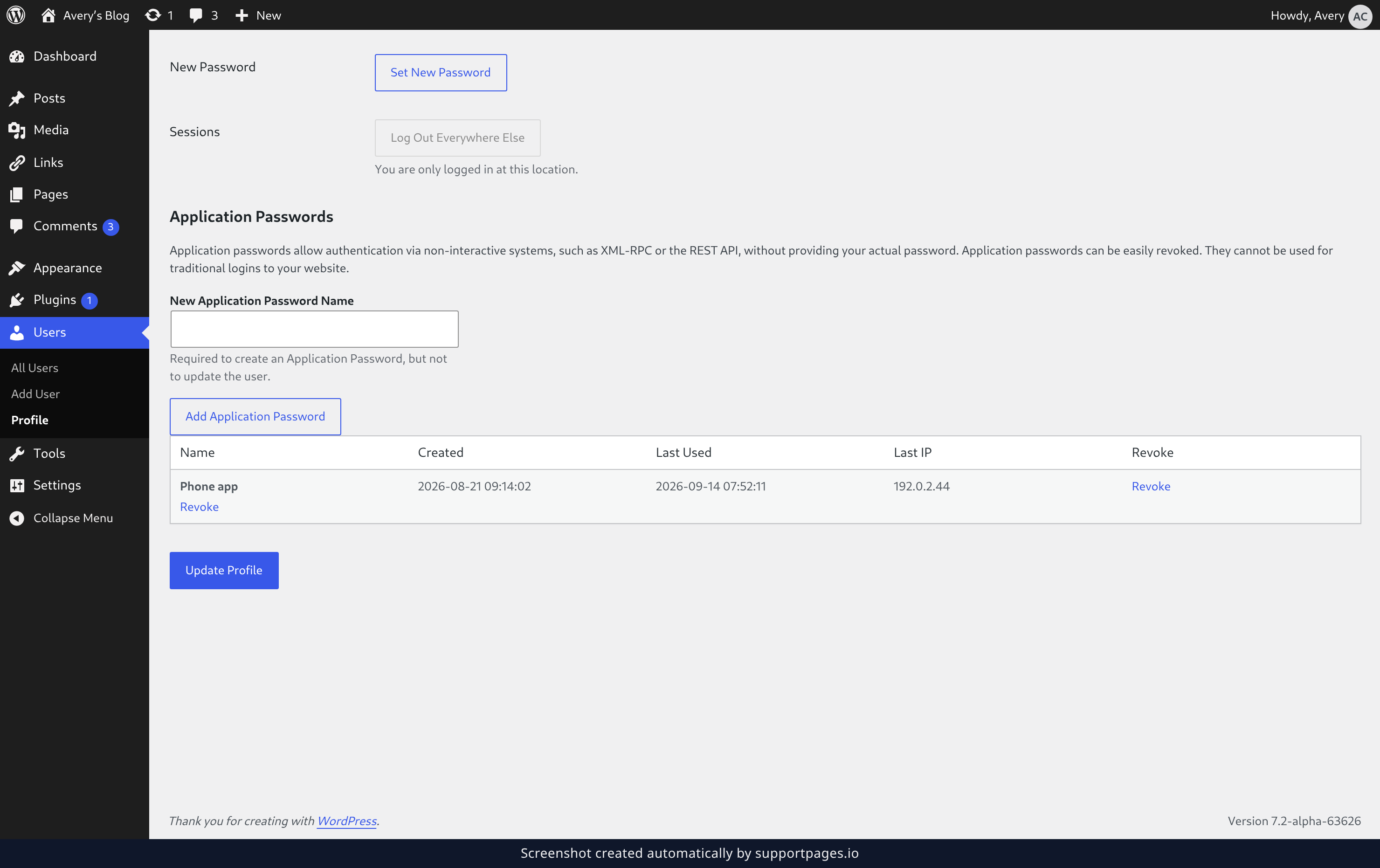
Scroll to the bottom of the page and click Update Profile. Your dashboard picks up the new look straight away.
Tips
- Your color scheme is yours alone — other people on the site keep the one they picked.
- Not sure about a palette? Try it and come back. You can switch again whenever you like.
- These options never change what visitors see on your site, only what you see in the dashboard.
Summary
Open Users → Profile, choose a color scheme, flip the personal options that suit you, and click Update Profile to keep them.
Was this article helpful?
Built with supportpages.io, a help centre generator for developers — written from your codebase.
Have a question?
Search our articles, or ask and get an answer straight away.