
How to send a password reset link to a user
Updated about 1 month ago
Browse All
When someone on your site is locked out, you can email them a reset link so they choose a new password themselves. You never have to set a password for them, and their current one keeps working until they use the link.
Before you start
- An account that can manage users — an Administrator, or any role that can edit users.
- The person already has an account on your site. If they don't, add them first.
- The email address on their account is one they can actually reach.
Steps
Send a reset link from the Users list
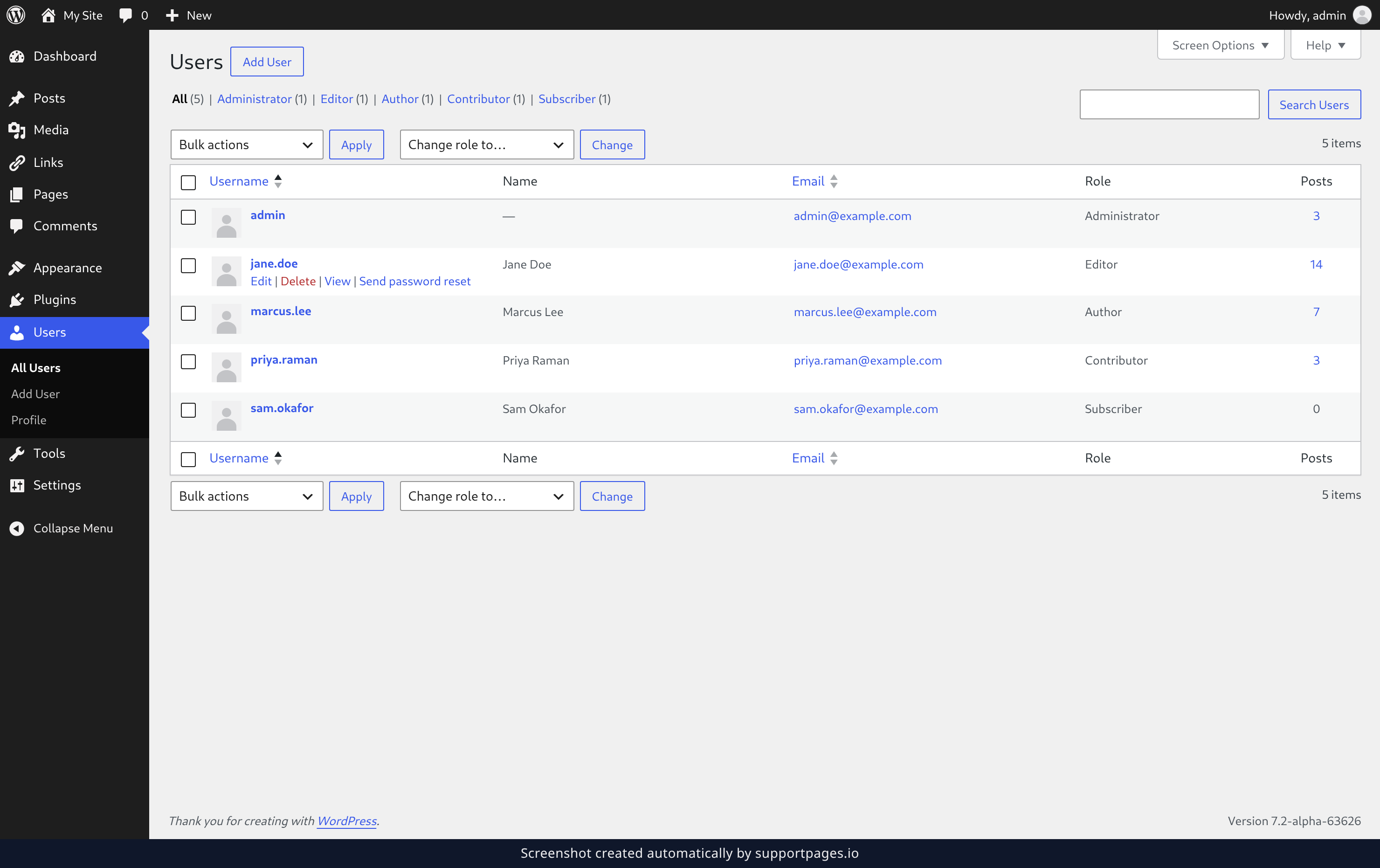
In the left-hand menu, click Users, then click All Users. Find the person in the list and hover over their row — a set of links appears under their sign-in name. Click Send password reset, and the email goes out straight away.
Or send it from the user's profile
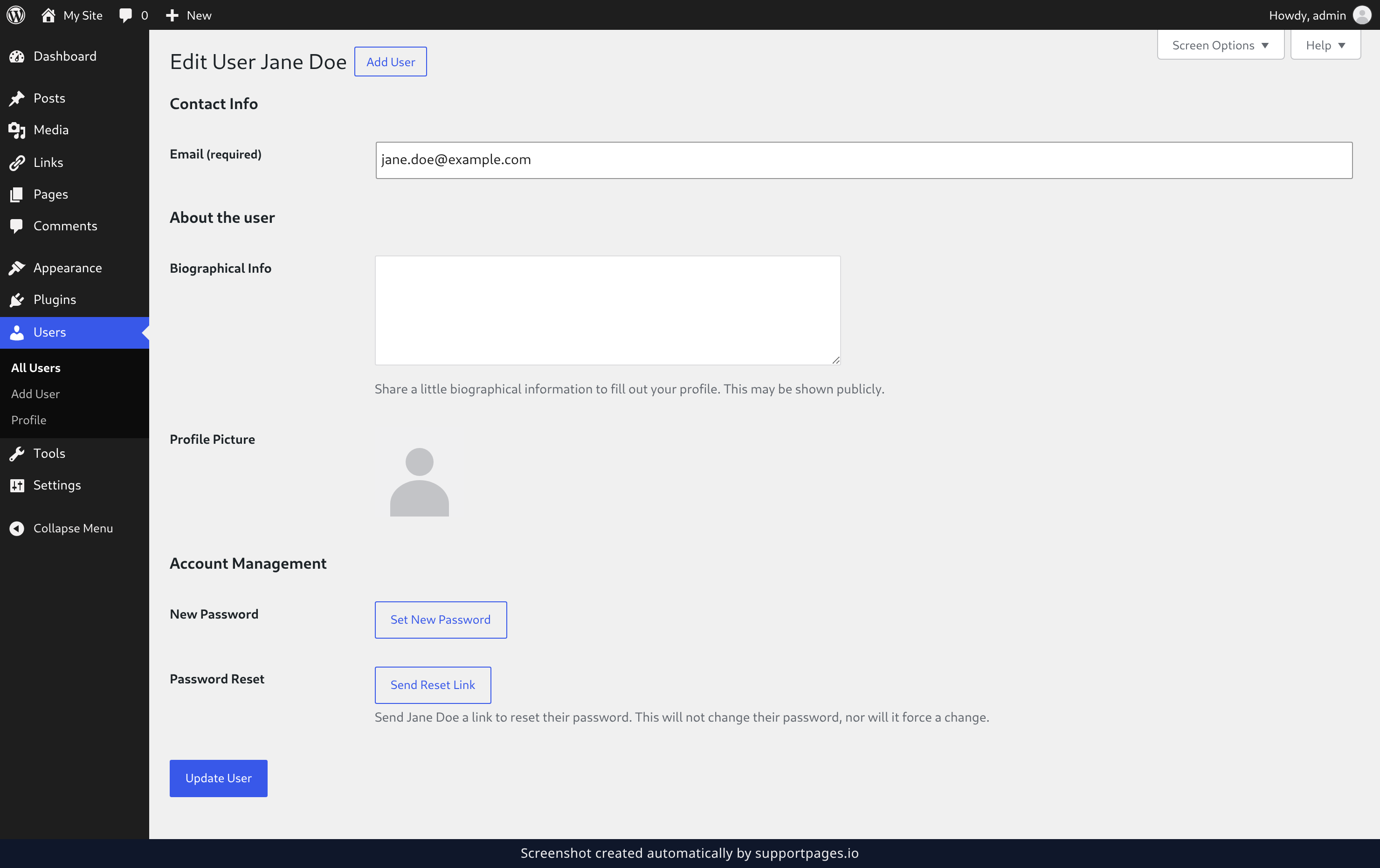
Hover their row again and click Edit to open their profile. Scroll down to the Account Management section and click Send Reset Link. The note underneath spells it out: this doesn't change their password, and it doesn't force them to change it either.
What happens next
They get an email with a link they can use to set a new password. Nothing about their account changes until they click it and choose one.
Tips
- The link goes to the address in the Email column, so give that column a quick look before you send.
- If the email doesn't turn up, ask them to check their spam folder — reset messages land there more often than you'd think.
Summary
Hover their row, click Send password reset, and they can set a new password on their own. No password sharing, and nothing to undo if they remember it after all.
Was this article helpful?
Built with supportpages.io — an AI documentation generator.
Have a question?
Search our articles, or ask and get an answer straight away.