
How to change a user’s role
Updated about 1 month ago
Browse All
A person's role decides what they can do on your site. Changing it takes about a minute, and you can switch it back just as easily.
Before you start
- An administrator account for your site — changing someone else's role is an administrator job
- The name or username of the person you want to change
Steps
Open the person's profile
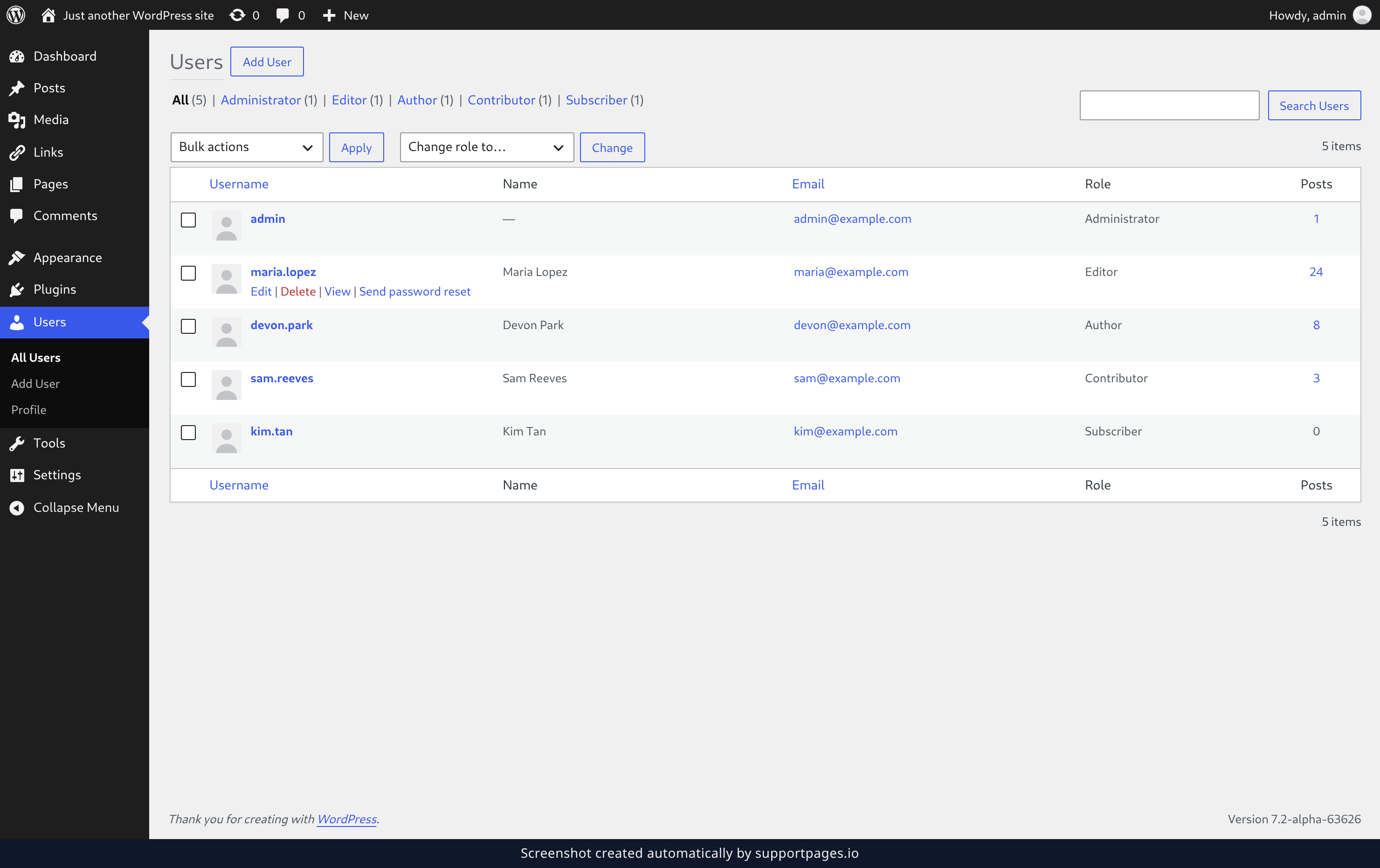
In the dashboard sidebar, click Users. Find the person in the list and click their username.
Pick the new role
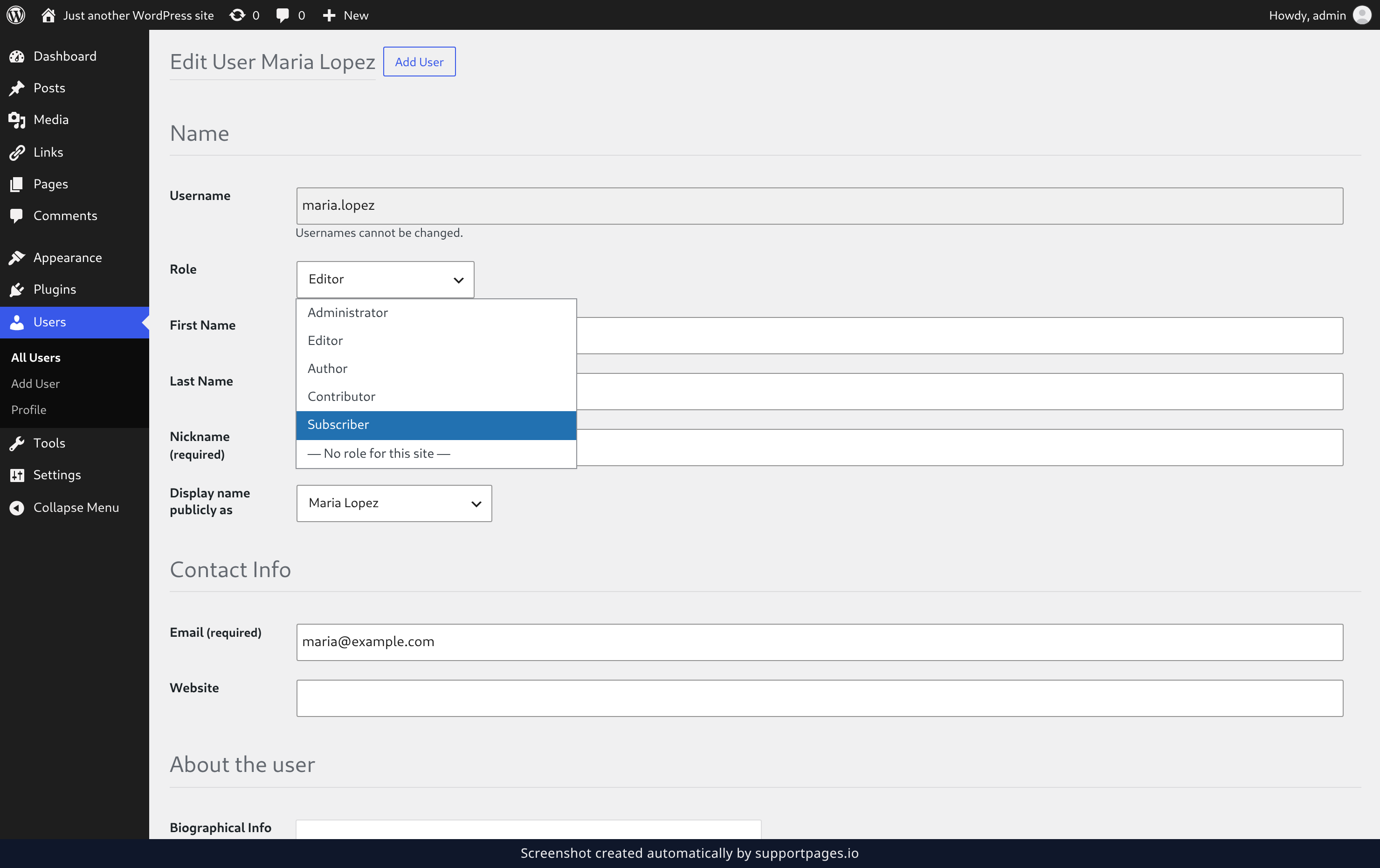
In the Name section, open the Role dropdown and choose the role you want them to have.
Save the change
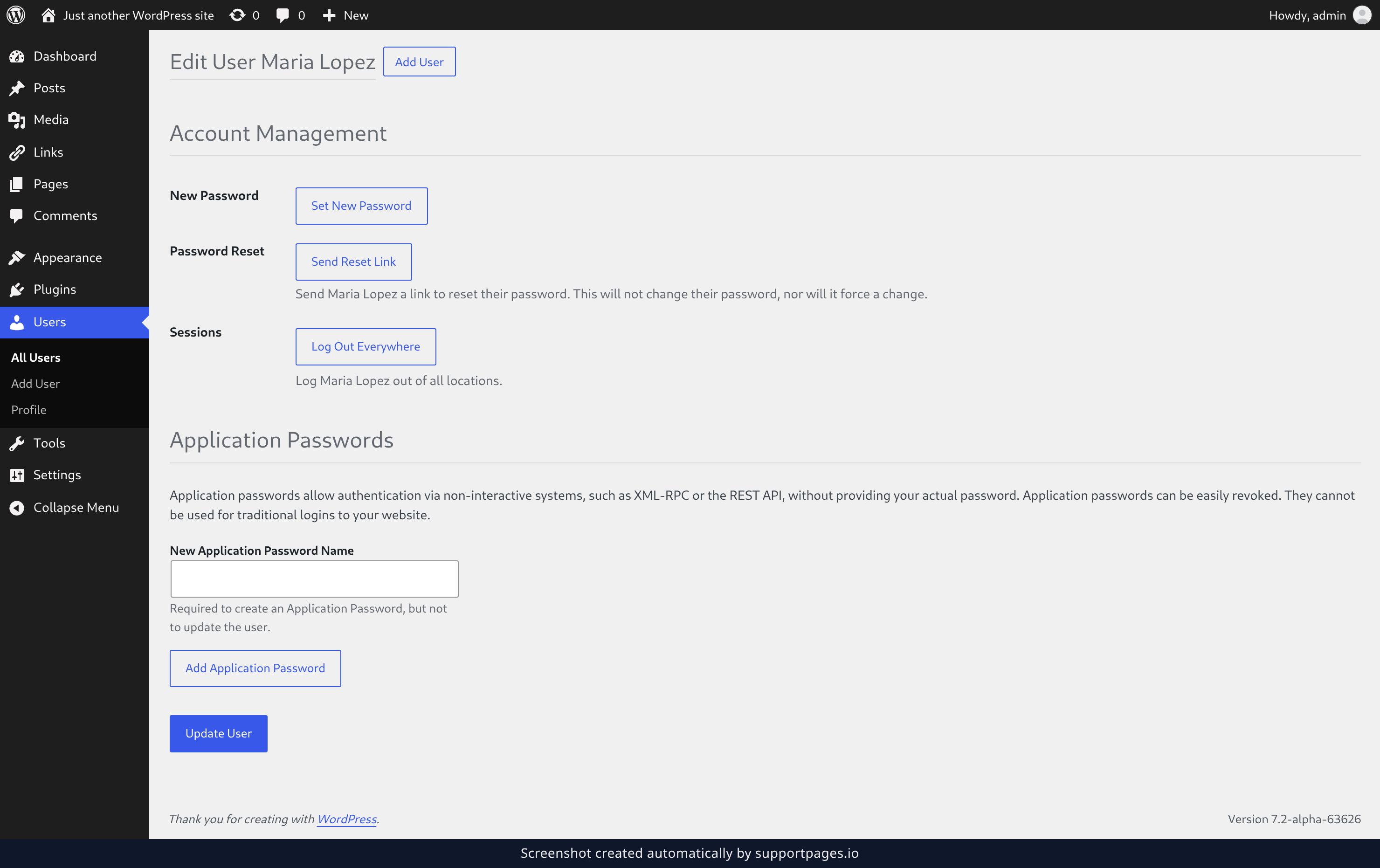
Scroll to the bottom of the page and click Update User. You'll see User updated at the top once it's done.
Good to know
- The Role dropdown lists the roles available on your site — by default that's Administrator, Editor, Author, Contributor, and Subscriber.
- Choosing — No role for this site — takes away their access without deleting their account.
- You can change a role as often as you need — nothing the person has written or uploaded is removed.
Summary
Open the person from the Users list, pick their new role, and click Update User. That's the whole job — you can revisit it any time.
Was this article helpful?
Generated automatically by supportpages.io — AI knowledge base software for SaaS teams.
Have a question?
Search our articles, or ask and get an answer straight away.