
How to delete and reinstall plugins
Updated about 1 month ago
Browse All
Sometimes a plugin has to go. Maybe you've stopped using it, or maybe it's misbehaving and you want a clean copy of the files on your site. You can do either one straight from your dashboard — no file access needed.
Before you start
- An administrator account on your site — only administrators can manage plugins.
-
For a reinstall: the plugin's
.zipfile, downloaded from its page in the WordPress Plugin Directory. - A backup of your site, in case you want to undo something later.
Steps
Turn the plugin off
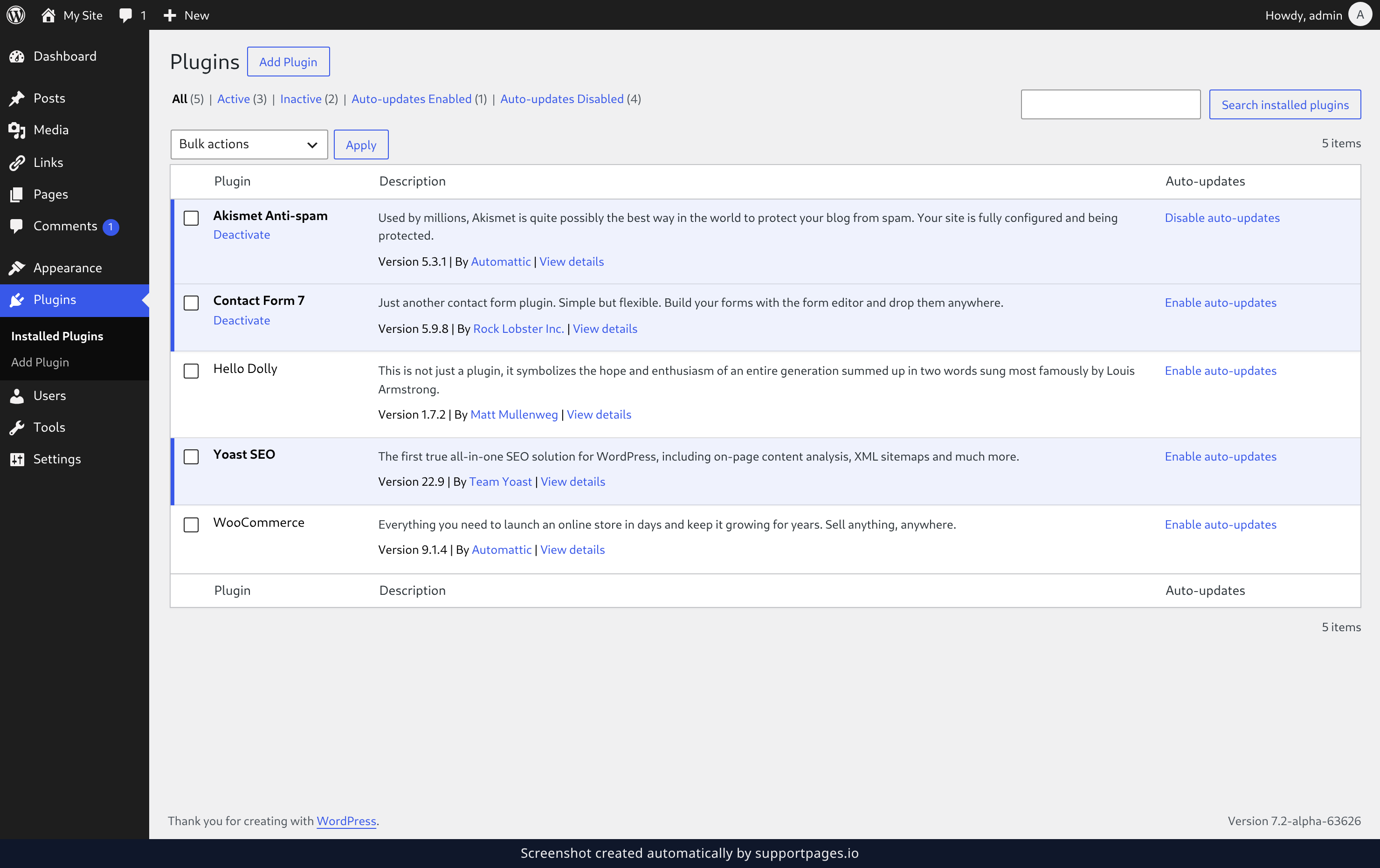
Open Plugins in your dashboard and find the plugin in the list. Click Deactivate under its name to switch it off.
Delete its files
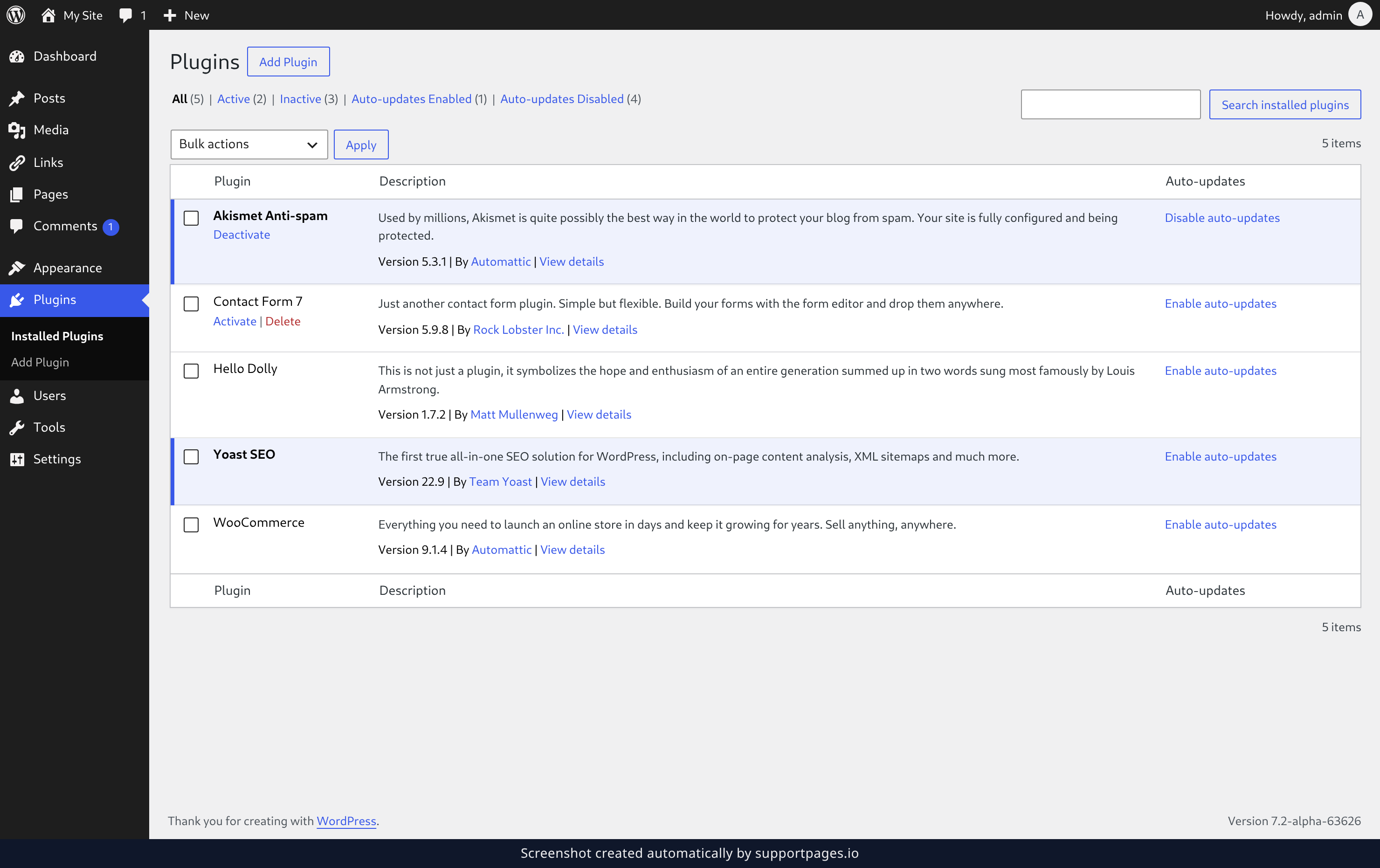
Once a plugin is switched off, a Delete link appears under its name. Click it to remove the plugin's files from your site.
Confirm the deletion
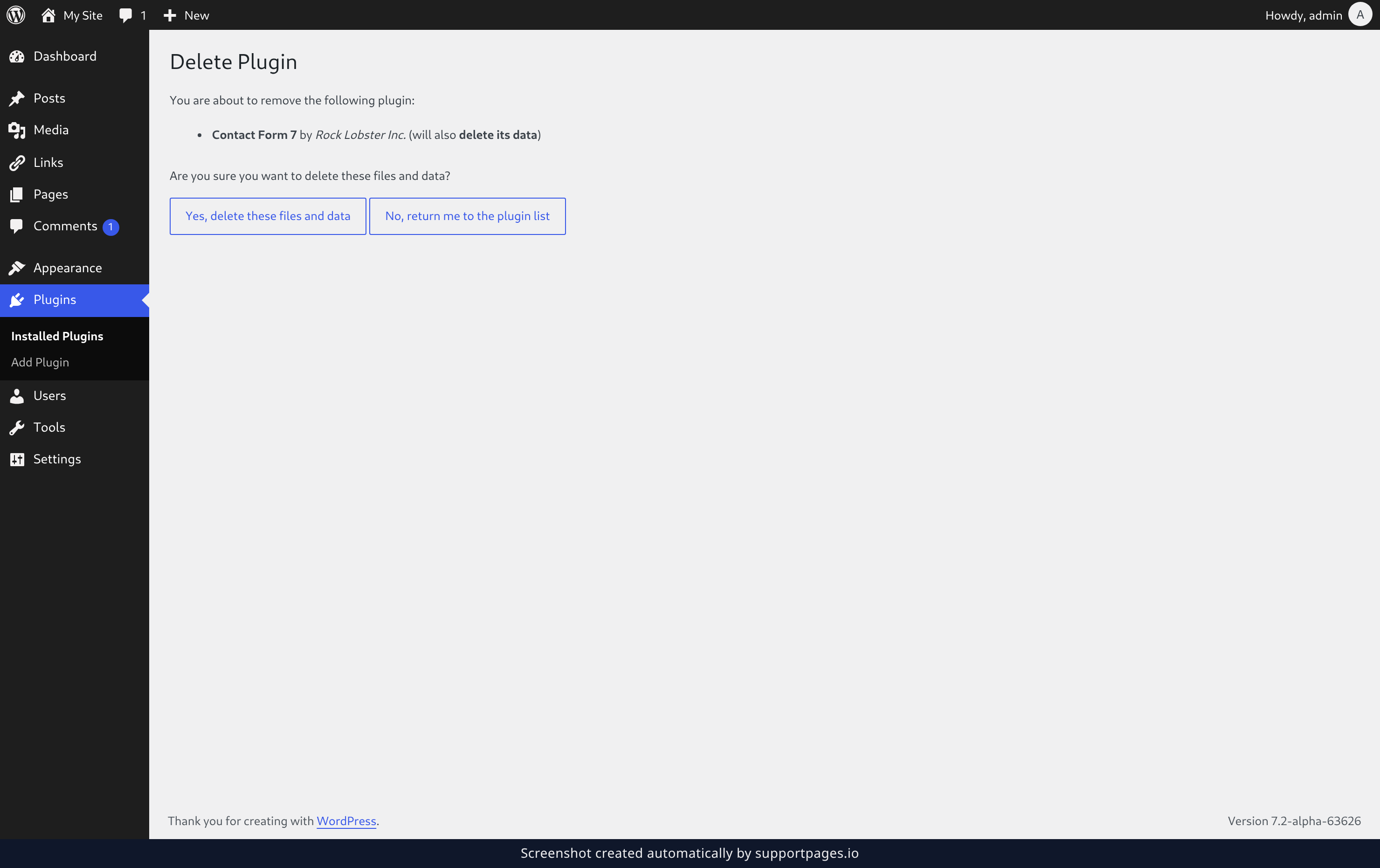
WordPress asks you to confirm before it removes anything. Click Yes, delete these files and data and the plugin is gone.
Open the plugin uploader
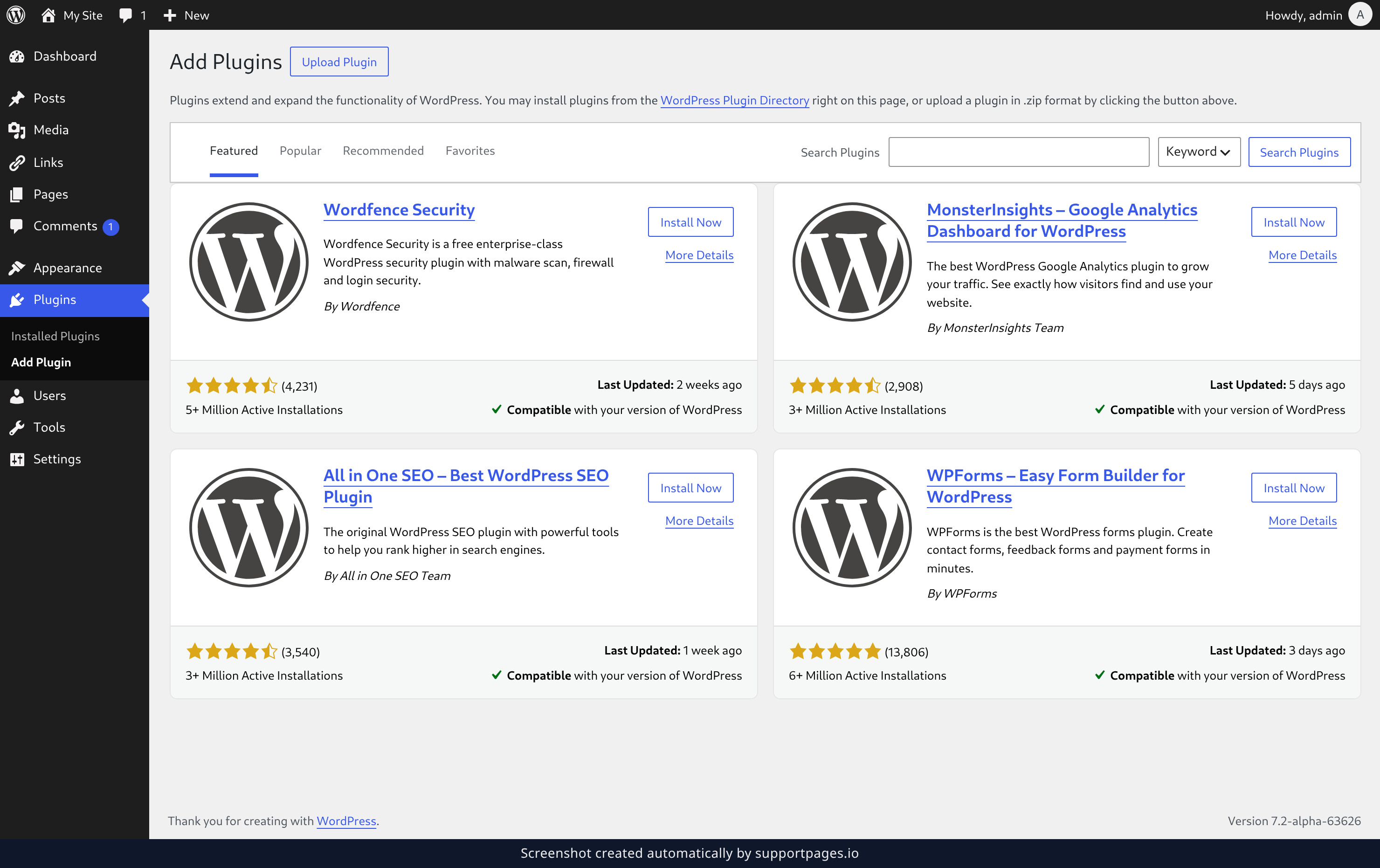
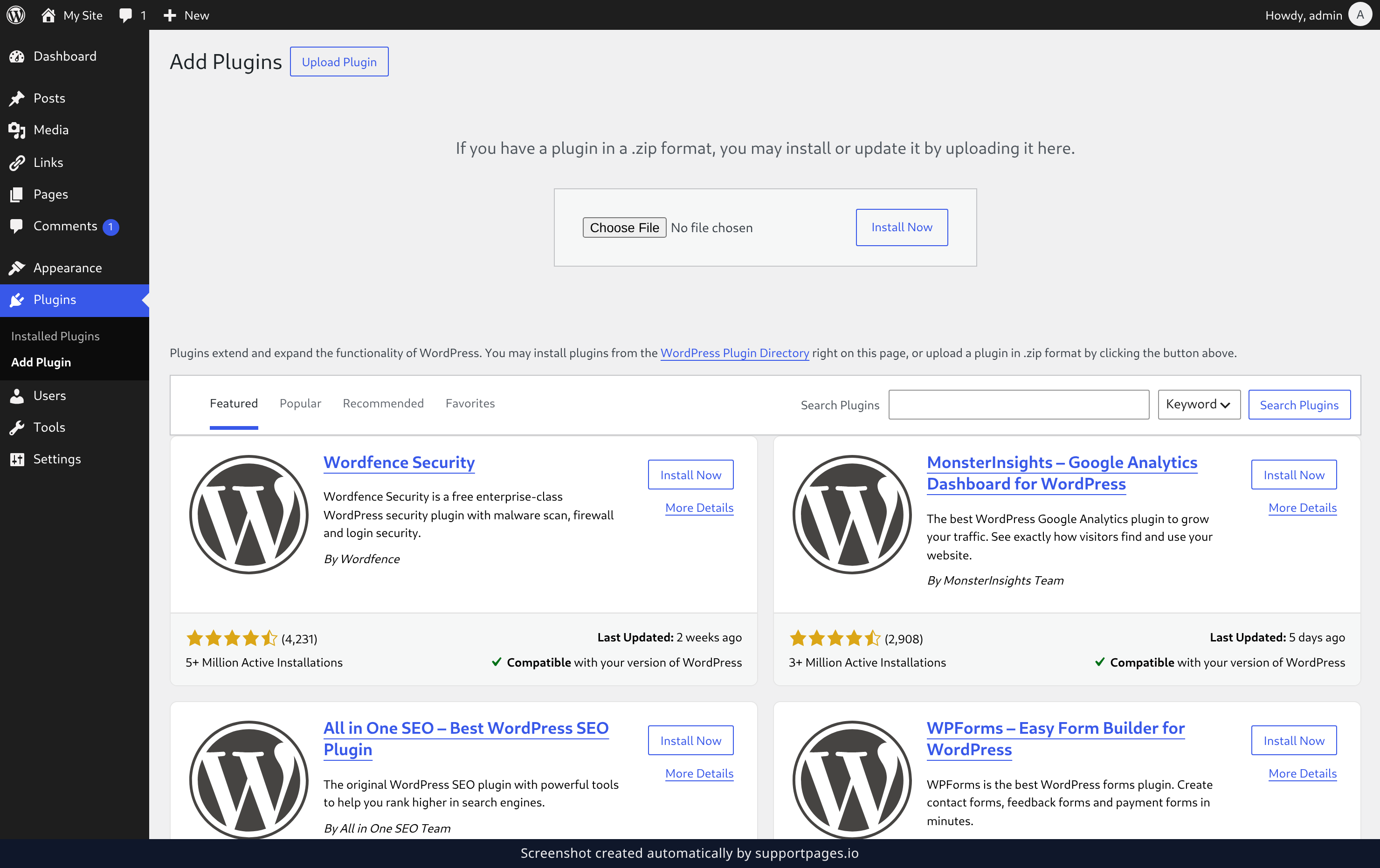
To put clean files back, click Add Plugin on the Plugins screen. On the next screen, click Upload Plugin.
Upload the plugin file
Choose the plugin's .zip file, then click Install Now.
Replace the current version
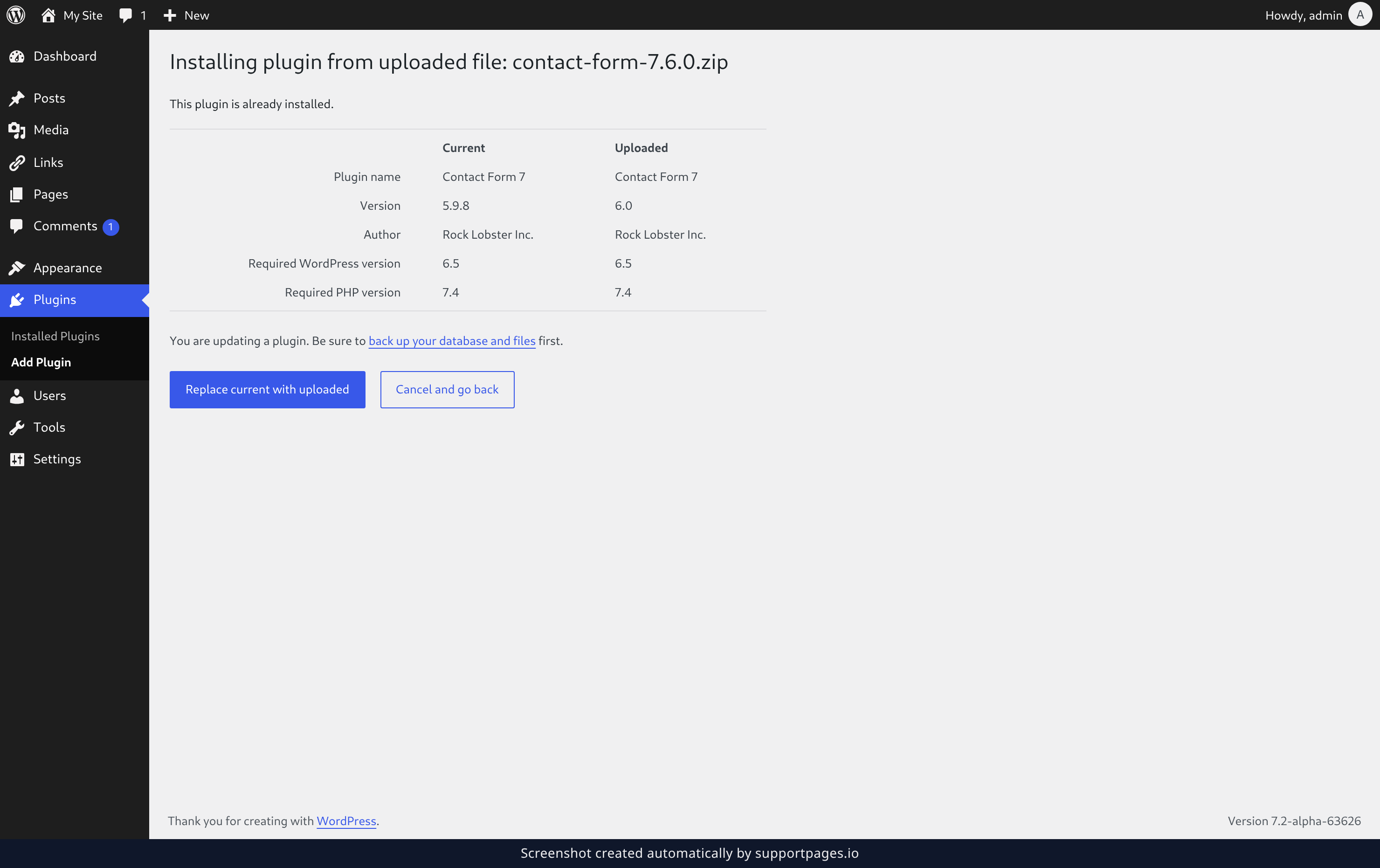
Because that plugin is already installed, WordPress shows you the current and uploaded versions side by side. Click Replace current with uploaded to write the new files over the old ones.
Tips
- Deactivate only switches a plugin off — it stays in the list and you can turn it back on any time. Delete is what actually removes the files.
- Deleting and reinstalling is a quick fix when a plugin update breaks your site: remove it, then upload the working version over the top.
- Your plugin settings live in your site's database, so replacing the files keeps them. Deleting a plugin that stores data removes that data too, and the confirmation screen tells you when that's the case.
Summary
Deactivate and delete a plugin you're finished with, or upload a fresh copy over the top when you just need clean files. Both take a couple of clicks and save you from touching your site's files by hand.
Was this article helpful?
Powered by supportpages.io — help centre software for SaaS.
Have a question?
Search our articles, or ask and get an answer straight away.