
How to turn on automatic updates
Updated about 1 month ago
Browse All
WordPress can install plugin and theme updates for you as soon as they are released. Here is how to switch that on, so you never have to remember to update again.
Before you start
- Administrator access to your WordPress dashboard.
- Plugins and themes that come from WordPress.org, or that include their own update system.
Steps
Open your plugins list
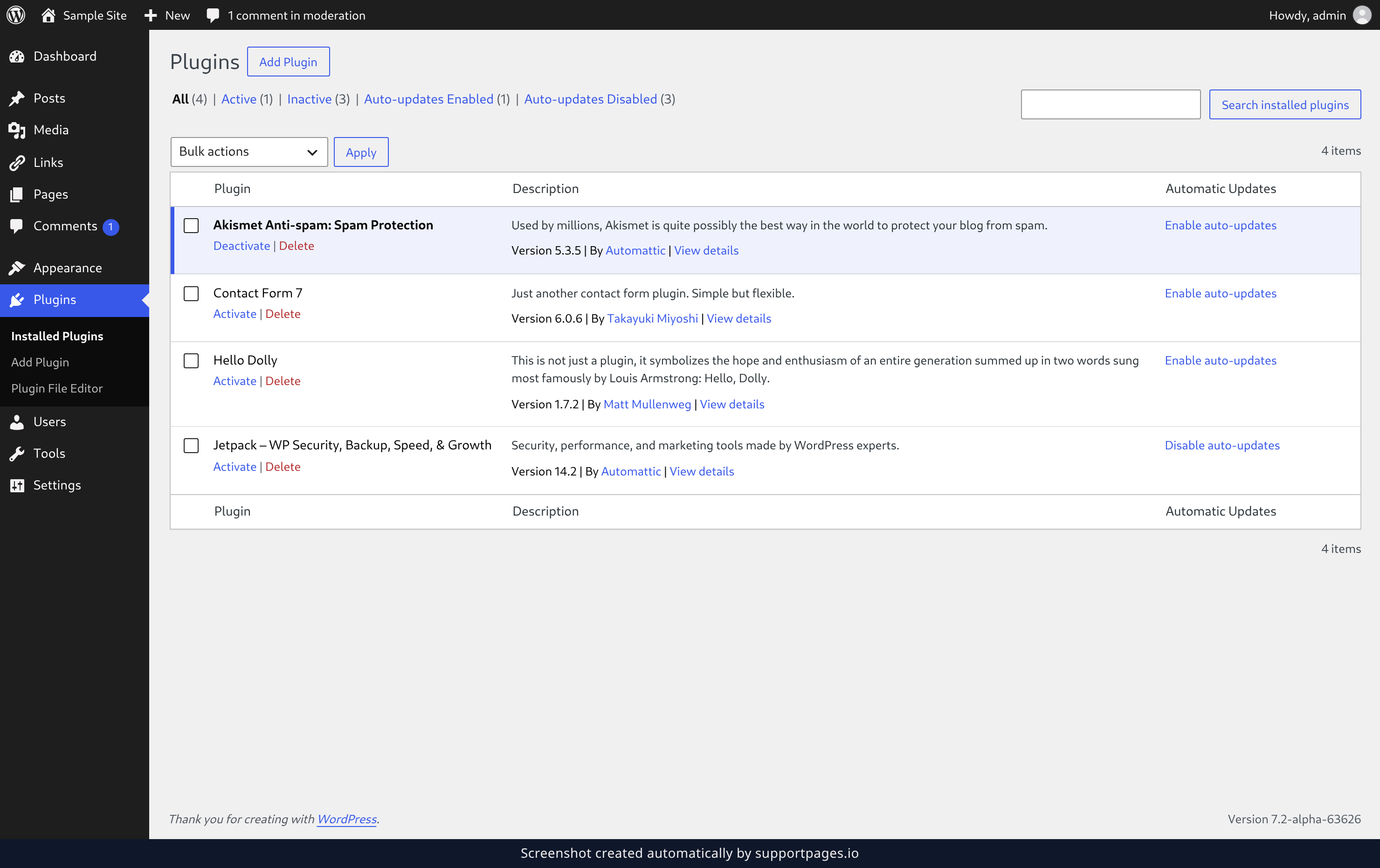
In the left-hand menu, select Plugins. Every plugin on your site is listed here, with an Automatic Updates column showing which ones look after themselves.
Turn on auto-updates for a plugin
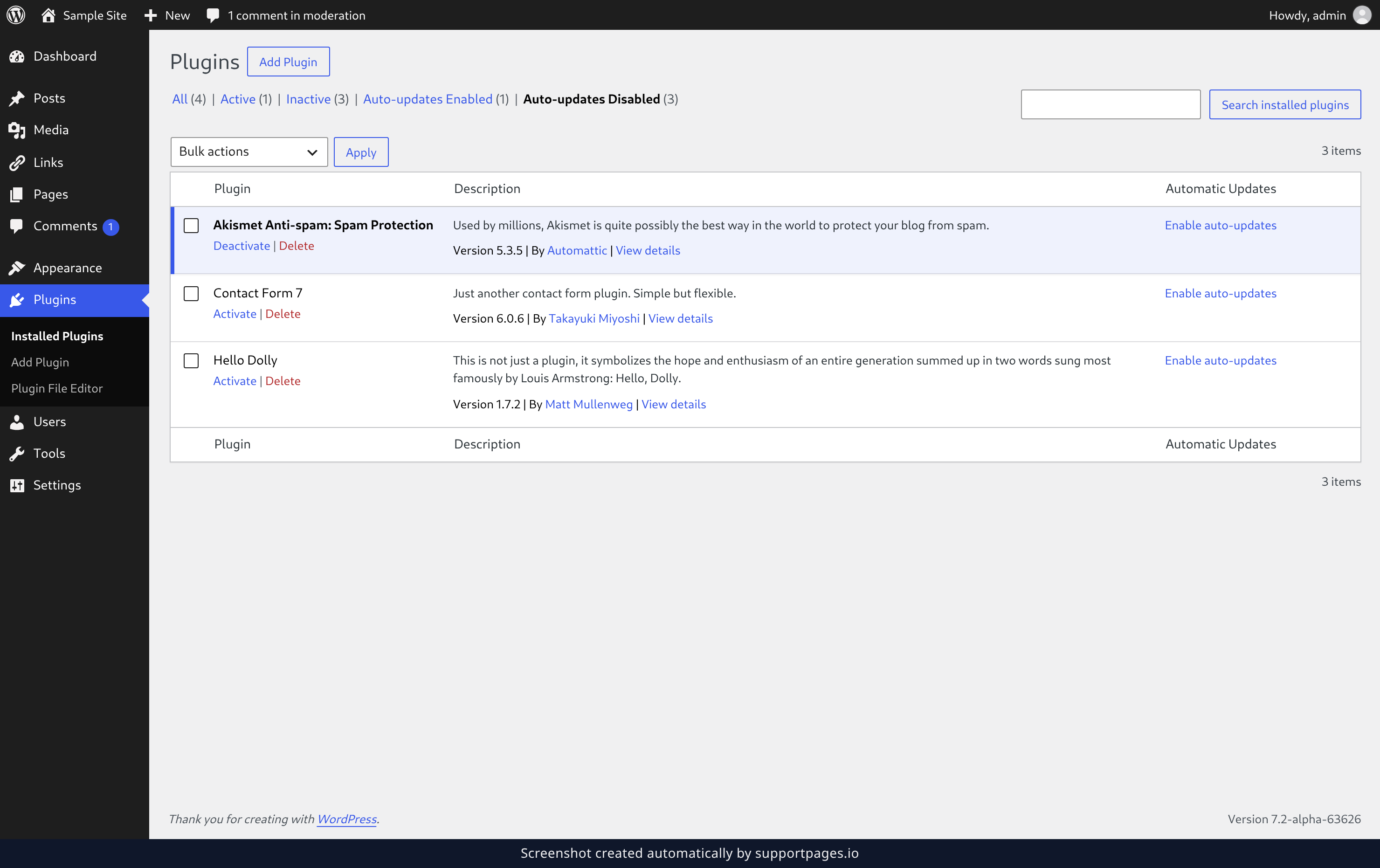
Find the plugin you want and select Enable auto-updates in the Automatic Updates column. The link switches to Disable auto-updates, and WordPress will install new versions of that plugin for you from now on.
Turn it on for several plugins at once
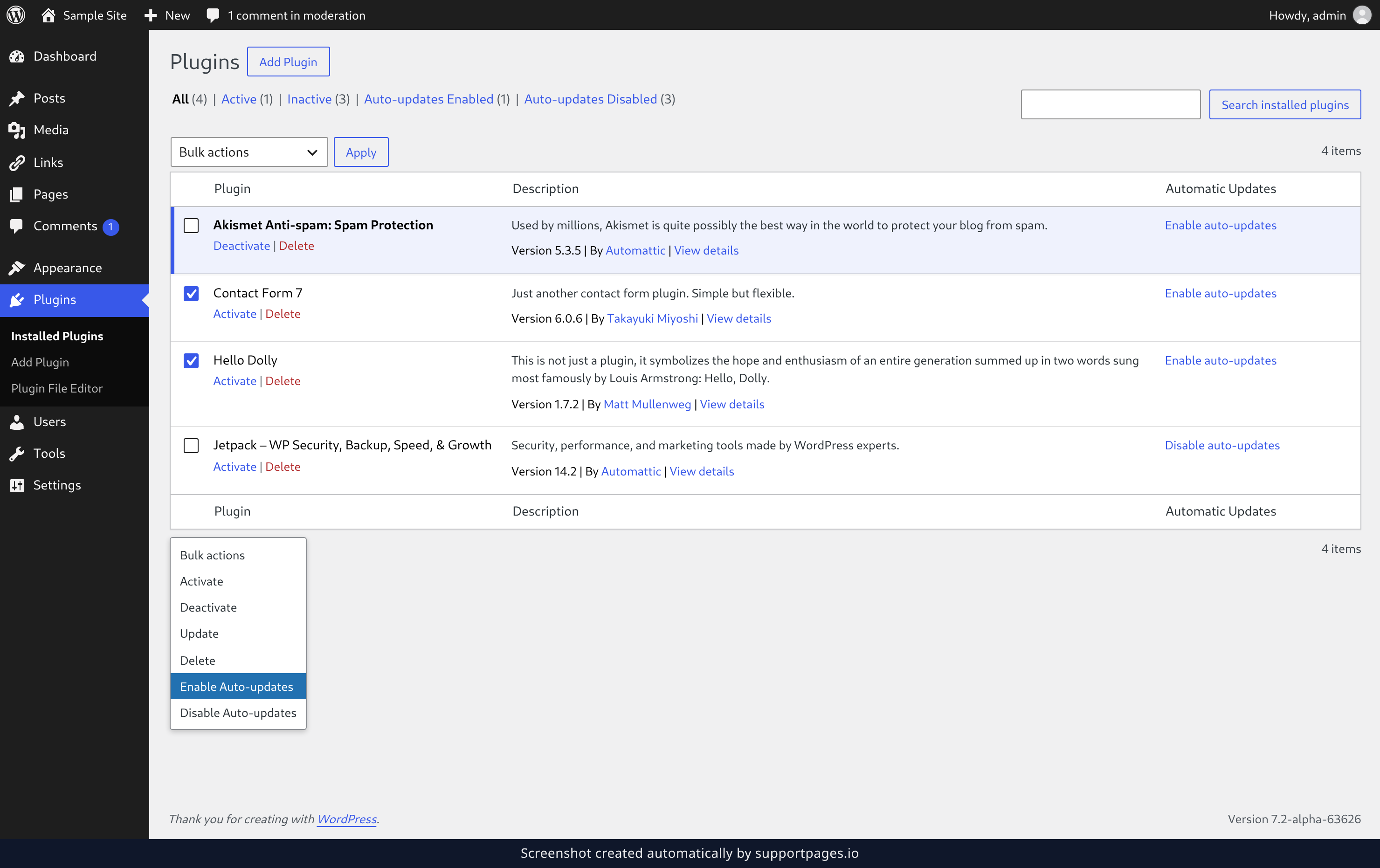
Tick the checkbox beside each plugin you want to cover, open the Bulk actions menu, choose Enable Auto-updates, then select Apply.
Turn on auto-updates for a theme
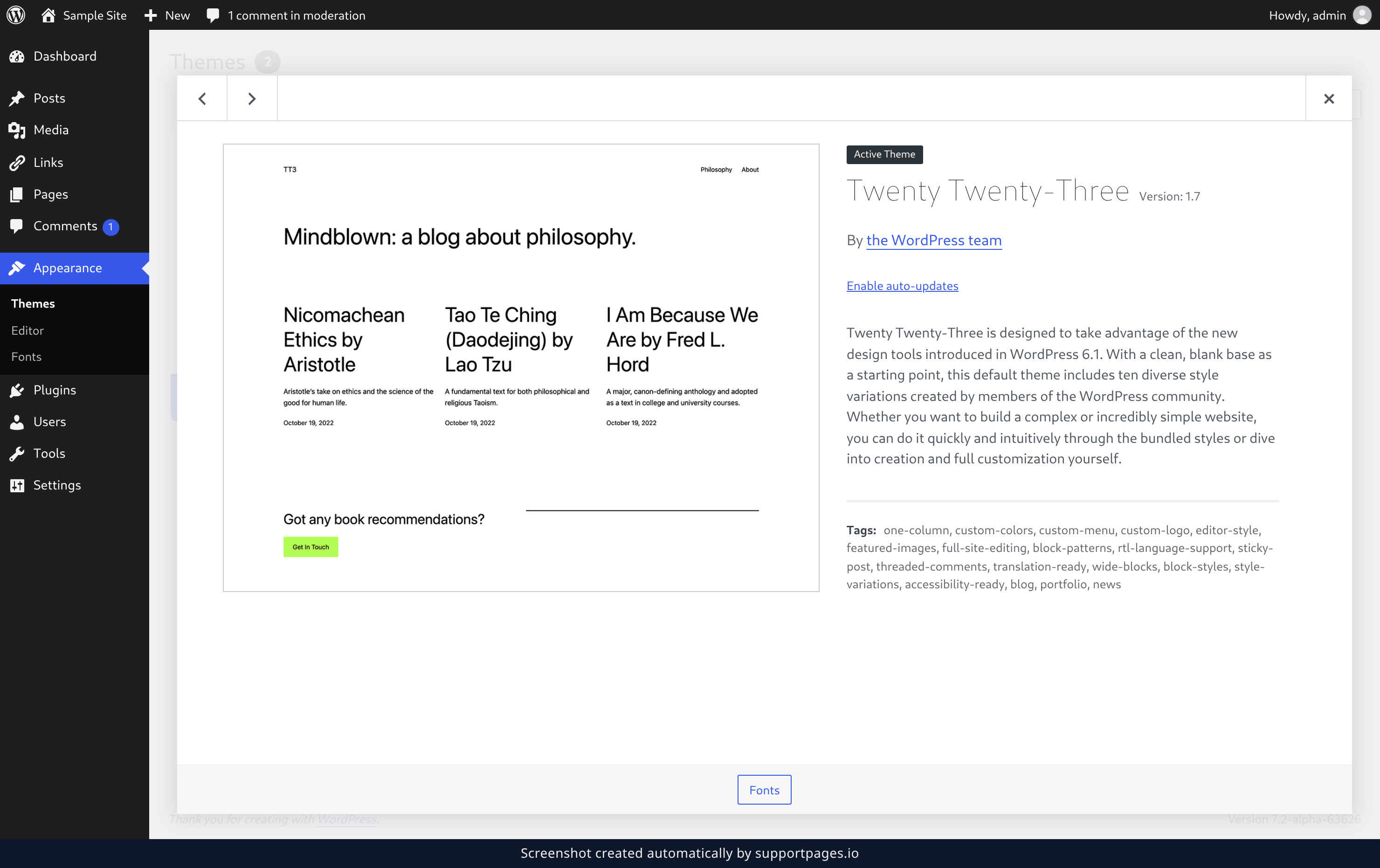
In the left-hand menu, select Appearance, then Themes. Select any theme to open its details, then choose Enable auto-updates.
Tips
- Auto-updates run on the schedule WordPress uses to check for new versions in the background, so an update can take a little while to land.
- Plugins and themes with auto-updates on show the estimated date of their next update in the Automatic Updates column.
- You can turn auto-updates off again the same way — select Disable auto-updates wherever you turned it on.
Summary
With auto-updates on, WordPress keeps the plugins and themes you chose current without you having to check for new releases. You can change your mind any time from the same lists.
Was this article helpful?
Generated by supportpages.io, an AI changelog generator for SaaS teams.
Have a question?
Search our articles, or ask and get an answer straight away.