
How to choose what your homepage shows
Updated about 1 month ago
Browse All
Your homepage is the first thing a visitor sees, and you get to decide what's on it. Show your newest posts there, or hand the spot to a page you've written yourself — either way, it's a quick trip to your Reading settings.
Before you start
- Two pages set aside for a static homepage: one to be your homepage, and one where your posts will live.
- Permission to change your site's settings — administrators have this by default.
Steps
Open your Reading settings
In the left-hand menu, hover over Settings and choose Reading. You'll land on the Reading Settings screen, where Your homepage displays sits at the top.
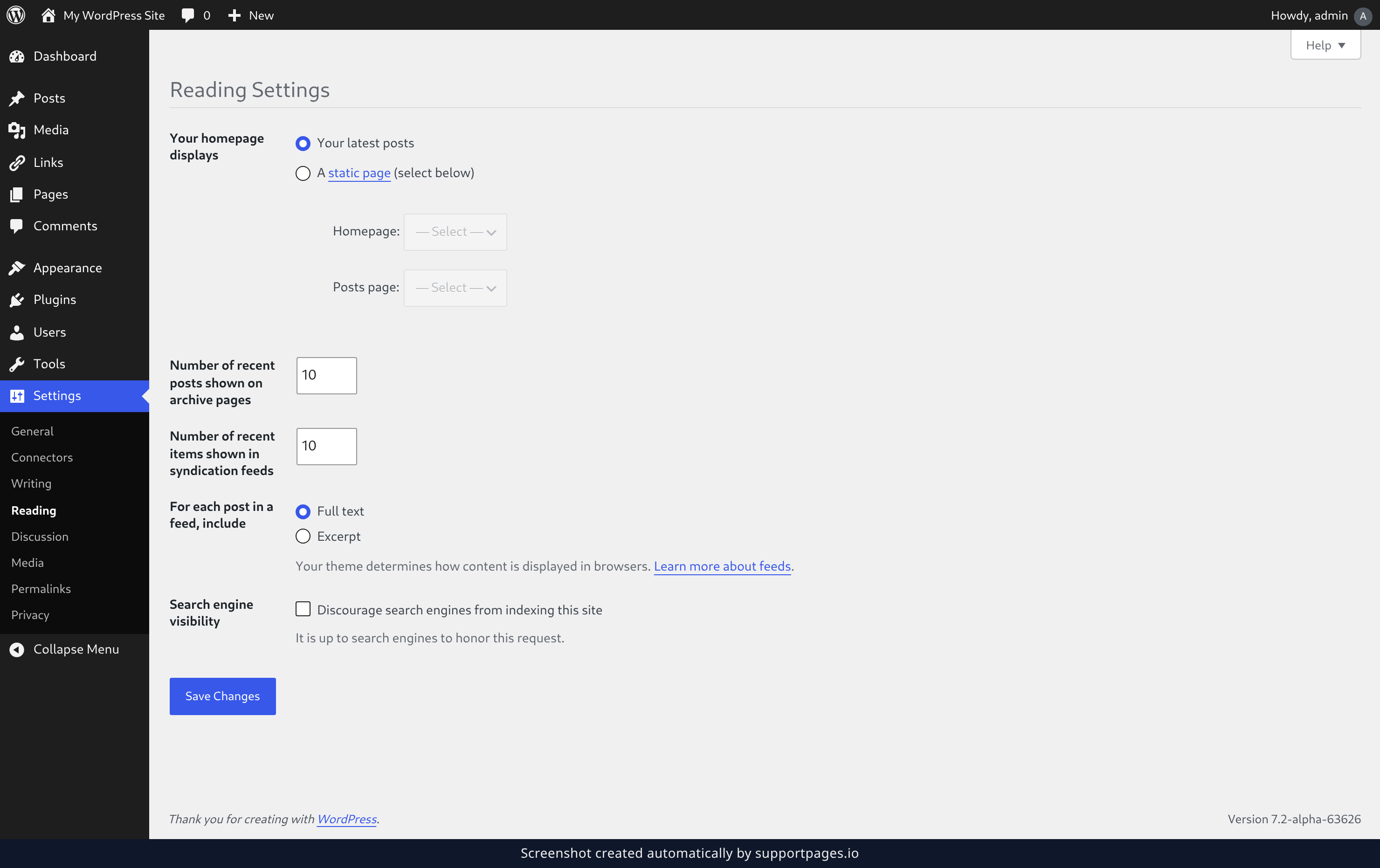
Choose your front page and your blog page
Under Your homepage displays, pick static page (the choice marked A static page (select below)). Then choose the page visitors should land on in the Homepage: dropdown, and give your posts a home of their own in the Posts page: dropdown — keep it different from your homepage.
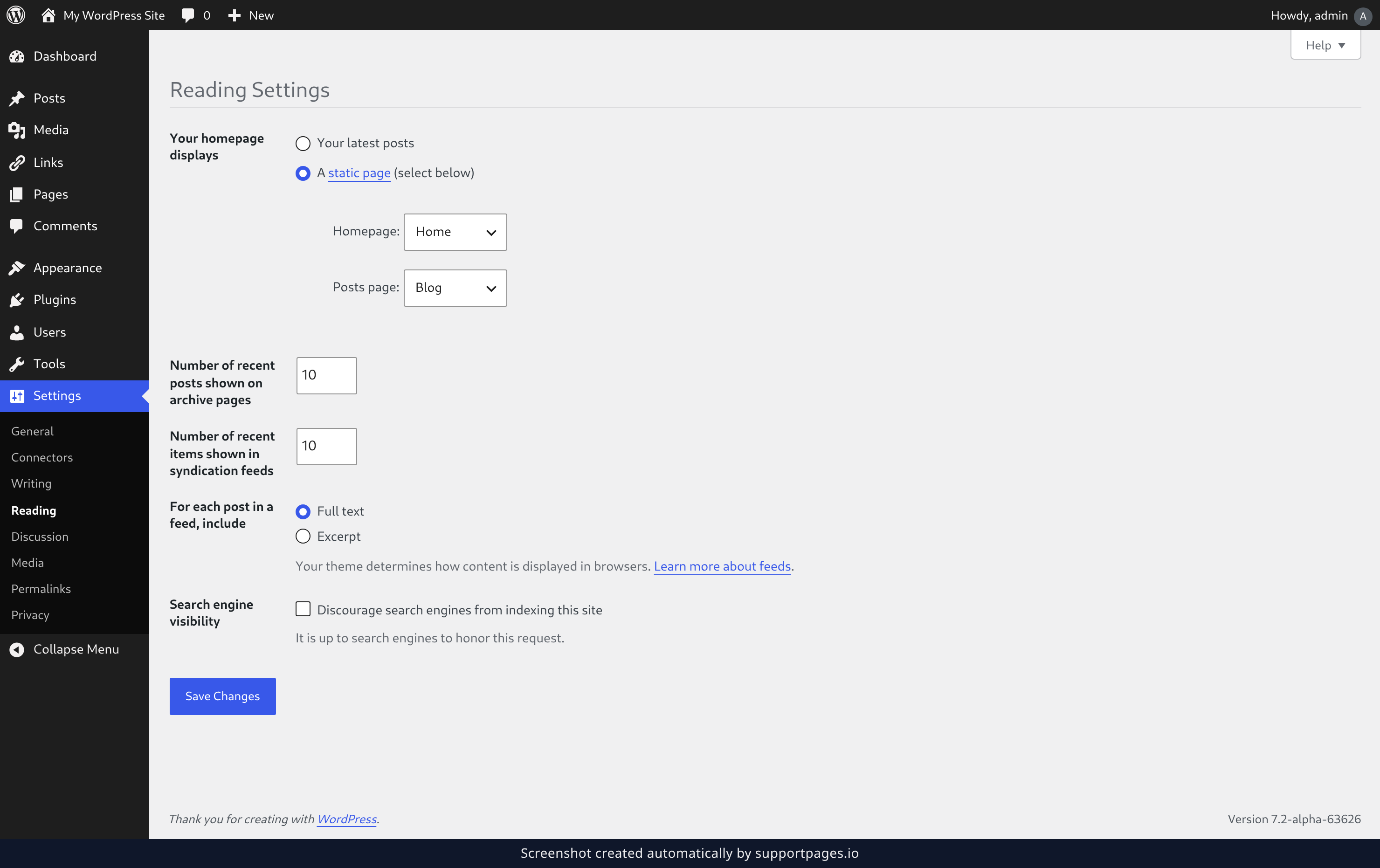
Save your changes
Click Save Changes at the bottom of the screen once you're happy with the two pages. Open your site in a new tab and the new front page is already there.
Tips
- Click the static page link on this screen to jump to your Pages list if you need to add one first.
- Your blog page is an ordinary page — give it a title if you like, or leave it empty and let your posts fill it.
- Changed your mind later? Your latest posts is always waiting on this same screen to switch things back.
Summary
You've pointed your front page at the content you want visitors to meet first. If you ever want a different welcome, come back to Settings → Reading and change it in a couple of clicks.
Was this article helpful?
Created with supportpages.io — AI help centre software.
Have a question?
Search our articles, or ask and get an answer straight away.