
What to do when an update breaks your site
Updated about 1 month ago
Browse All
An update goes wrong, and suddenly your site won't load. Take a breath — WordPress catches that kind of failure on its own and emails you a link that gets you back into your dashboard, no files to touch.
Before you start
- Access to the inbox for the site's admin email address
- Your WordPress username and password
- A few minutes — the repair itself is usually one click
Checks and fixes
Open the recovery email
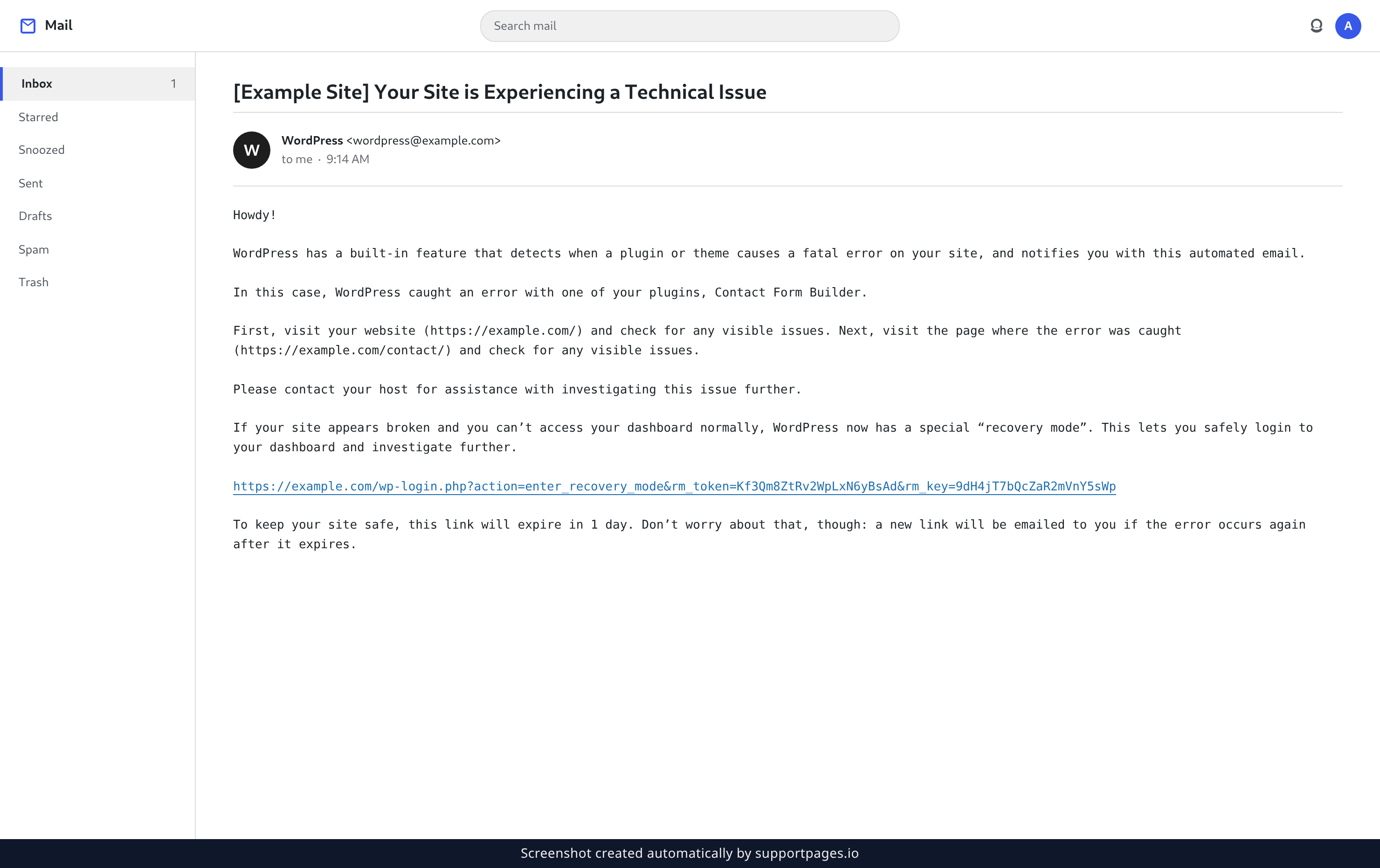
The moment WordPress catches the error, it emails the site's admin address. Look for a message with a subject line like [Your Site] Your Site is Experiencing a Technical Issue: it names the plugin or theme that caused the trouble and carries the long recovery link you need. Nothing there yet? Give it a few minutes, then check your spam folder.
Log in with the recovery link
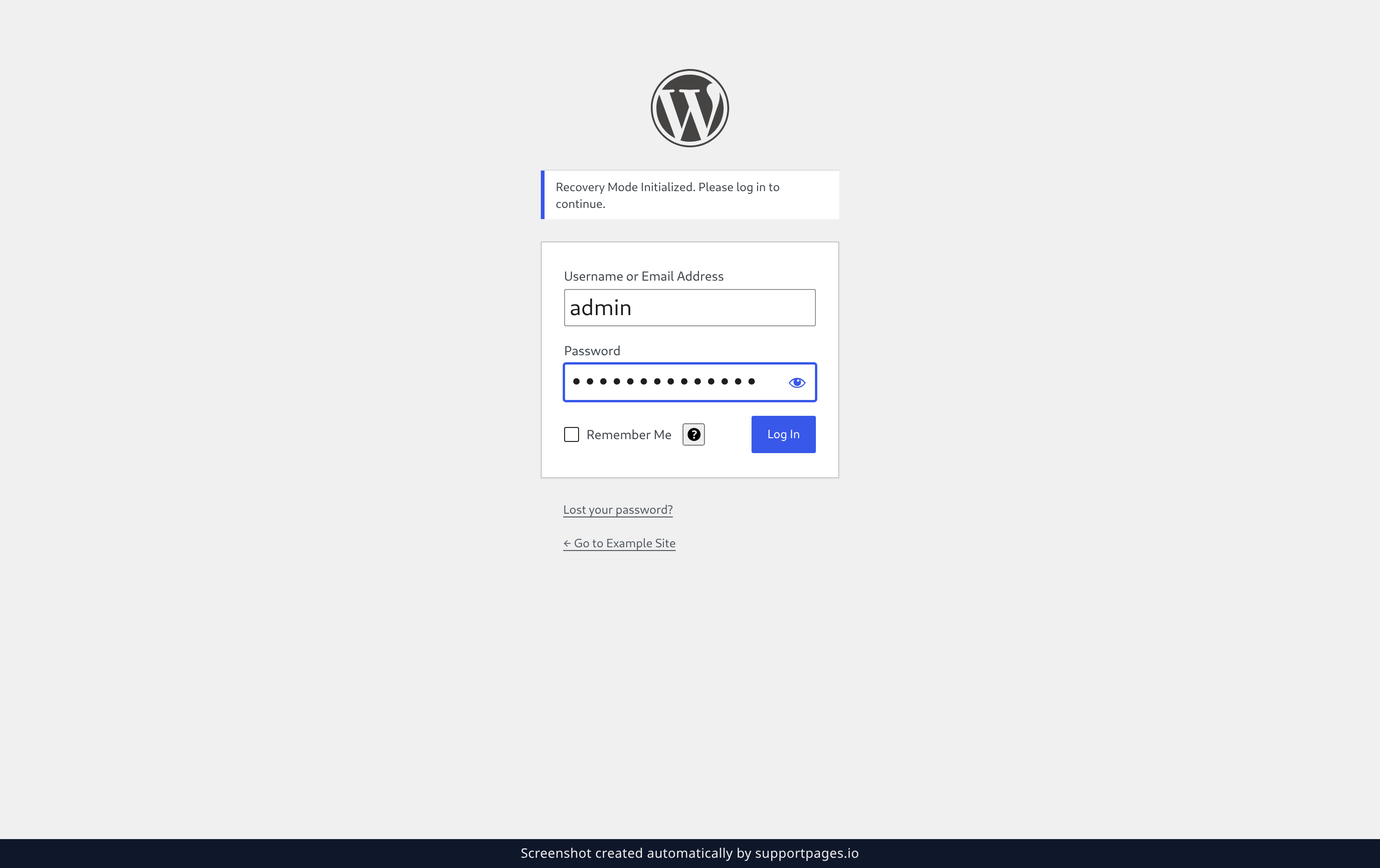
Click the link in that email to open a login screen with the note Recovery Mode Initialized. Please log in to continue. Type your Username or Email Address and Password, then click Log In.
Find the plugin that broke
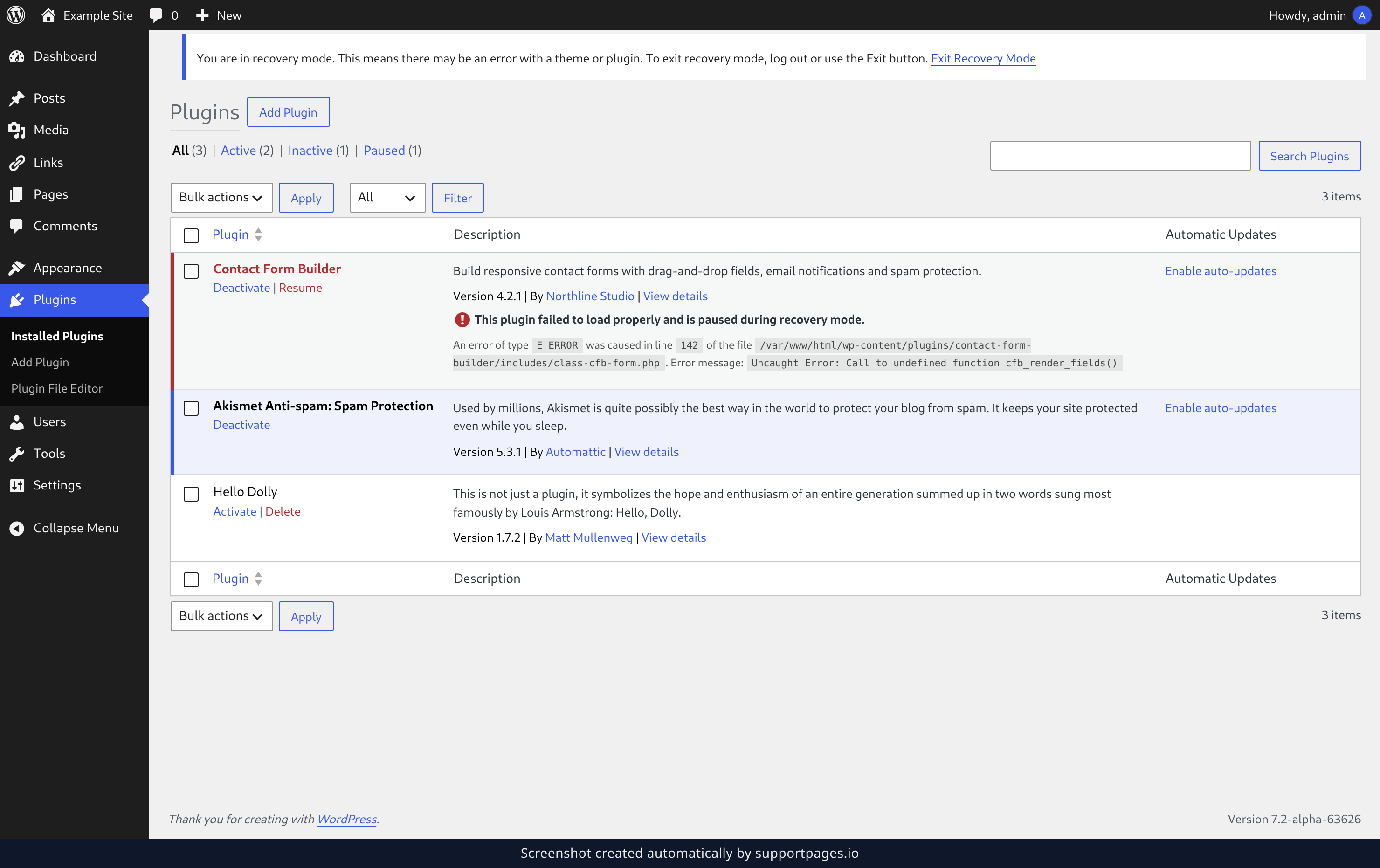
You're in — and a notice at the top of the screen confirms it. Open Plugins in the left menu. The plugin that caused the error is marked This plugin failed to load properly and is paused during recovery mode., and the exact error it threw sits right below its name.
Deactivate the plugin
In that plugin's row, click Deactivate. Recovery mode is already holding the plugin back, so this just makes it official — your site starts loading again right away.
Exit recovery mode
Once the site is loading again, click Exit Recovery Mode in the notice at the top of the screen. Recovery mode switches off and the rest of your dashboard behaves normally.
Tips
- Keep the plugin switched off until its author releases a fix, then update it and activate it again.
- If no email ever arrives, ask your hosting provider to send you a recovery link or to switch the plugin off for you.
- The recovery link expires after a few days. If the same error happens again, WordPress simply emails you a fresh one.
Summary
A broken update is a detour, not a disaster. Open the recovery email, follow its link, deactivate the plugin that caused the error, and exit recovery mode — and your site is back without anyone touching a file.
Was this article helpful?
Generated by supportpages.io, automating product documentation from your codebase.
Have a question?
Search our articles, or ask and get an answer straight away.