
How to find a file in your Media Library
Updated about 1 month ago
Browse All
Everything you upload — photos, videos, documents — lands in your Media Library. Here's how to switch between the grid and list views, narrow the library down by file type or date, and search for something you added a while ago.
Before you start
- You can sign in to your site's dashboard.
- Your account is allowed to upload files — if you can see Media in the left-hand menu, you're set.
Steps
Open your Media Library
In the left-hand menu, click Media. The library opens in whichever view you used last, so it may look like a wall of thumbnails or a table of file names — both show the same files.
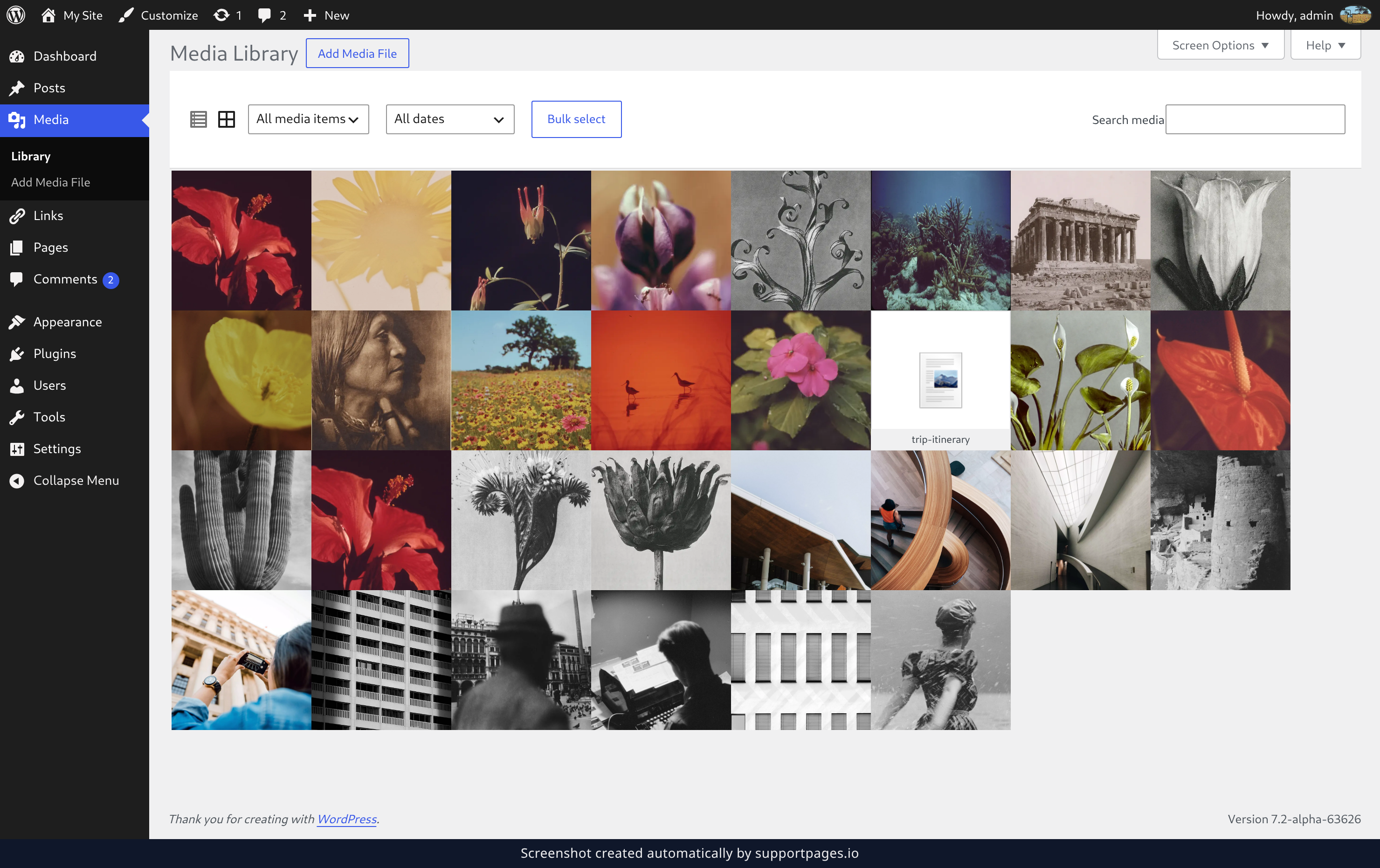
Switch between the grid and the list
Use the two icons at the top left of the library. The grid icon shows large thumbnails; the list icon shows a table with file names, authors and dates. Click the icon for the view you want — WordPress remembers your choice the next time you come back.
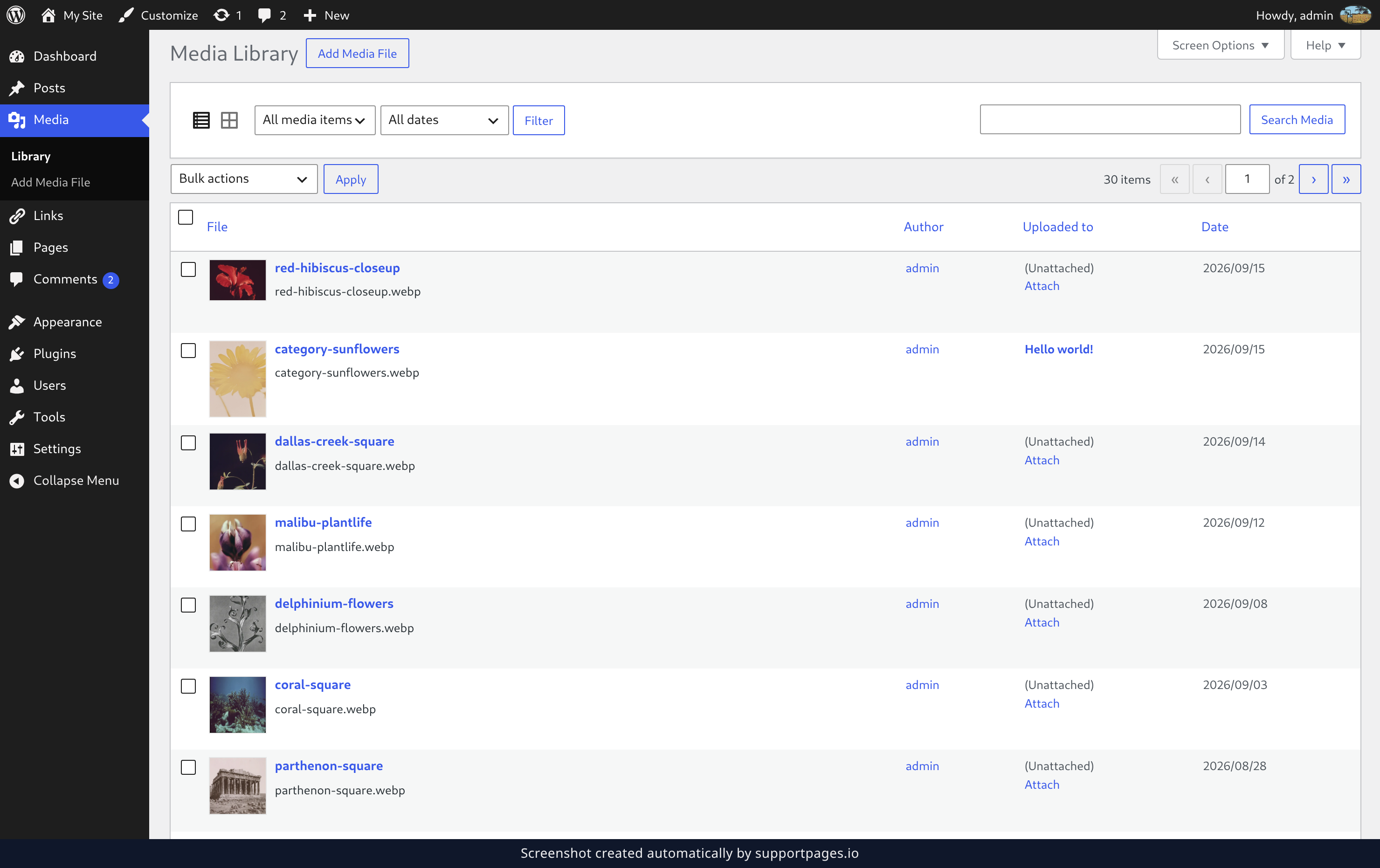
Filter by file type
Open the All media items dropdown and pick a type — Images, Audio, Video, or Unattached for files that aren't used anywhere yet. Then click Filter to apply it.
Filter by date
In the same bar, open the All dates dropdown and choose a month. Click Filter again and the library narrows to what you uploaded that month. The two dropdowns work together, so you can look at just the images from one month.
Search for a file by name
Type part of the file name, title, caption or alternative text into the search box, then press Enter or click Search Media. Matching files appear straight away. To get back to everything, clear the box and search again.
Tips
- If a search comes back empty, clear it first — filters and search run together, and a leftover filter is the usual culprit.
- Choose Unattached to spot files that were uploaded but never used in a post or page.
- The same library opens while you're editing a post or page, so you can look for a file without leaving your work.
Summary
Click Media to open your library, use the two view icons to move between the grid and the list, and narrow things down with the type and date dropdowns. When you know roughly what you're after, the search box is the quickest route of all.
Was this article helpful?
Powered by supportpages.io, AI release notes software.
Have a question?
Search our articles, or ask and get an answer straight away.